 Coachigo
Connecting clients to the app
What your client can do on a shared profile
Sessions, measurements, photos, schedule: what your client can add, edit or only view on their shared profile, and where their data is stored.
Once your client is connected to their profile, you’re both working on the same profile, live. You’re still the owner, though: your client can log what they do, but they can’t reorganize their own coaching.
Who can do what
| Action | You (owner) | Your client |
|---|---|---|
| View sessions, measurements, photos and stats | Yes | Yes |
| Log a session | Yes | Yes |
| Edit a session | All of them, theirs included | Only their own |
| Delete a session | Yes | No |
| Add measurements and photos | Yes | Yes |
| Edit or delete a measurement or photo | All of them | Only their own |
| Schedule, reschedule or cancel a session | Yes | No, the schedule is read-only |
| Assign or manage a program | Yes | No |
| Edit the profile (name, photo…), share it, delete it | Yes | No |
| Leave the profile | No | Yes |
What your client sees
On their phone, the profile shows Profile shared with you and lists your sessions alongside theirs. They can start a New session, but there’s no Schedule button.
On a session you logged, they see “This session was logged by the profile owner and is read-only.” For a measurement or photo, it’s “This entry was added by the profile owner and is read-only.” There’s no button to edit or delete either one.
In the calendar, a note reminds them that “This profile’s schedule is managed by its owner.” They can’t schedule sessions or set up recurring ones on this profile. Anything to do with the program stays on your side too: you assign it and adjust it. If they’ve allowed notifications, though, they get a reminder before each session you schedule, based on their own settings.
The custom exercises you’ve created are visible to them as well.
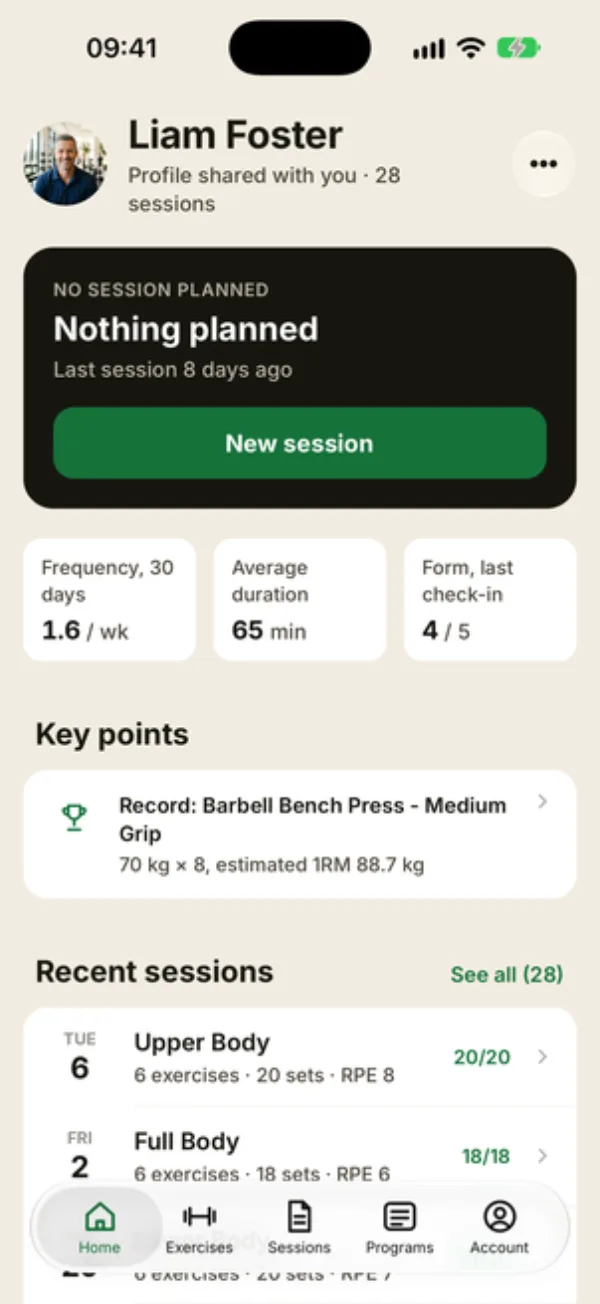
The … menu
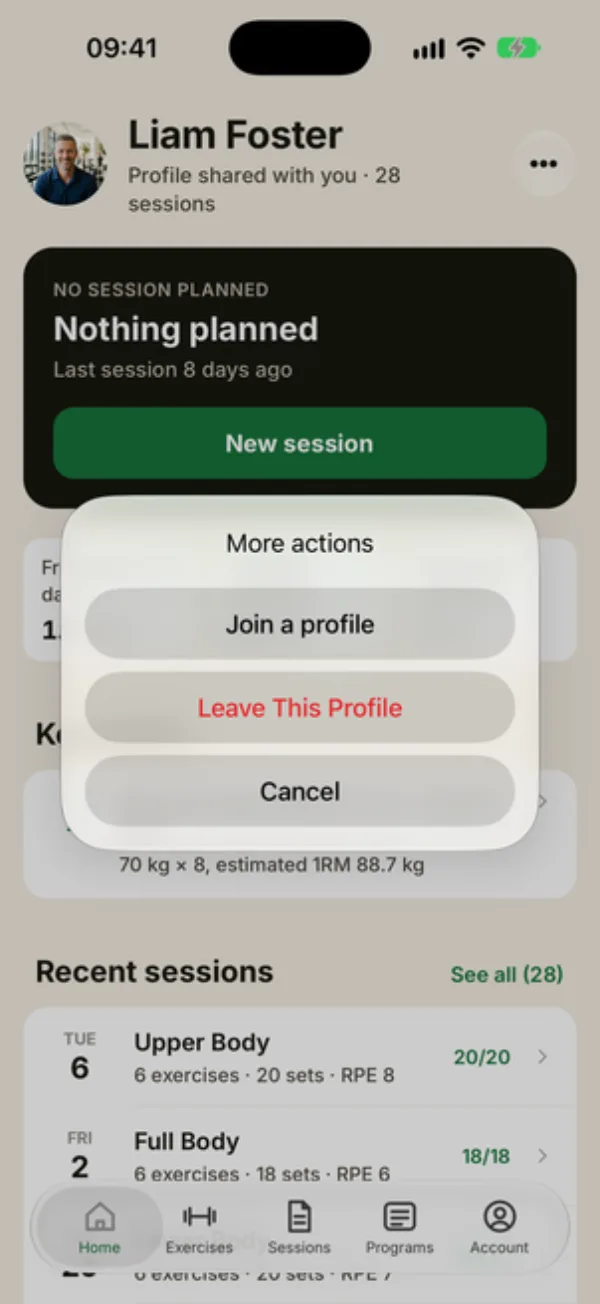
On the profile itself, there’s no Edit profile and no share icon. Their … menu offers Leave This Profile. On the home screen in Solo mode, this More actions menu also offers Join a profile, to follow another profile.
What you see on your side
Your client’s sessions, measurements and photos arrive live on their profile, in their history and in their stats, exactly like yours. Coachigo doesn’t send a notification for each one, and the app doesn’t show who logged a given session, so check their profile after they train.
Where the data lives
Everything your client logs is stored in your account, on your profile. If they leave the profile or you remove their access, they no longer have access to it, and you keep it all.
Deleting the profile erases everything
If you delete the profile, its sessions are gone for everyone, including the ones your client logged. See how to edit or delete a client.
FAQ
Can my client delete a session they logged by mistake?
No. They can fix it if they logged it themselves, but deleting is reserved for the profile owner. Ask them to let you know, and delete it on your end.
How does my client leave the profile?
From the profile, they open the … menu, tap Leave This Profile, then Leave to confirm. The profile disappears from their app, and nothing is deleted on your side.
How do I remove their access?
From the sharing screen, under Shared with: see how to remove a client’s access.