 Coachigo
During a session
How to use the readiness check-in in Coachigo
Sleep, muscle freshness, motivation and stress rated before the session: how the readiness check-in works and where to find your clients' answers.
When a session starts, Coachigo asks your client four quick questions: how they slept, how their muscles feel, how motivated they are and how stressed they are. Ten seconds to see what shape they’re in when they walk in, and a history that helps explain their good days and bad days.
When the check-in shows up
The How are you feeling? sheet opens on its own when you start a new session from a workout template or a program, for example from the next session on the client profile or from the agenda.
It doesn’t show up when you resume a session that’s already started, or when you edit a finished one.
The four questions
Each question is rated 1 to 5 and defaults to 3. For all four, 5 is always the best rating:
| Question | 1 | 5 |
|---|---|---|
| Sleep | Poor | Excellent |
| Muscle freshness | Exhausted | Fresh |
| Motivation | Low | Full send |
| Stress | Stressed | Zen |
Heads-up on stress: 5 means “zen”, not “very stressed”. A client who shows up tense would usually pick 1 or 2.
The overall score is the average of the four ratings, rounded to one decimal place. It updates with every tap: for example, 2, 4, 5 and 4 give you 3.8 / 5.
Confirm or skip
- Start session keeps the four ratings. They’re saved with the session when you finish it.
- Skip, at the top right, closes the sheet without saving anything. Tapping the dimmed background, or the Android back button, does the same.
The check-in doesn’t come back after that: not during the session, and not when you edit the finished session. If your client wants to fill it in, have them do it as soon as the session opens.
Find the check-in in the session
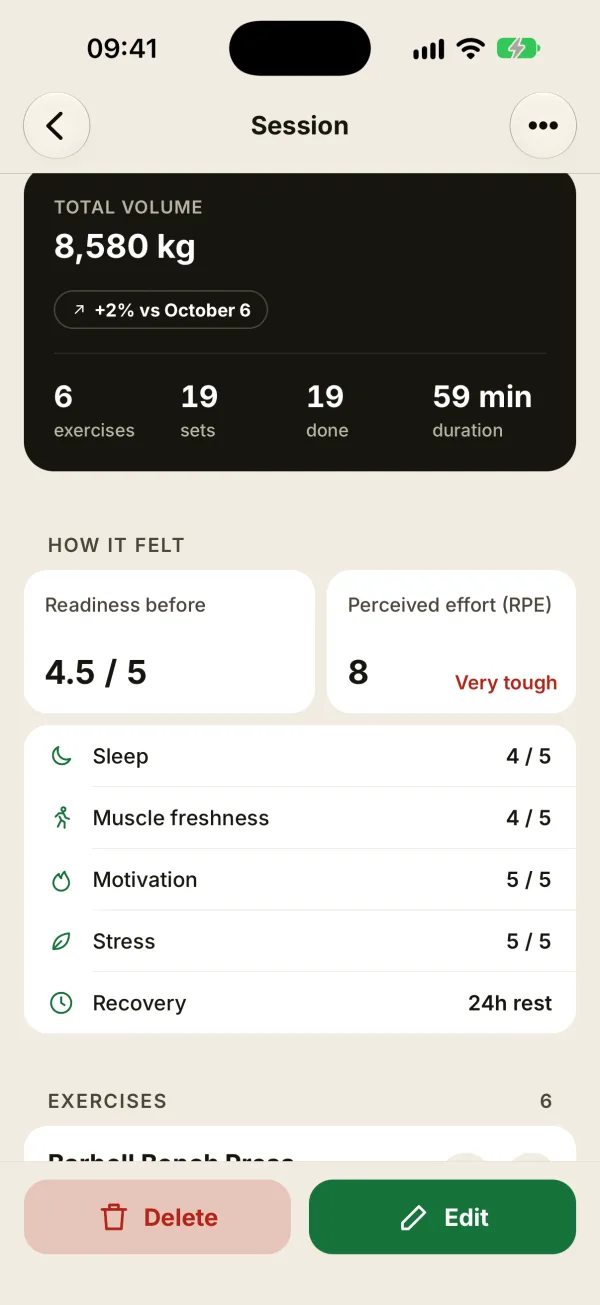
Open the finished session from the client profile. The How it felt block shows:
- Readiness before, the overall score out of 5;
- each of the four ratings: Sleep, Muscle freshness, Motivation, Stress.
If the check-in was skipped, the Readiness before tile says Not filled in. Right next to it is the perceived effort (RPE) logged at the end of the session.
Track your clients’ readiness
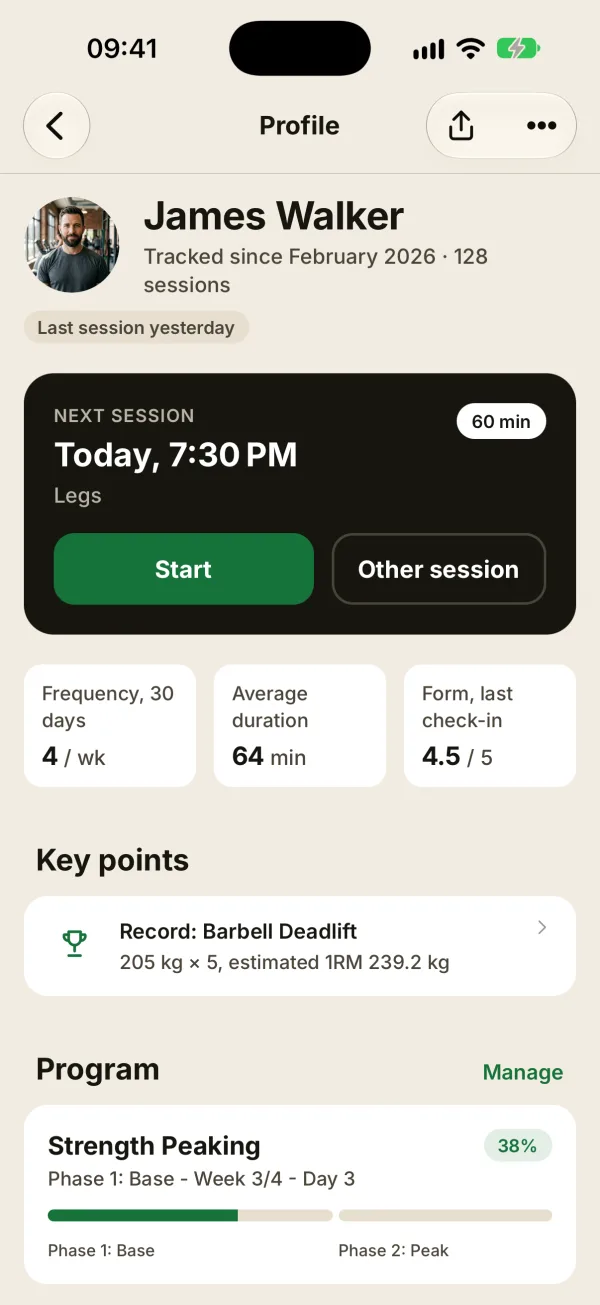
On the client profile, the Form, last check-in number shows the score from the most recent session that has one. When that check-in is from today, the label switches to Form, today’s check-in.
To see the trend, open Detailed statistics from the profile. The Readiness and RPE card appears as soon as there’s a check-in from the last 8 weeks. It shows the average for each question over the period selected at the top of the screen (all time by default), plus a week-by-week line over the last 8 weeks, with perceived effort as a dashed line.
How to use it as a coach
A low score isn’t a reason to cancel. It’s a cue to adjust: fewer sets, slightly lighter loads, longer rest. And when a session goes sideways, the check-in often tells you why: a bad night’s sleep or a rough week jumps right out.
FAQ
Can my client fill in the check-in themselves?
Yes. If you share their profile and they log their own sessions on their own phone, they get the same check-in when they start a session. You’ll see their answers in that session on the client profile.
Can I fix a check-in afterward?
No. The ratings can’t be changed, even when you edit the session. Your other edits to the session won’t wipe them either.
Is the check-in available on Apple Watch?
No. You fill it in on iPhone, Android or the web app. A session started from the watch has no check-in.