 Coachigo
Dashboard
How to use the dashboard in Coachigo
Clients to follow up with, this week's sessions and volume, each client's status: how to read the Coachigo dashboard and know who needs you first.
The dashboard answers two questions at a glance: how did the week go, and which clients need you? It compares each client’s training pace with the pace they’re expected to keep, and puts anyone falling behind at the top.
Open the dashboard
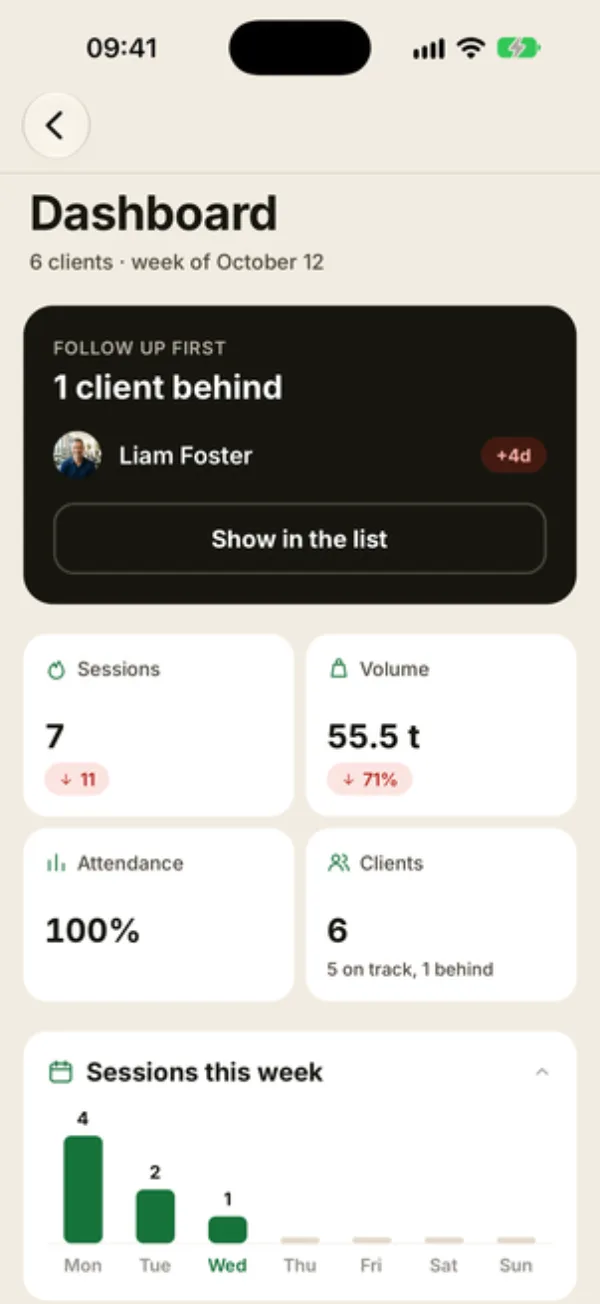
On the My clients screen, tap the grid icon at the top. On a computer, pick Dashboard in the sidebar. Under the title, “6 clients · week of October 12” shows how many clients you have and the current week, which starts on Monday.
Clients to follow up with
The FOLLOW UP FIRST card tells you how many clients are behind and names up to three of them, with how many days late they are (“+4d”), then “and N more” if there are others. Tap a name to open that client’s profile, or Show in the list to jump down to the client cards.
With Coachigo PRO, the card also flags packs running out, expiry dates and pending payments, and prepares the message to send: see how to follow up with a client.
When everyone is on pace, the card reads No client behind.
The week in numbers
- Sessions: sessions logged this week across all clients, with the difference from last week.
- Volume: the volume lifted this week, as a percentage change from last week.
- Attendance: an overall consistency indicator over recent weeks, across all clients.
- Clients: your total, with how many are on track and how many are behind.
The Sessions this week chart spreads sessions from Monday to Sunday. Tap its header to collapse it.
The client list
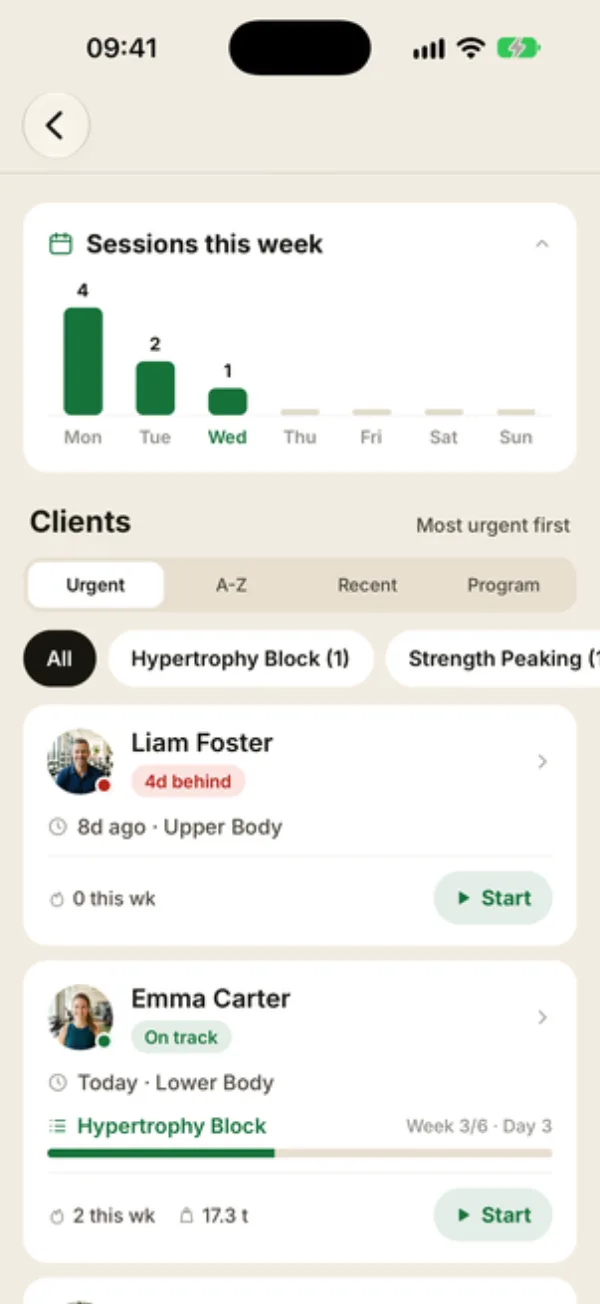
Pick a sort: Urgent (most urgent first), A-Z, Recent (latest session first) or Program. The chips below filter by program: All, or a program name with its number of clients.
Each card shows the client’s status, their last session (“8d ago · Upper Body”), their program with “Week 3/6 · Day 3”, any stalling exercises, and their sessions and volume this week. Start opens a new session for that client, and tapping the card opens their profile.
What the statuses mean
- New: no session logged yet.
- On track: the client is keeping their pace.
- Nd behind: their next session should have happened N days ago. Orange up to 2 days, red beyond that.
The expected pace comes from the client’s program (the minimum rest set before their next session, or else the frequency of their current phase). Without a program, Coachigo works it out from their sessions over the last 30 days. If it can’t, the client stays On track for up to 7 days without a session, then shows To restart up to 14 days, then Inactive.
Only completed sessions count
A session scheduled in the agenda doesn’t put a client back on track: the status is based on logged sessions only.
FAQ
Why does an active client show as behind?
Their expected pace may be tighter than their real one. Check the Minimum rest of the sessions in their program. Without a program, the status follows their last 30 days of sessions and adjusts over time.
How is this different from the client list?
Your client list is sorted by latest session and built for starting a session fast. The dashboard adds the week’s numbers, statuses and more sorting options.
Is the dashboard a Coachigo PRO feature?
No, it’s free as soon as you have at least one client.