 Coachigo
Calendar
How to use the all-clients agenda in Coachigo
Week view, month view and session statuses: how to read the agenda that pulls together every client's sessions in Coachigo, and act from each row.
The agenda puts every client’s sessions on one screen: the ones you scheduled and the ones that were logged. It’s where you plan your week and spot missed sessions before they pile up.
Open the agenda
On the My clients screen, tap the calendar icon at the top. The Agenda link in the Today block gets you there too. On a computer, pick Agenda in the sidebar.
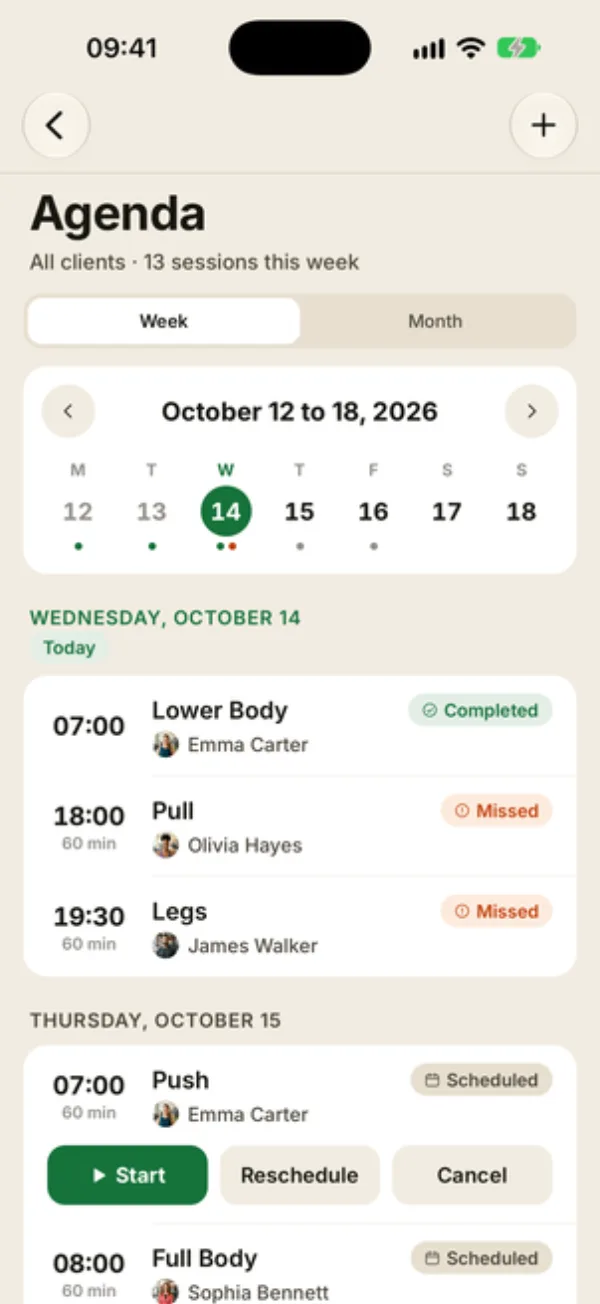
Under the title, “All clients · 13 sessions this week” counts every session in the period on screen, completed and canceled ones included. Tap + to schedule a session.
Week view
The Week tab opens by default.
- At the top, the date range (“October 12 to 18, 2026”) with arrows to switch weeks. You can also swipe the list left or right.
- The 7-day strip shows colored dots under each day that has sessions. Tap a day to scroll the list to it.
- Below, sessions are listed day by day, with Today highlighted. A day with nothing on it shows “No sessions”.
Once you’ve moved away from the current week, Today at the top brings you back.
Read a row
Each row shows the time, the duration when it’s known, the session name (“Freestyle” when there’s no template), the client with their photo or initials, and a status pill:
- Scheduled: the time hasn’t come yet;
- Completed: the session got done;
- Missed: the time passed with no session logged;
- Canceled and Rescheduled: you canceled or moved the session.
A small repeat icon flags a session that comes from a recurrence. Tap a row to show its actions: Start, Reschedule, Cancel, or View for a completed session. The details are in how to reschedule or cancel a session.
Month view
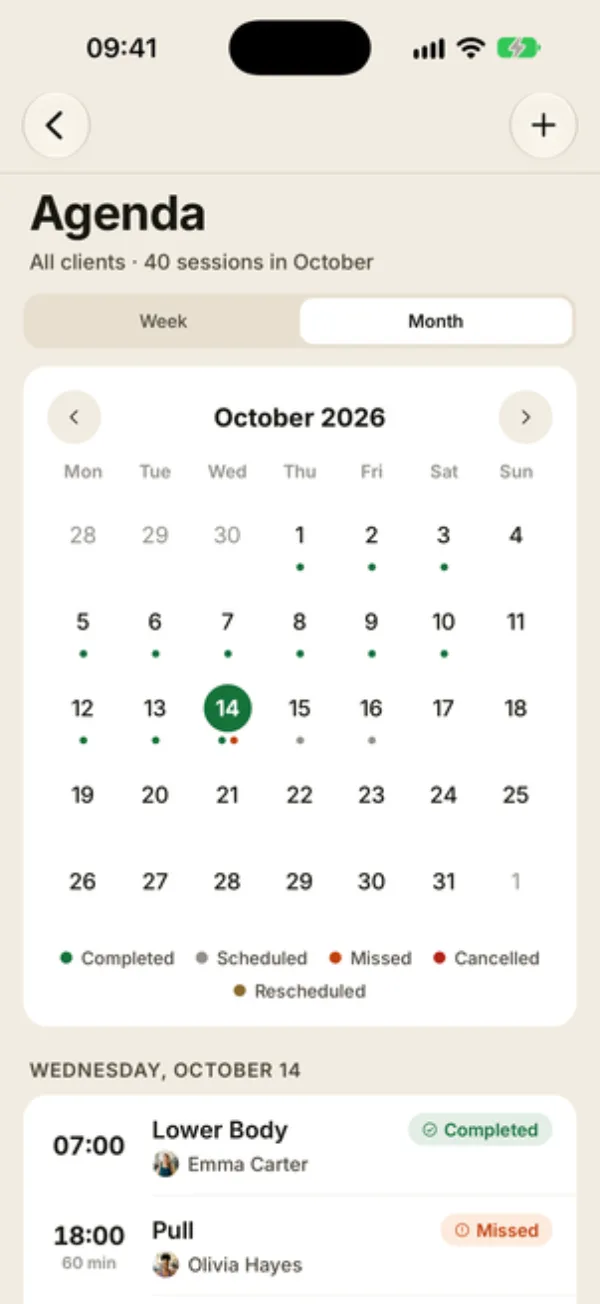
The Month tab shows the whole month with colored dots under each day, plus a legend: Completed, Scheduled, Missed, Canceled, Rescheduled. Tap a day to see its sessions below, or “No session this day”.
It’s the quickest way to spot busy weeks or missed sessions at a glance.
Catch missed sessions early
At the start of the week, switch to Month and look for orange dots: each one flags a day with at least one Missed session. That’s usually a good moment to check in with the client.
FAQ
Can I filter the agenda by client?
No, the agenda always shows all your clients. For a single client’s sessions, open their profile, then Calendar and recurrences.
Does each client get their own color?
No. The dot and pill colors show the session’s status, not the client.
Does the agenda sync with my calendar?
No, Coachigo doesn’t sync with Apple Calendar or Google Calendar. It does send you a reminder before each scheduled session: see How to schedule a session.