 Coachigo
Getting started
How to use Coachigo on a computer
Open Coachigo in your browser, sign in to get your data, see how the layout adapts to your screen and what stays phone-only.
Building a program on a big screen, reviewing the week’s sessions from your desk: Coachigo also runs in the browser on your computer or tablet. Same app, same account, same data, with nothing to install.
Open Coachigo in your browser
Go to app.coachigo.app. The app opens right away, without the phone’s welcome screens.
Get your data
On your first visit, the browser opens a fresh, empty space in Solo mode, with units set to kilograms and centimeters. To see your clients and sessions, sign in to the account you use on your phone:
- Click Account at the bottom of the sidebar (or in the tab bar if the window is narrow).
- Click Sign in.
- Enter your email and password and confirm.
Your data, your Coach or Solo mode and your units load in. On a large screen, the bottom of the sidebar now shows your email.
No account yet?
Create one in the phone app first so your existing data moves to it with nothing lost. See How to create a Coachigo account.
How the layout adapts
The layout follows the width of your window:
- Narrow window (under 768 pixels): a tab bar at the bottom, just like the phone.
- Medium window: an icon rail on the left with short labels.
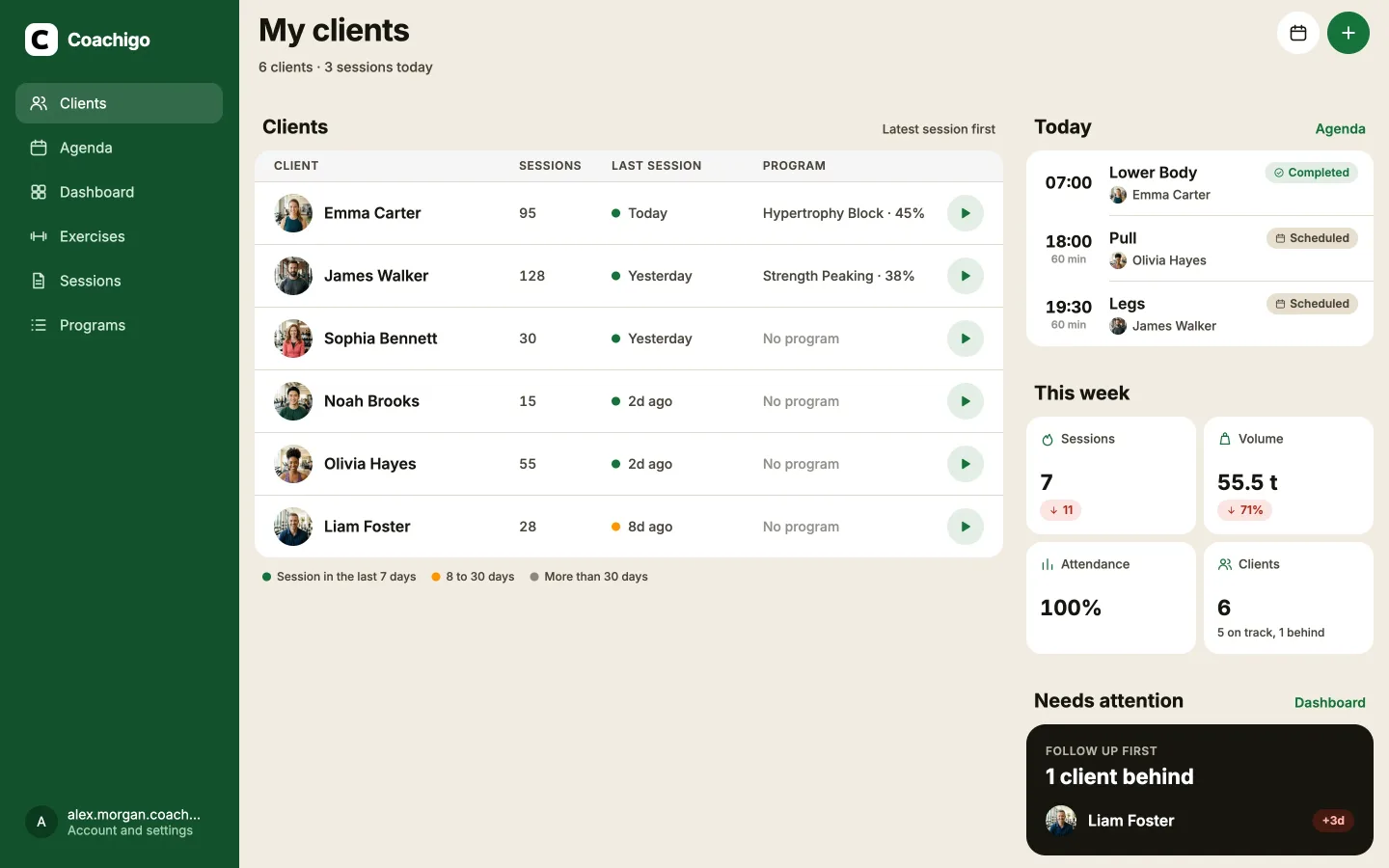
- Large screen (1264 pixels and up): a full sidebar with the Coachigo logo.
What’s in the sidebar
- Home in Solo mode, or Clients in Coach mode.
- Agenda: your scheduled sessions, same as the agenda on your phone.
- Dashboard: Coach mode only (short label Overview). See the dashboard.
- Exercises, Sessions and Programs.
- At the bottom, Account or your email: settings, subscription and sign-in.
In Coach mode on a large screen, your client list turns into a table showing each client’s sessions, last session and program.
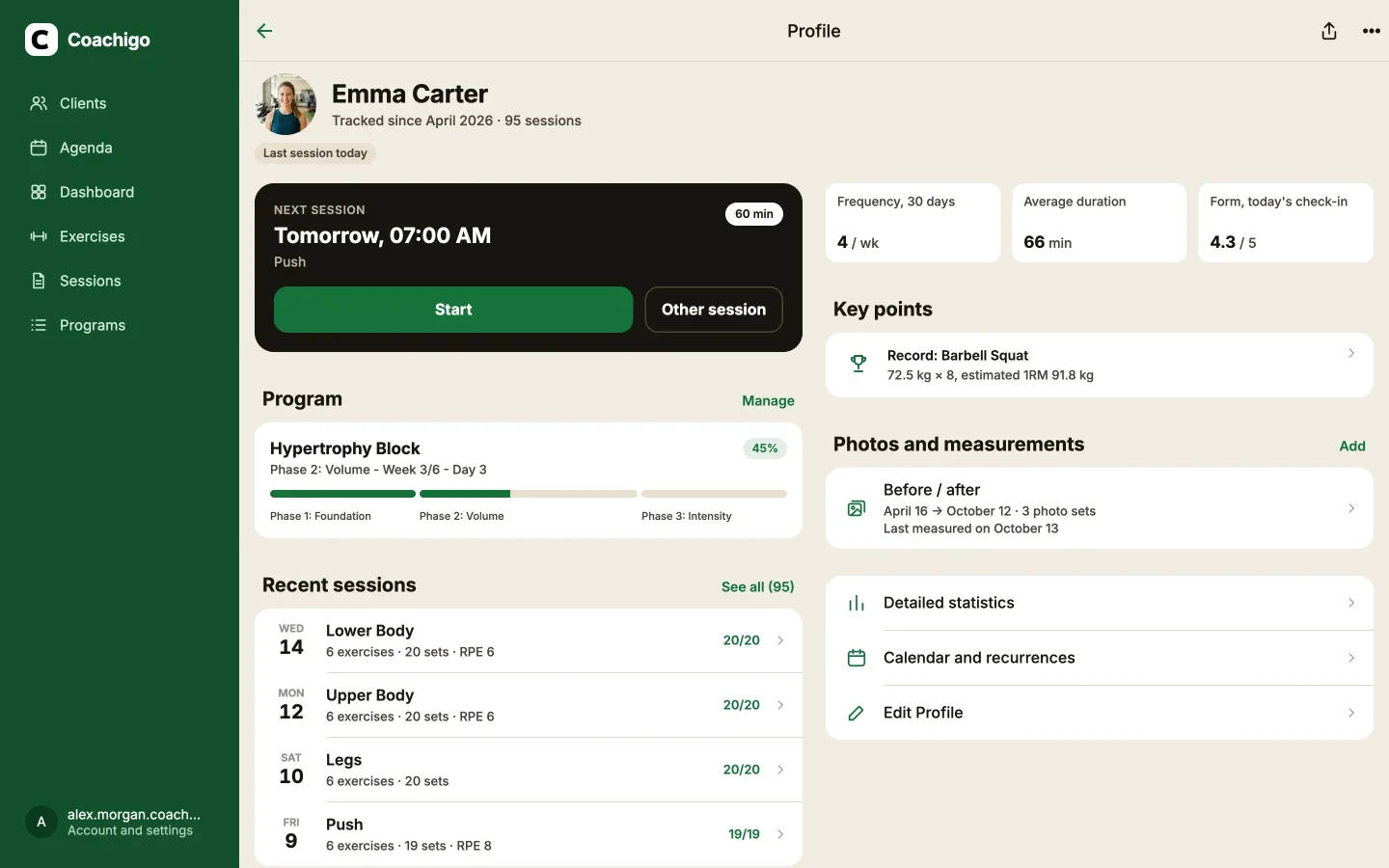
A client’s profile shows the same blocks as on the phone, laid out in two columns.
What stays phone-only
Some features rely on the phone itself and aren’t available in the browser:
- Apple Health, Apple Watch and widgets;
- notifications, including the end-of-rest alert and session reminders (a session you schedule on the computer still gets its reminder on your phone, once you’ve opened the app there);
- the alignment overlay for progress photos;
- haptic feedback.
Exporting your data downloads a file through your browser.
FAQ
Do my changes show up on my phone?
Yes, in real time, as long as both devices are signed in to the same account.
Does my PRO subscription work on a computer?
Yes. A subscription bought in the mobile app is tied to your account, so it applies in the browser once you’re signed in.
How do I switch to Coach mode on a computer?
Open Account and turn on Coach mode. See How to switch between Solo and Coach mode.