 Coachigo
Your clients
How to track session packs and payments in Coachigo
Packs or monthly subscriptions, balances counted for you, cancellations, free sessions and recorded payments: your client tracking notebook in Coachigo PRO.
Coachigo keeps count of the sessions your clients have paid for up front. You create the pack, and the balance updates with every session you log. This is a Coachigo PRO feature.
A tracking notebook, not a way to pay
No money goes through Coachigo. Your client pays you the way they always have, and you record what they paid so you can track payments in the same place as their sessions. Coachigo doesn’t produce any accounting documents.
Create a pack
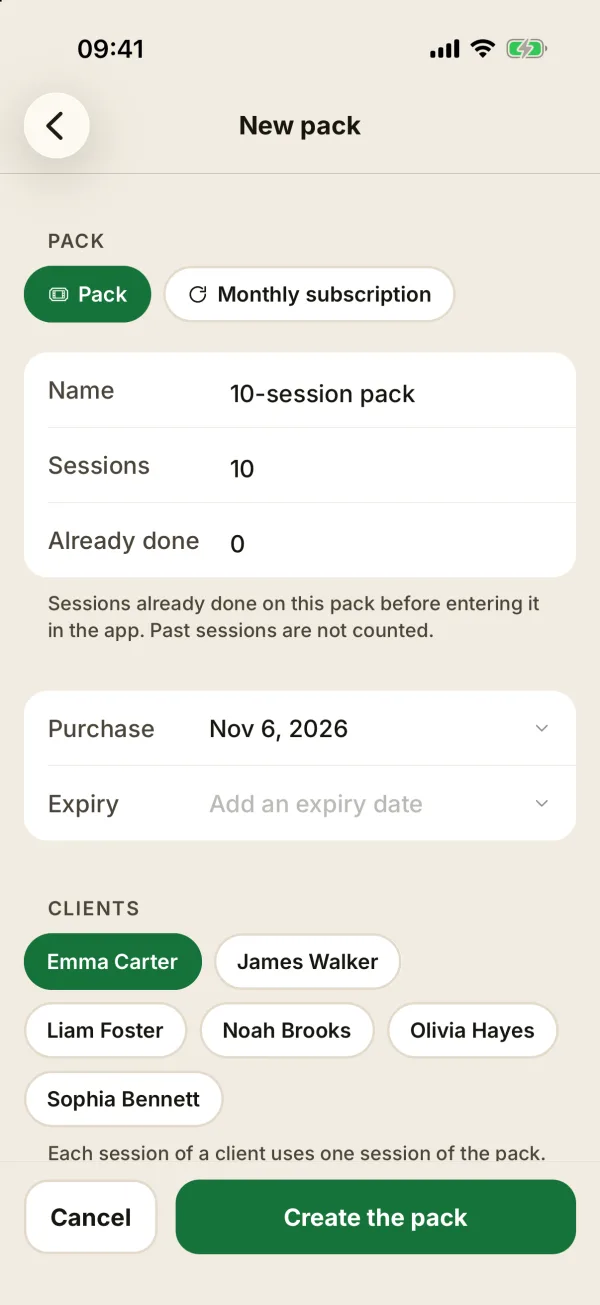
On the client’s profile, tap New pack in the Session pack section. The section shows up in coach mode with Coachigo PRO. Then pick a type:
- Pack: a set number of sessions to use, like 10.
- Monthly subscription: a quota of sessions Per month. It starts again every month, with no carry-over.
Then fill in:
- Name, like “10 sessions”;
- Already done, for a pack that started before you entered it in the app. Past sessions aren’t counted;
- Purchase (or Start for a subscription) and, if you need one, an Expiry date (or an End date);
- Clients: add a second one for a pack shared by a pair. Each session either of them does uses one session of the pack;
- Price and Currency, both optional. Without a price, the pack only tracks sessions.
Tap Create the pack.
Read the balance
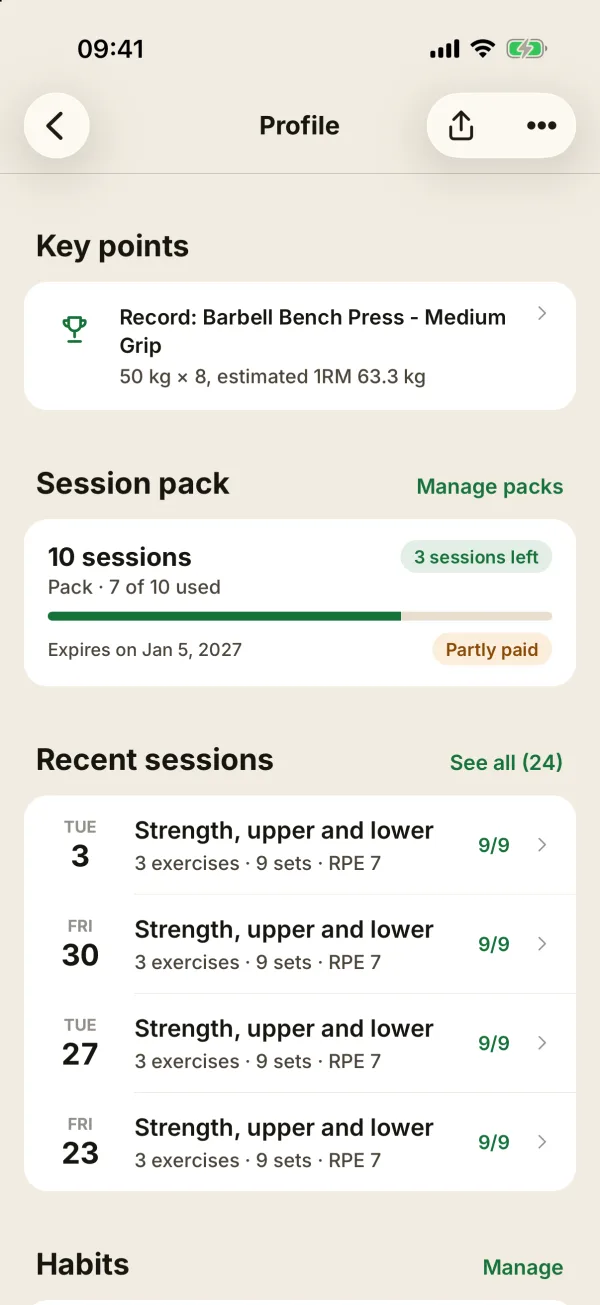
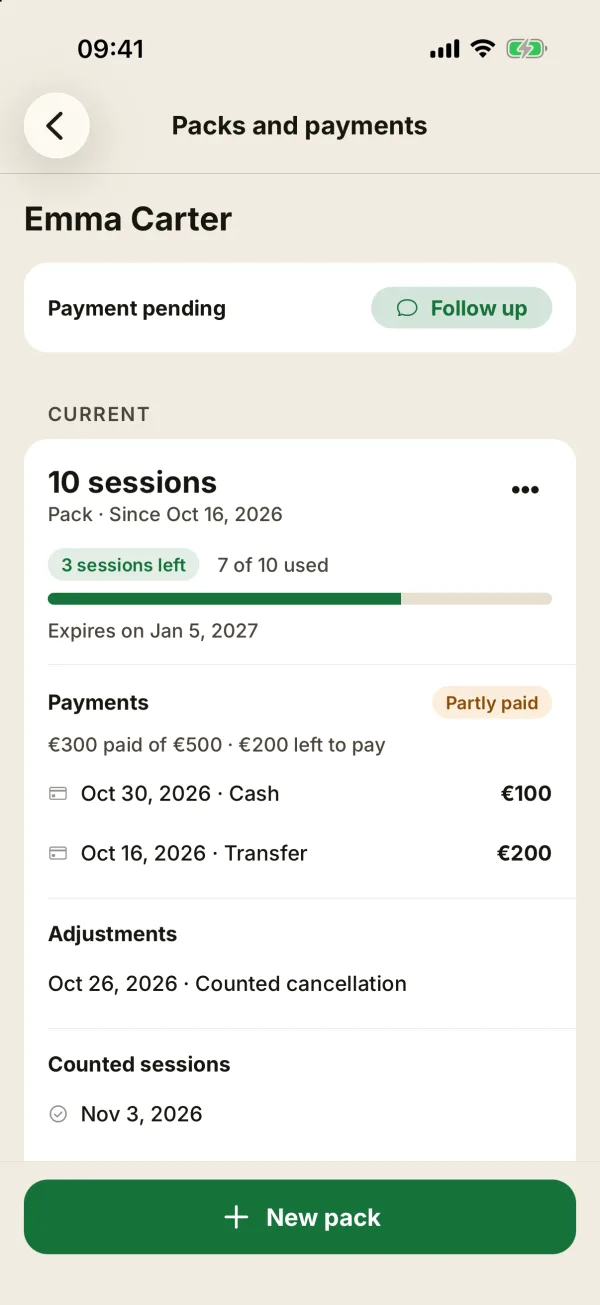
The card on the profile shows the pack’s name, how many sessions are left and how far along it is (“4 of 10 used”, or “2 of 8 this month” for a subscription), with the expiry date and payment status. Tap it, or Manage packs, to open Packs and payments.
Your client sees none of this, even on a shared profile: neither the price nor the balance.
What gets counted
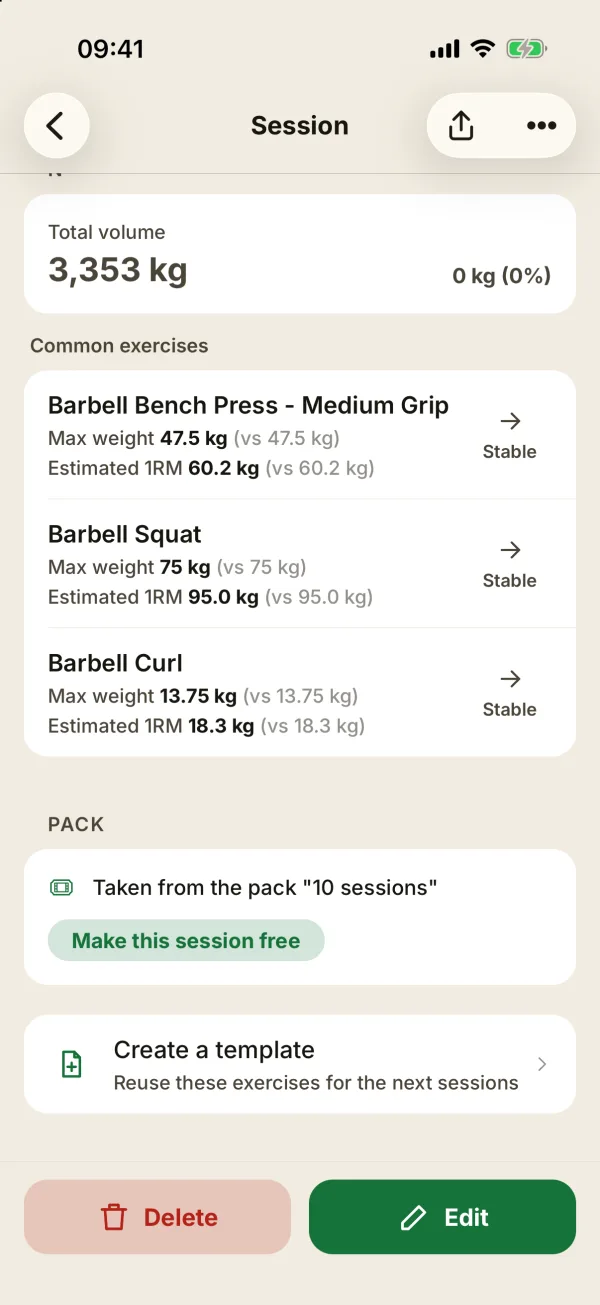
A session is counted when you logged it, it has at least one completed set, and it falls on or after the purchase date of the client’s first pack. You can check its status in the session’s details, under Pack.
- Done without you, not counted: the client logged the session on their own. Tap Count this session if it should count.
- Before the pack, not counted or No set done, not counted: the same button lets you count it anyway.
- Make this session free takes a counted session back off the balance. Back to automatic counting undoes your choice.
Deleting a session gives the credit back on its own.
Cancellations and no-shows
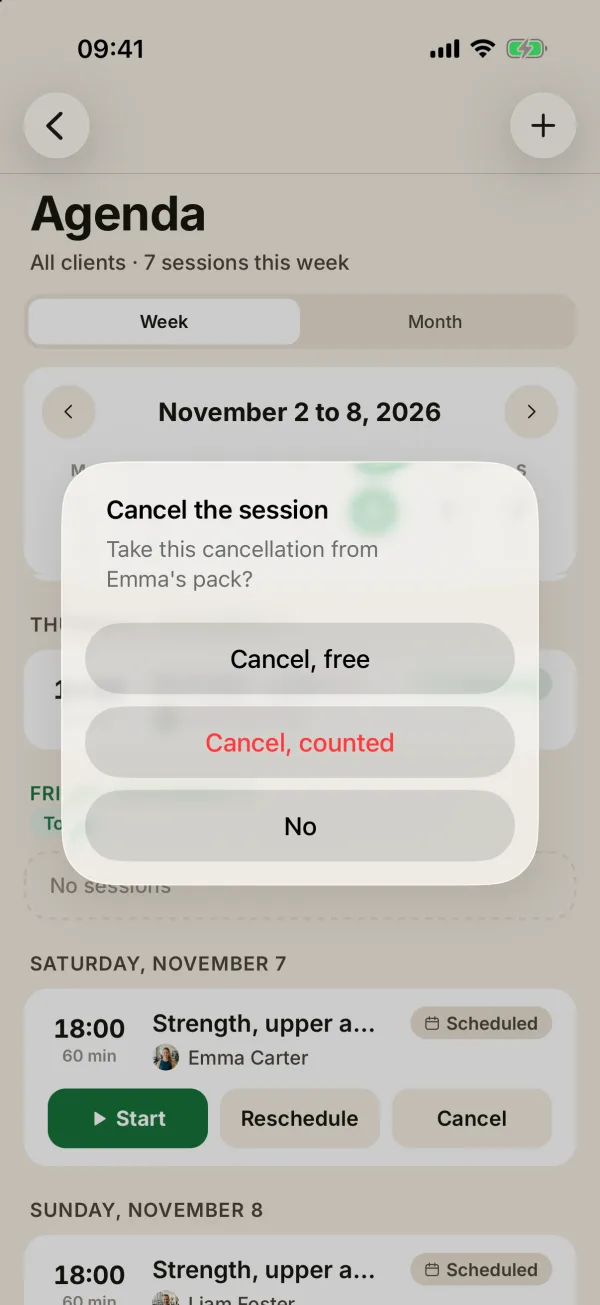
In the agenda, canceling a session for a client with a current pack gives you two options:
- Cancel, free: the balance doesn’t change;
- Cancel, counted: the late cancellation takes one session off the pack.
A Missed session is never counted automatically. If you want it to count, tap Count the session on the slot. Stop counting undoes that. The same button also counts a session that was canceled without being counted, by the client for instance. See also how to reschedule or cancel a session.
Track payments
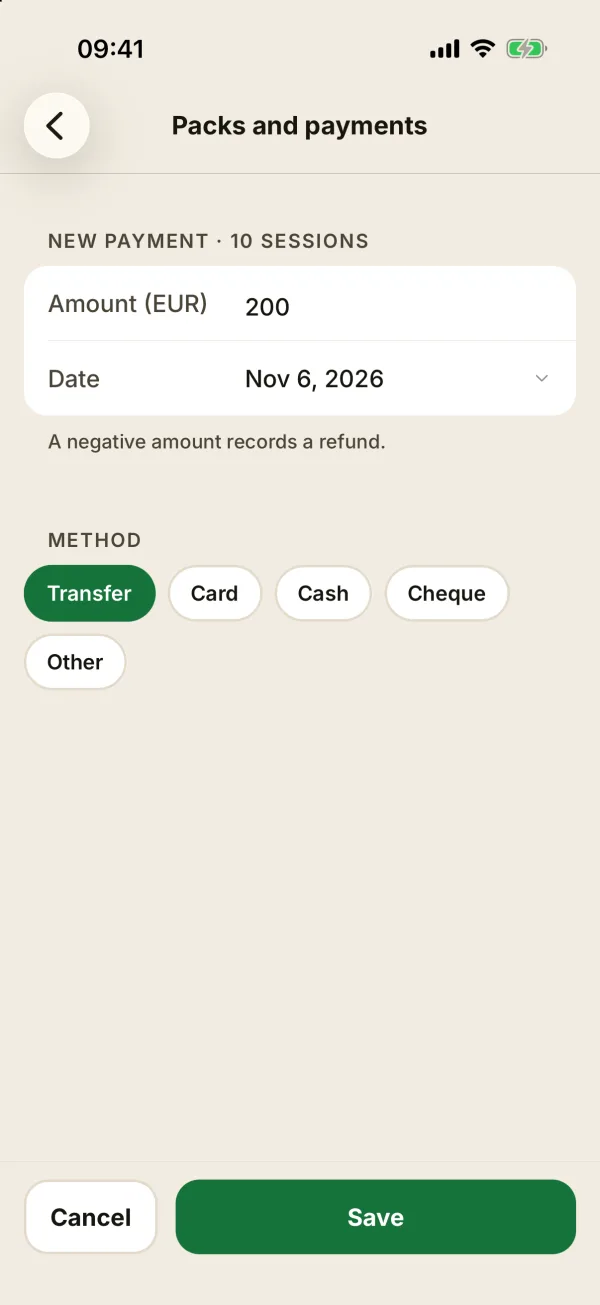
On the Packs and payments screen, tap the pack’s menu, then Add a payment: Amount, Date and Method (Cash, Card, Transfer, Check or Other). The method is just a note of how your client paid you. A negative amount records a refund.
The pack then shows Paid, Partly paid or Unpaid, with the amount left to pay. For a subscription, Mark this month paid records the month in one tap. Both actions need a price on the pack.
Manage a pack
The pack’s menu also offers:
- Edit;
- Extend, when the pack has an expiry date: +1 week, +2 weeks or +1 month, for an injury for example;
- Adjust the balance: add free sessions (positive number) or take off forgotten ones (negative number), with a reason;
- Close: Finished, Refunded or Stopped. The pack moves to History, and Reopen brings it back;
- Delete: the pack and its payments are removed, and sessions stay as they are.
The screen also lists Adjustments and Counted sessions.
When packs follow one another
A client’s packs and subscriptions are used oldest first: when one runs out, the next takes over. With no credit left, a session is never refused: the balance reads something like “1 session over credit”. If you then create a new pack, it picks those sessions up.
Passing an expiry date doesn’t cost the client any sessions. It only raises an alert, and what happens next is up to you. To get in touch with the client, see how to follow up with a client.
FAQ
Can my client pay in the app?
No. Coachigo doesn’t take payments. You simply record what your client paid you.
Why wasn’t a session counted?
Open its details: the Pack section gives the reason, usually Done without you, not counted. Tap Count this session to count it.
What happens to my packs if my PRO subscription ends?
They stay readable but can’t be changed. See what Coachigo PRO includes.
What if I delete a client?
Their packs, history and amounts due stay on the Former clients card of the dashboard.