 Coachigo
Progress and stats
How to track progress on an exercise in Coachigo
Personal record, gain, max weight, 1RM and volume charts, top sets, target and actual: how to track a client's progress on one exercise in Coachigo.
An exercise’s statistics show everything your client has done on that lift: their record, their progress curve, their top sets and the gap between what was planned and what they actually did.
Open an exercise’s statistics
Three ways in:
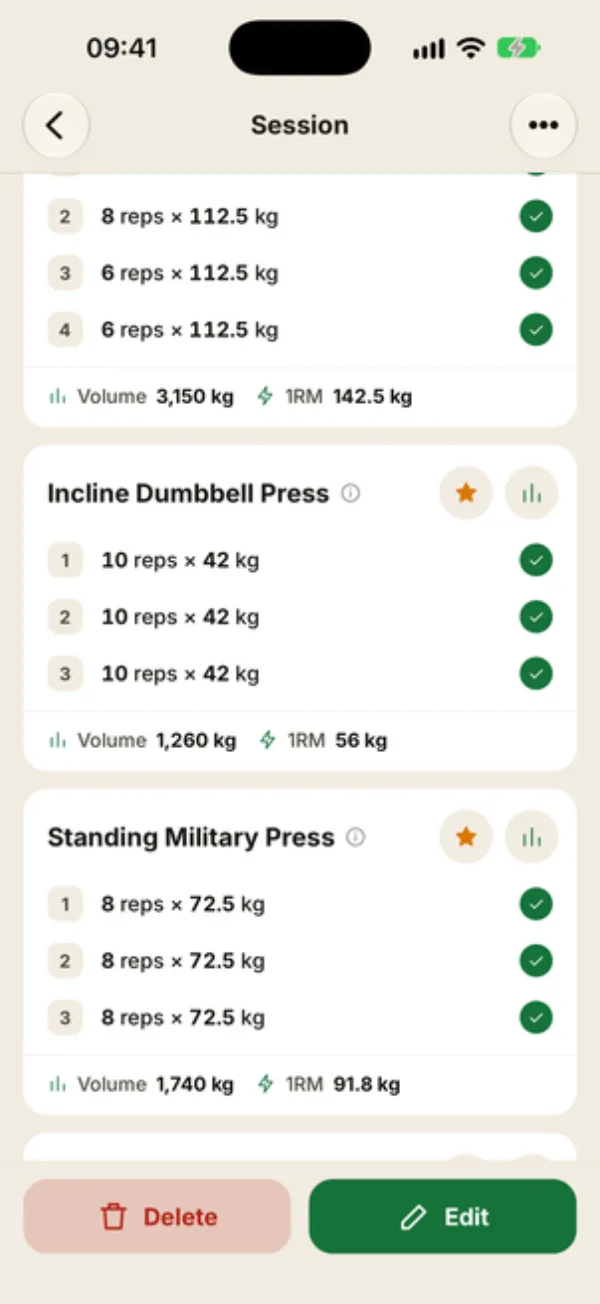
- in a session summary, tap the chart button to the right of the exercise name (“Exercise statistics”);
- also in the summary, tap the exercise name to open its details, then View analytics;
- on the client’s profile, tap a Record or Plateau row in the Key points block.
They aren’t available during a live session: finish the session, then go through its summary. These statistics are always for one client. At the top: the exercise name, the client, the muscle group and how often it’s done, like “Practiced 43 times in 34 weeks”. The 7 d, 30 d, 90 d or All switch, plus the Period button, filter the whole screen.
The record and key numbers
The PERSONAL RECORD card shows the best set, its estimated 1RM and its date. The math is explained in records and estimated 1RM.
Below it, four tiles:
- Sessions and Total sets in the range;
- Average volume: the average volume per session (weight × reps). It becomes Average reps for a bodyweight exercise and Average time for a timed one;
- Gain: the difference in top weight between the first and last session in the range, “since the 1st session”. Without weight, it’s the difference in max reps or max time. The tile shows up from 2 sessions.
The progress chart
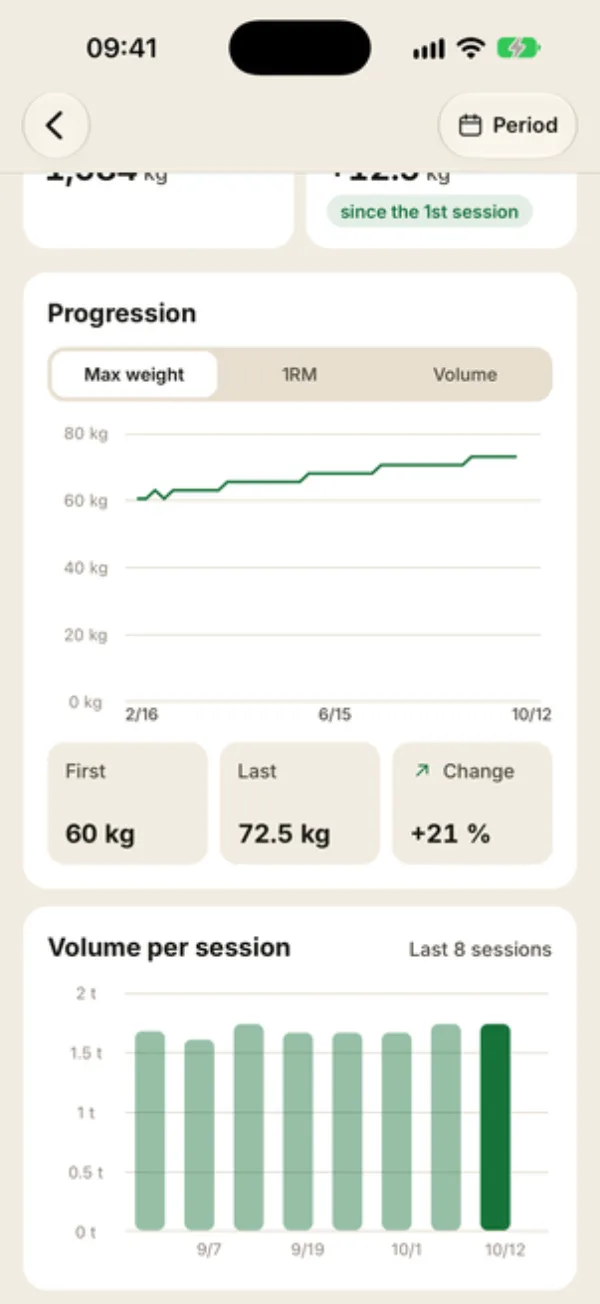
The Progression card has three tabs: Max weight (the heaviest set of each session), 1RM (the best estimated 1RM) and Volume. For a bodyweight exercise, the tabs switch to Max reps and Total reps; for a timed exercise, Max time and Total time.
Under the chart, First and Last give the value from the first and last session, and Change shows the difference as a percentage.
Volume per session compares the last 8 sessions as bars, once your client has at least 2; the most recent one is in solid color. Without weight, the card becomes Reps per session or Time per session.
Top sets and rep distribution
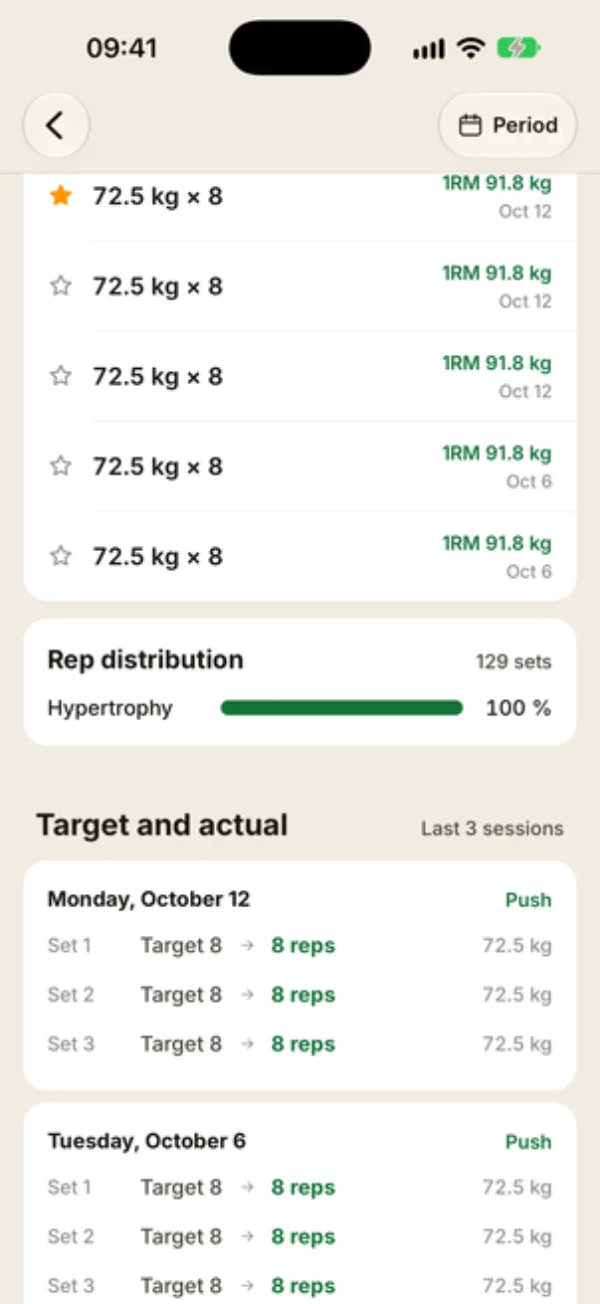
Top sets lists the 5 best sets, ranked by estimated 1RM (by reps or duration without weight), with their date; the filled star marks the best one. For a weighted exercise, Rep distribution shows the share of sets in each zone: Strength (1 to 5), Hypertrophy (6 to 12), Endurance (13 to 20) and Endurance+ beyond that.
Target and actual
Target and actual covers the last 3 sessions started from a workout template. For each set, you see the planned target, what your client actually did and the weight, like “Target 8 → 8 reps”. Tap a session to open its summary.
The target comes from the template as it is today. If you’ve edited it since, older sessions are compared with the new target.
FAQ
Why does the screen say “No progression data”?
Your client has no checked set on this exercise in the selected range (with weight and reps, for a weighted exercise). If a range is selected, tap See the whole period to switch back to All.
How is this different from Progress by exercise in the client’s statistics?
Progress by exercise, in the client’s statistics, gives you a quick chart. Exercise statistics add the record, top sets, and target and actual. For a bodyweight or timed exercise, use them instead: they track reps or time.
Why doesn’t Target and actual show up?
This section only picks up sessions started from a workout template that still exists and still includes this exercise. A freestyle session has no target.