 Coachigo
Programs
How to track a program's progress in Coachigo
Percentage, current phase and week, next session, history: see where each client stands in their Coachigo program, and how it moves forward.
For every client, Coachigo knows where they are in their program: the phase, the week, the next session to do. There’s nothing to tick off: the program moves forward on its own each time a program session is finished.
Open the progress screen
Two ways in:
- on the client’s profile, tap Manage next to the Program section;
- in the Programs tab, open the program and tap the client under Clients (clients who abandoned the program no longer appear there).
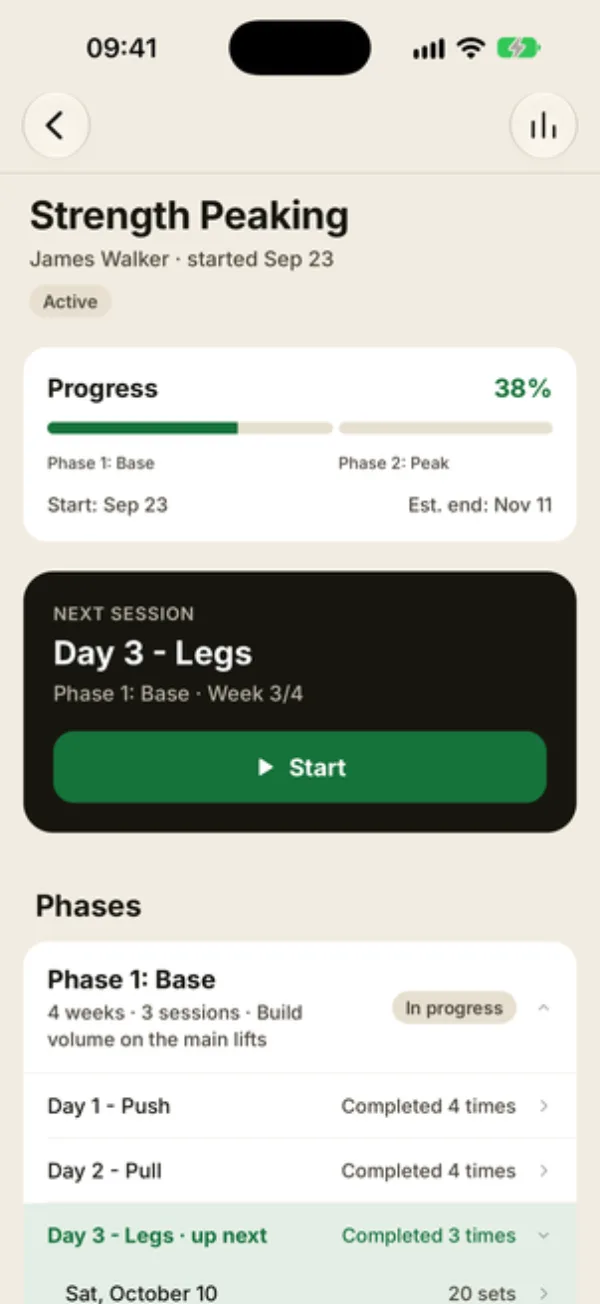
At the top, the Progress card shows the percentage, a bar per phase, the Start date and the Est. end date. Right below, NEXT SESSION shows what’s up next and where it sits in the program, with Start.
Read the phases
Each phase has a tag: Completed, In progress, Upcoming, or Stopped for the phase your client was on if they abandoned the program. In the current phase, the next session is marked up next, and each day shows how many times it’s been done. Tap a day to see the dates of its sessions.
How the program moves forward
The program moves forward one day each time a program session is finished, whether it was started with Start, from the Follow the program section of New session, or from an agenda slot linked to the program. A freestyle session or another template doesn’t count.
After the last day in the list, your client moves to the next week, then the next phase. Once the last phase is done, Coachigo shows “Program completed!” and the program is marked Completed.
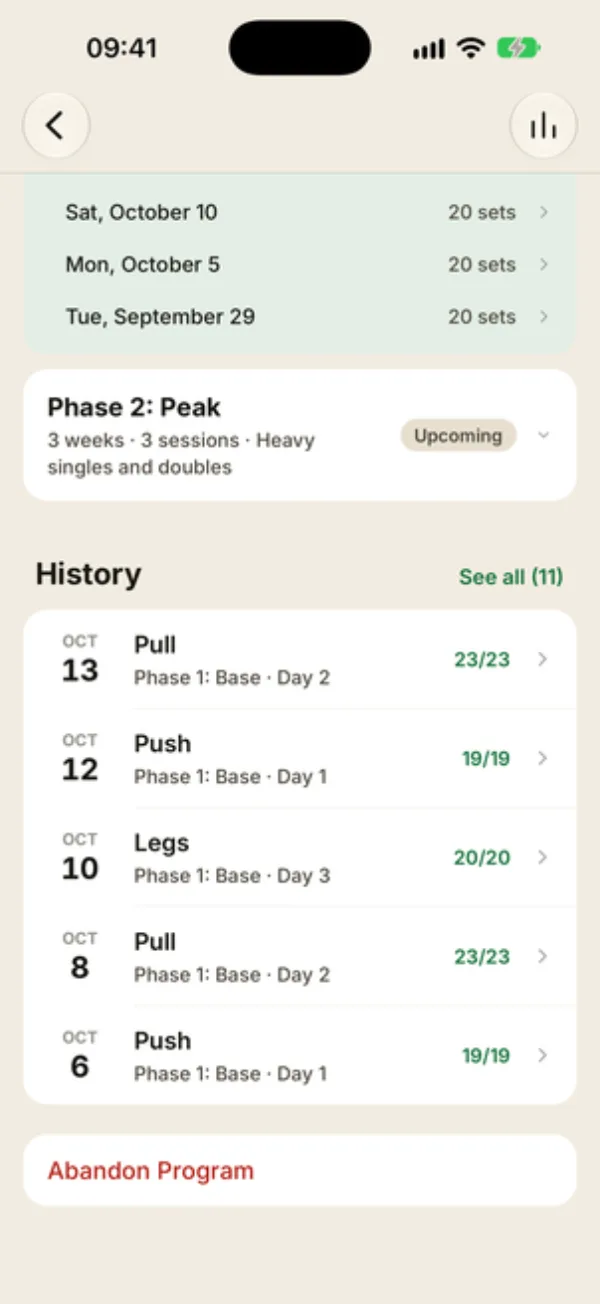
At the bottom, History lists the sessions done in the program, with See all.
Stop or resume
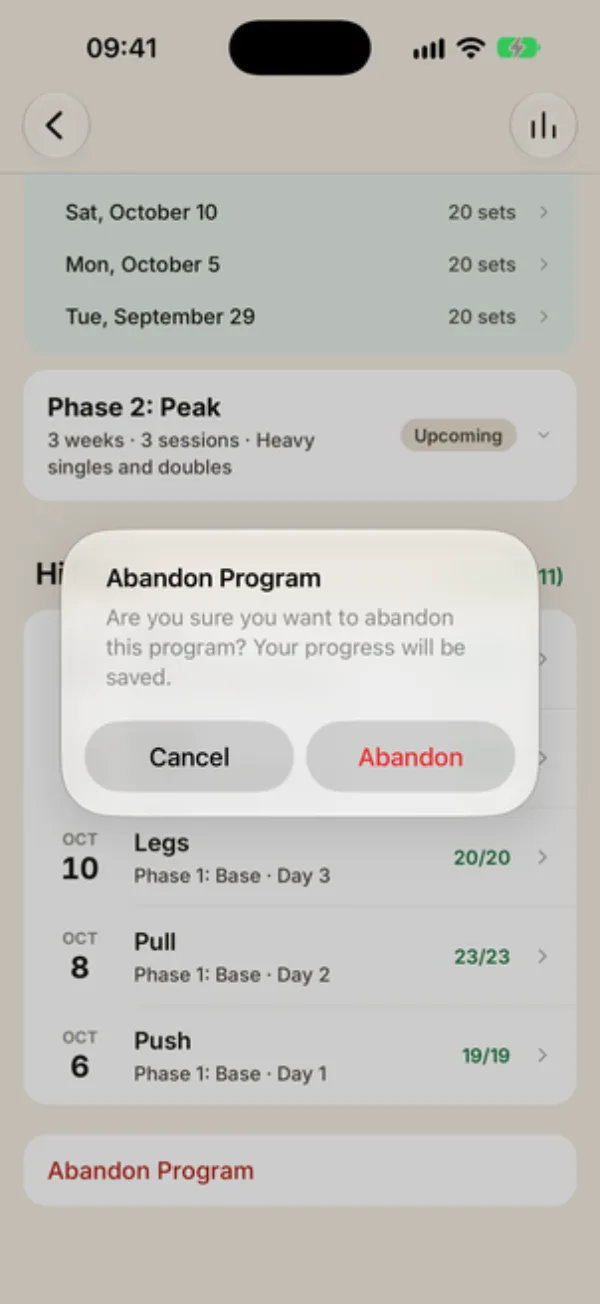
Tap Abandon program at the bottom of the screen, then Abandon. Progress is kept: the program moves to Previous programs on the client’s profile.
To restart it, tap it under Previous programs, then Resume program: your client picks up where they left off. The same screen offers Delete program, which removes that assignment without touching sessions already logged.
FAQ
Can I skip a session or pick a different one?
No, Start always runs the program’s next session. If your client does something else that day, run a freestyle session or another template: the program stays where it was.
The percentage didn’t change after a session
Check that the session was started from the program, actually finished, and that the program is still active. A session started then discarded doesn’t count.
Why doesn’t the percentage match the statistics?
Progress is based on where your client is in the program. Statistics count the sessions logged with that program. So the two numbers can differ a little.