 Coachigo
Account and subscription
How to subscribe to Coachigo PRO, restore or cancel
Get Coachigo PRO in the app, bring your subscription back on a new phone, cancel it in the App Store or Google Play, and what happens after that.
You sign up for Coachigo PRO in the app and pay through your Apple or Google account. That means it lives in two places: the Account tab in Coachigo to subscribe and restore, and your App Store or Google Play settings to cancel. To see what PRO unlocks, read Free or PRO.
Subscribe
Open the Account tab, Subscription section. On the free plan, the Free plan card says “1 client included” (or “1 profile included” in personal use). Tap Try PRO for 7 days to open the Coachigo PRO page. It also opens when you hit a limit, like adding a second client.
On that page:
- Under Your plan, pick Monthly or Annual. Annual is selected by default and shows how much you save and the monthly equivalent.
- Check the line under the plans: it shows the trial length if you’re eligible, the price and the auto-renewal.
- Tap Start free trial, or Subscribe if no trial is offered, then confirm the payment in the Apple or Google window.
“Welcome to Coachigo PRO!” means you’re all set.
Check your subscription
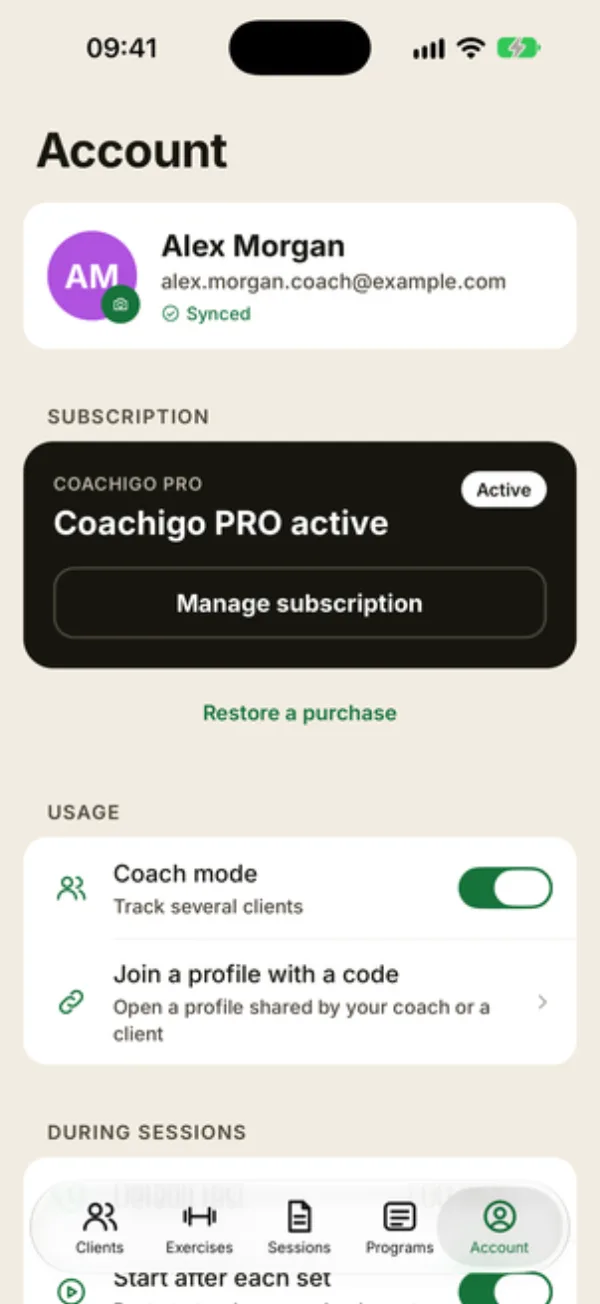
Once you’ve subscribed, the card in the Subscription section shows Coachigo PRO with an Active badge, plus your plan when the app knows it: Free trial, Monthly or Annual.
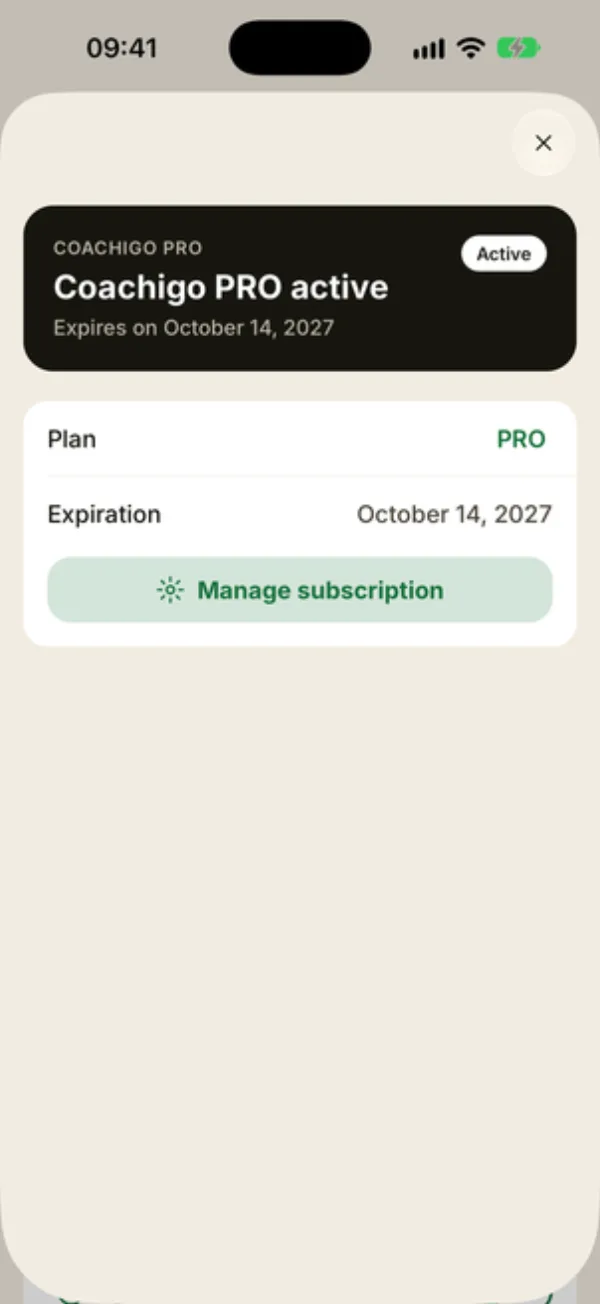
Tap Manage subscription: the Coachigo PRO page shows your renewal date, or the expiration date if auto-renewal is off.
Cancel
On the Coachigo PRO page, tap Manage subscription. The app opens your subscriptions in the App Store on iPhone, or in Google Play on Android: cancel Coachigo PRO there. The app can’t cancel it for you.
Canceling takes effect at the end of the current billing period, so PRO stays active until then. To avoid being charged after a trial, cancel at least 24 hours before it ends.
Deleting the app doesn't cancel anything
Uninstalling Coachigo or deleting your account won’t stop your subscription. Only your App Store or Google Play settings can cancel it.
Restore a purchase
On a new phone, after reinstalling, or if the app no longer recognizes your subscription, sign in to your Coachigo account first if you have one, and use the same Apple or Google account you paid with. Then, in Account, tap Restore a purchase under the subscription card.
“Purchases Restored” means PRO is back. “No purchase found” means there’s no active subscription tied to that account. While you’re not subscribed, the Coachigo PRO page also has Restore purchases at the bottom.
When PRO ends
You drop back to the free plan without losing anything:
- your clients and their workouts stay available, and you can keep training them;
- you can’t create new profiles;
- shares already in place keep working, but a new share needs a PRO account on one side again;
- Duplicate on a program goes back to being PRO only.
FAQ
How do I get a refund?
Since you pay through Apple or Google, refund requests go to them, under their own policies.
I subscribed but the app still blocks me
Make sure you’re signed in to the Coachigo account you used when you paid, then tap Restore a purchase.
Can the price change?
The price you see comes from the App Store or Google Play and can vary by country. Apple or Google will let you know about any increase before it applies.