 Coachigo
Getting started
How to sign in to Coachigo on a new device
Get your clients and sessions on a new phone, reset a forgotten password, understand how syncing works and sign out safely.
New phone, an extra tablet, a second device at the gym: sign in with the same email and all your clients, sessions and programs are there. You’ll need to have created an account on your first device.
Install the app and get through the intro
Install Coachigo on the new device and open it. Like any fresh install, it starts with the welcome screens. Move through them quickly: tap Skip on the first client screen (or your profile in Solo mode) and Continue free on the PRO screen. Your real settings come with your account.
Sign in before you add anything
Don’t add a client or log a session on the new device until you’re signed in. That way you won’t have to choose between this new data and what’s on your account.
Sign in
- Tap the Account tab, then Sign in in the card at the top.
- On the Sign in screen, enter your Email and Password.
- Tap Sign in.
You’ll see Signed in and your data loads: clients or profiles, sessions, programs, plus your Coach or Solo mode and your units.
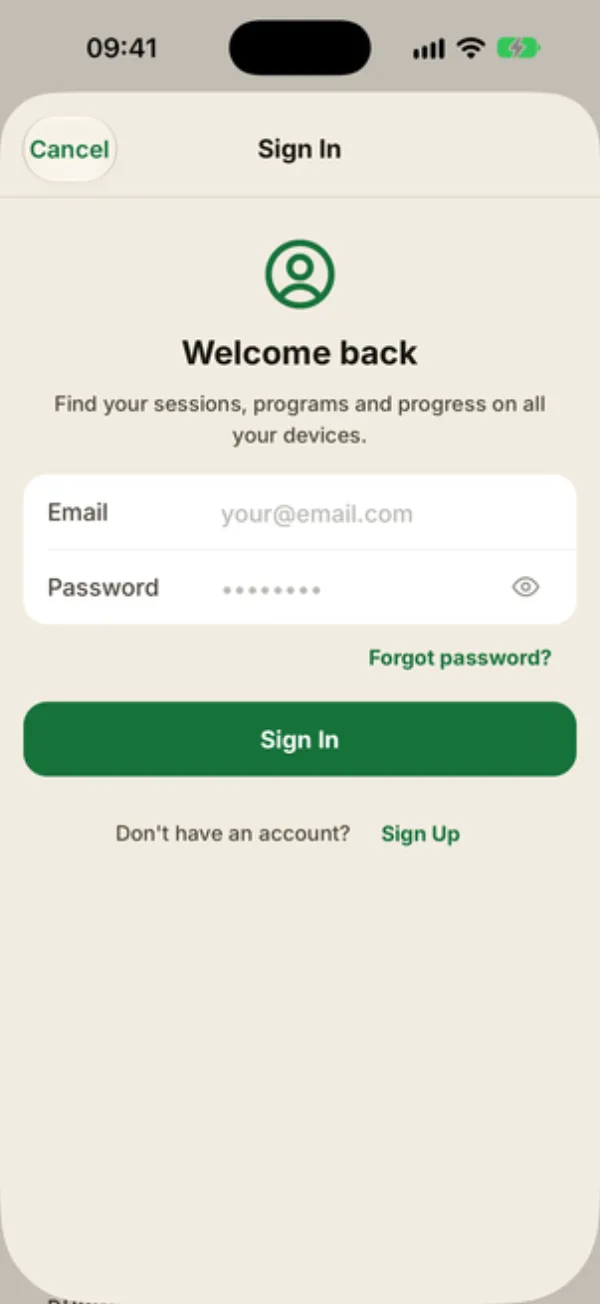
If the app finds data on the device
If you already added a client or logged a session on the new device, a Local data detected alert asks what to do with it:
- Cancel: you don’t sign in and nothing changes. Pick this if you’re unsure.
- Replace: after a second confirmation, the data on this device is erased and replaced with your account’s data. This can’t be undone.
The alert also offers Merge. The safest route is still to sign in before entering anything on the device, as described above.
Forgot your password
On the Sign in screen, tap Forgot password?. Enter your email and tap Send reset link. The Email Sent! screen confirms it went out: open the email, click the link to pick a new password, then head back to the app with Back to sign in.
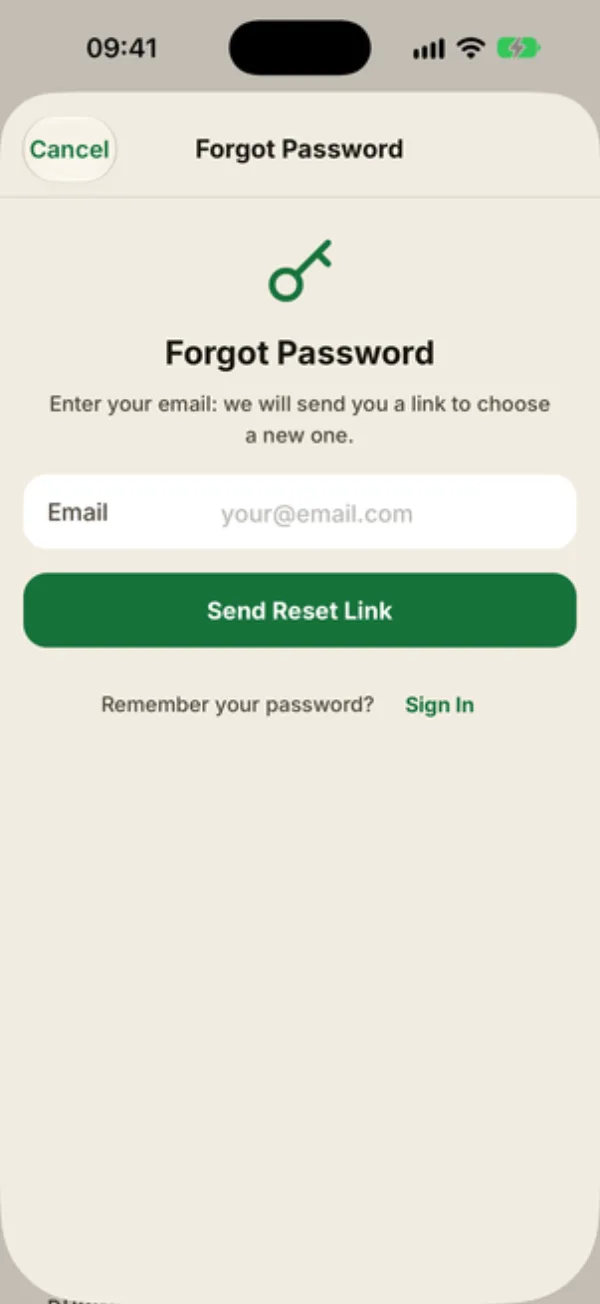
How syncing works
Every device signed in to the same account updates in real time: a session logged on your phone shows up on your tablet or computer a moment later. There’s no button to press.
No connection? Keep working. Your changes are saved on the device and sent as soon as you’re back online. A few actions, like importing a file, do need a connection.
Sign out
At the bottom of the Account tab, tap Sign out and confirm. Your data stays on your account: the device goes back to an empty space, and everything returns when you sign in again.
FAQ
Can I use several devices at once?
Yes, as many as you like, including the web version.
Can I sign in with Apple or Google?
No, sign-in only works with an email and password.
I never made an account on my old phone. Can I get my data back?
If the app is still on the old phone, create an account there, then sign in on the new one. If the app was deleted without an account, the data can’t be recovered.