 Coachigo
During a session
How to set up the rest timer in Coachigo
Default rest, auto-start, sound, vibration and per-exercise rest: how to set up the rest timer for your clients' workouts in Coachigo.
In Coachigo, the rest timer starts on its own the moment you check off a set. There’s nothing to start manually: set it up once the way you like it and forget about it.
Your account settings
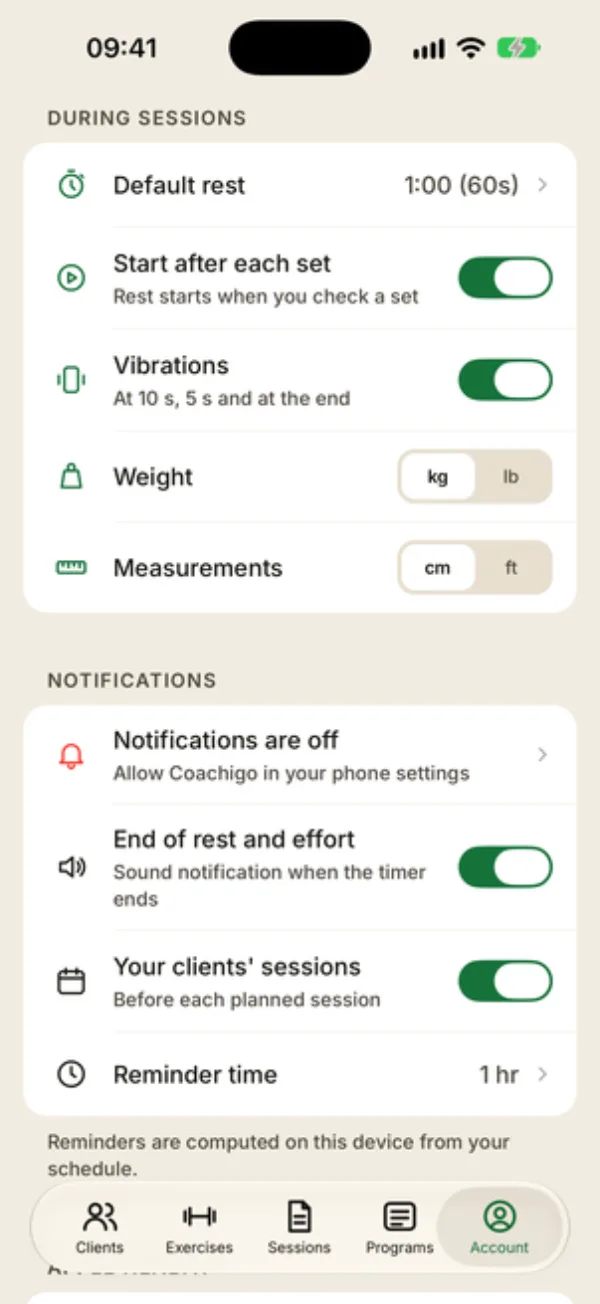
Open the Account tab and scroll to During sessions:
- Default rest: tap the row and enter a duration between 5 and 600 seconds. It starts at 60 seconds. This works on iPhone; on Android the row doesn’t open yet, so set the rest from the stopwatch during the session instead.
- Start after each set: rest kicks in when you check a set. Turn it off if you’d rather start the timer yourself.
- Vibrations: the phone buzzes during the last few seconds and at the end.
The end sound lives just below, in the Notifications section: the End of rest and effort switch turns on the sound notification when the timer ends.
These settings are saved on the phone, not in your account, so on another device they go back to the defaults.
Adjust it mid-session
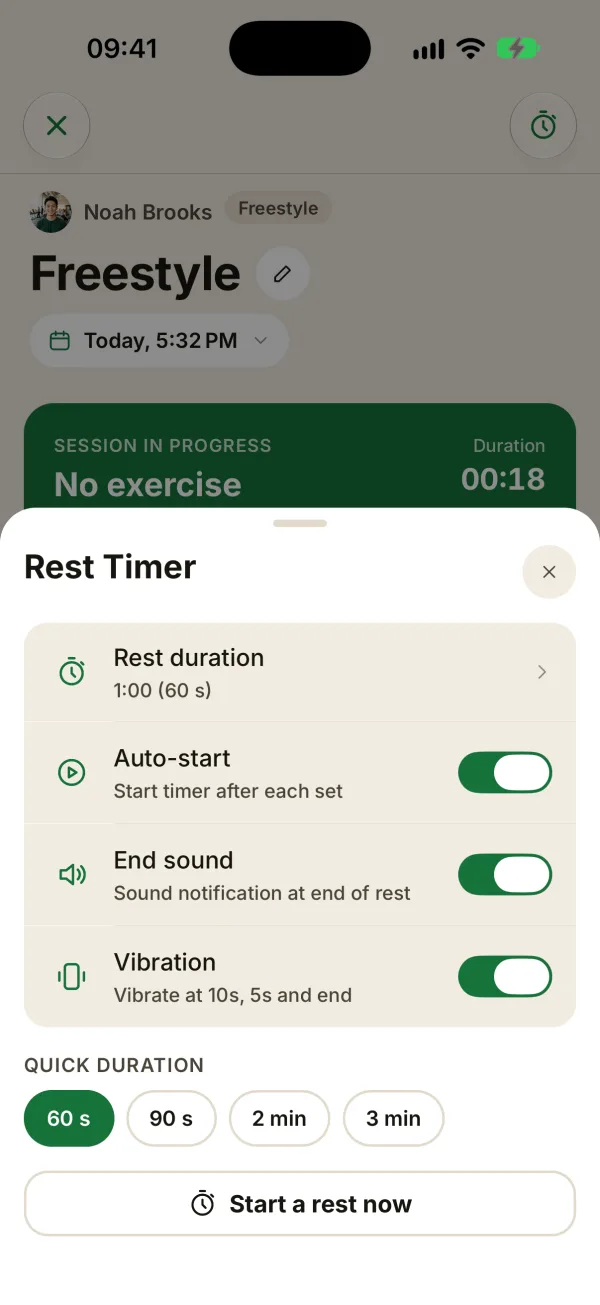
Tap the stopwatch icon at the top right of the session screen. You’ll find the same settings under shorter names (Rest duration, Auto-start, End sound, Vibration). Changing them here changes them on the Account tab too.
- Quick duration: 60 s, 90 s, 2 min or 3 min in one tap. Your pick becomes your default rest.
- Start a rest now: starts a rest at your default length, for example between two exercises.
Which rest time applies?
When you check a set, Coachigo picks the rest like this:
- Inside a superset or circuit, its own rest times always apply: between exercises (at 0 s, you go straight on with no timer), then between rounds.
- Otherwise, the rest time set for that exercise in the workout template (“Rest between sets”). When it’s on “Auto”, your default rest applies.
- If there’s none, your default rest, for a freestyle session or an exercise added on the fly.
When you check the last set left in the session, no rest starts.
Same rest on every phone
If you coach from more than one device, or your client logs their own workouts, put the rest straight into the template. That way it no longer depends on each phone’s settings.
The timer bubble
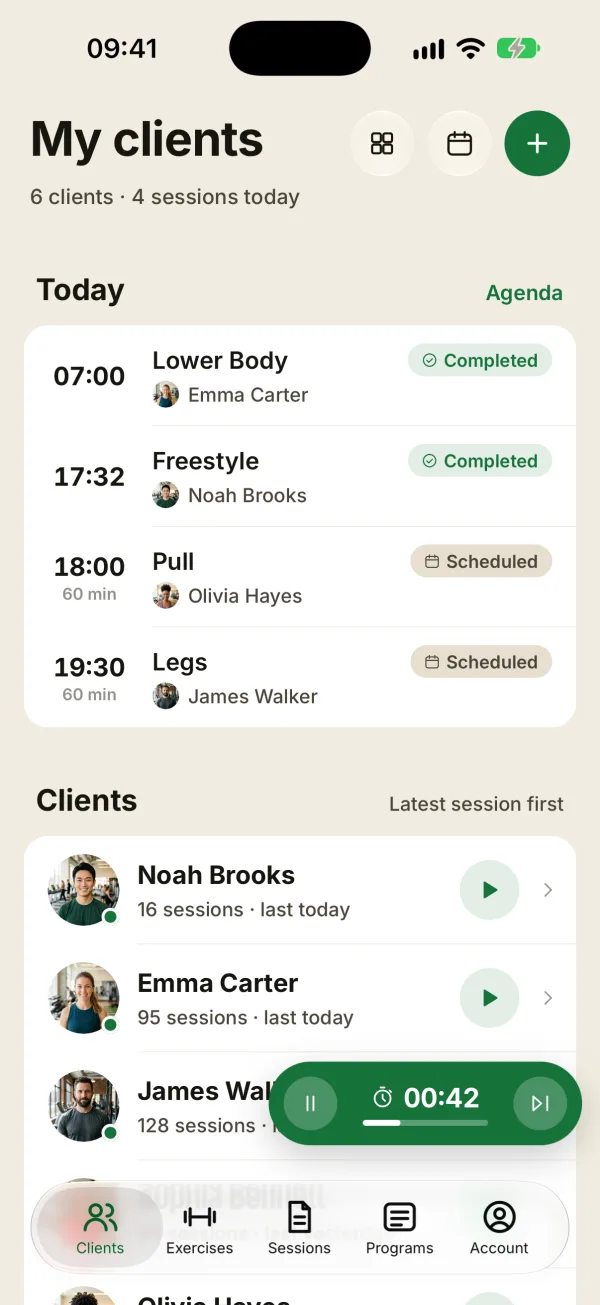
During rest, a bubble follows you as you move around the app (tabs, client profiles…):
- the left button pauses or resumes the rest;
- the right button skips it when your client is ready early;
- tap the middle to go back to the session;
- drag it to move it out of the way: it snaps to the nearest side;
- when rest is over, it turns orange and shows “Done!”: tap the X to hide it, or just go back to the session and it clears on its own.
For a superset, a circuit or a timed exercise, a small label tells you what’s counting down: Transition, Between rounds or Effort.
Locked phone or app in the background
- The countdown keeps going: when you come back to the app, the time left is accurate.
- The “Rest complete!” notification tells you rest is over and names the next exercise, as long as End of rest and effort is on (Notifications section of the Account tab) and notifications are allowed. Tapping it opens the session.
- Vibrations only work while the app is open.
- The screen won’t go to sleep while the app is open, during rest and until the bubble goes away.
- On the web app, the countdown still shows, but there’s no notification, sound or vibration.
FAQ
I don’t hear anything when rest ends
Check that End of rest and effort is on in the Notifications section of the Account tab, that Coachigo is allowed to send notifications in your phone settings, and that the phone isn’t on silent or in a Focus mode. The sound is the notification sound.
The timer doesn’t start when I check a set
Start after each set is probably turned off. Or the set you checked was the last one left in the session.
How do I give one exercise a different rest?
In the workout template, set Rest between sets on that exercise, from 15 seconds to 5 minutes. During the session you can also tap a quick duration and then Start a rest now, but that duration becomes your new default rest.
Does the timer work on Apple Watch?
Yes. Whether the session runs from the iPhone or was started on the watch, the watch shows the rest, lets you pause or skip it, and taps your wrist in the last few seconds and when it’s over.