 Coachigo
Calendar
How to schedule a session in Coachigo
Pick the client, date, time and workout template: how to schedule a one-off session in the Coachigo agenda, then start it when the day comes.
Scheduling a session puts it on the agenda at a set date and time, for one client, with the workout template you pick. When the day comes, you start it with one tap, and the agenda shows what got done and what got missed. This guide covers one-off sessions. For a slot that comes back every week, set up recurring sessions instead.
Open the form
Three ways lead to the same Schedule form:
- in the Agenda, tap + at the top right (or Schedule if the week is empty);
- on the client’s profile, in the Nothing planned card, tap Schedule;
- on the profile, open Calendar and recurrences, select an open day and tap Schedule (the + at the top right also schedules the selected day).
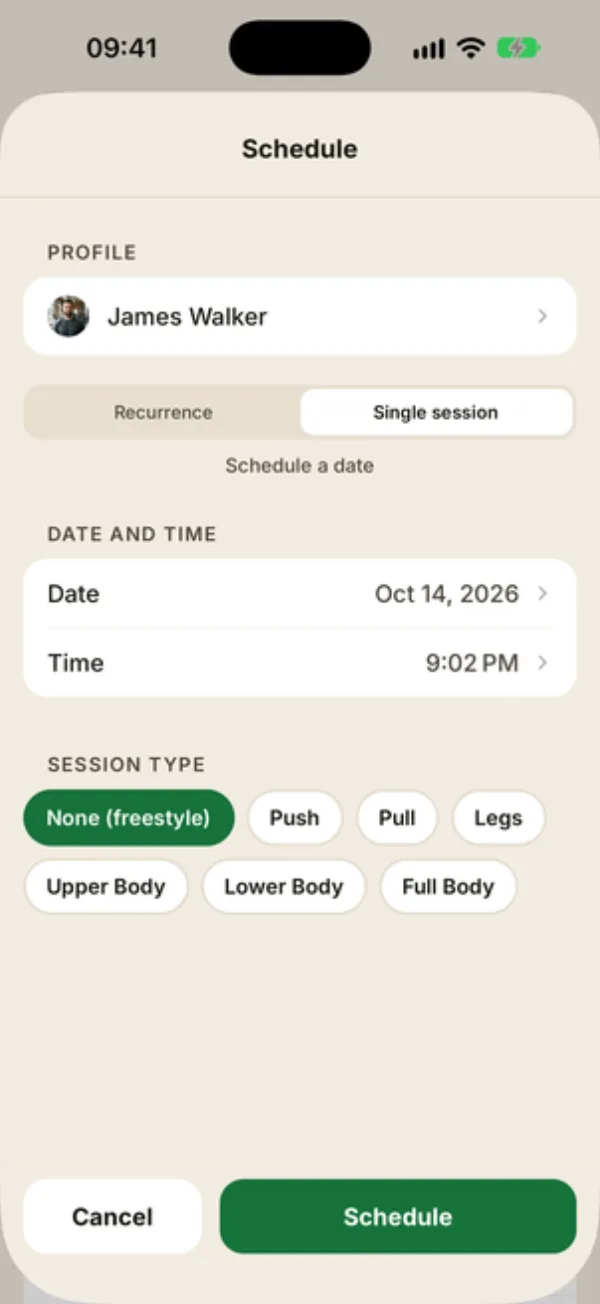
From the agenda, first pick the client under PROFILE (Choose a profile). From their profile, it’s already filled in.
Set the date, time and template
The form opens on the Recurrence tab: tap Single session.
- Under DATE AND TIME, tap Date and then Time to set them. By default it’s the current time, or 12:00 PM if you started from a day in the calendar.
- Under SESSION TYPE, pick the planned workout, or None (freestyle) to decide on the exercises when you get there.
Tap Schedule. A confirmation shows the date, and the session appears in the agenda as Scheduled.
Start the session on the day
In the agenda or in the Today block of your client list, tap the session, then tap Start. On the client’s profile, Start sits right on the session’s card. It opens with the planned template and turns Completed once you finish it.
If its time goes by and nobody trained, it shows as Missed. You can still start it, or reschedule or cancel it.
Start from the slot
For a scheduled session to turn Completed, start it with its own Start button. Started any other way, for example with the play button on your client list, the workout is still saved, but on its own row, and the slot may stay Missed.
Get a reminder before the session
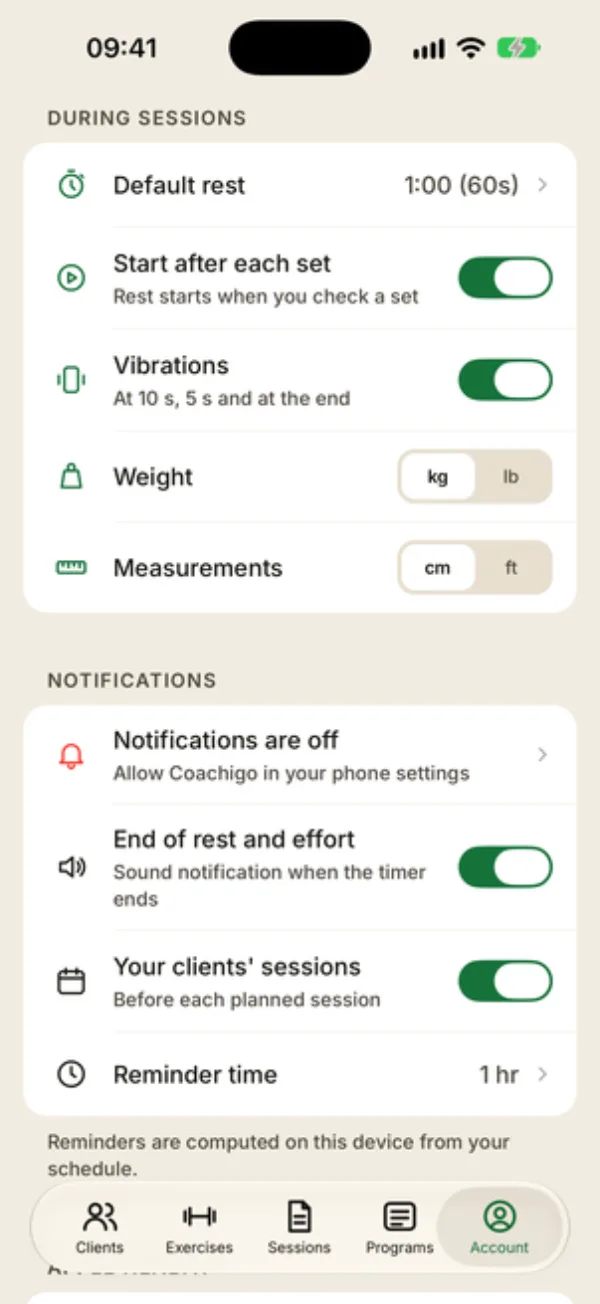
On iPhone and Android, Coachigo sends you a reminder before each scheduled session, 1 hr ahead by default, for example “Session with James Walker at 6:00 PM”, then “Push, in 1 hr”. Tap it to open the client’s calendar on that day.
The lead time (15 min, 30 min, 1 hr or 2 hr) and the Your clients’ sessions switch are in the Account tab, under Notifications: see How to customize Coachigo. Notifications need to be allowed on the phone: if you turned them down, the Notifications are off row sits at the top of the section and opens your phone settings. When you reschedule or cancel a session, its reminder updates on its own. The web app doesn’t send reminders.
FAQ
Can I schedule a session in the past?
Yes, but it shows up as Missed right away, since its time has already passed. To keep a record of a workout that already happened, log the session instead.
Does my client get a reminder?
Yes, if they’ve joined their profile in the app on their own phone and allowed notifications: they get a reminder before their sessions too, based on their own settings. Coachigo doesn’t sync with Apple Calendar or Google Calendar: your schedule lives in the in-app agenda.
Why didn’t I get a reminder?
In the Account tab, under Notifications, check that notifications are allowed and that Your clients’ sessions is on. On Android, if the On-time reminders row shows up, tap it: without that permission, a reminder can arrive up to an hour late. Coachigo schedules reminders for the next 14 days each time you open the app, so open it at least once every two weeks.
Why is a client missing from “Choose a profile”?
The list only shows profiles you own. For a profile someone shared with you, the schedule is managed by its owner.
Do I need Coachigo PRO to schedule sessions?
No. Scheduling, the agenda, recurring sessions and reminders are all free.