 Coachigo
Calendar
How to reschedule or cancel a session in Coachigo
A client needs to move their slot or can't make it: how to reschedule, cancel, reactivate or delete a scheduled session in the Coachigo agenda.
One client asks to move Friday’s session, another can’t make it this week: reschedule or cancel right from the agenda. Coachigo keeps a trail of every change, so you can see at a glance what moved.
Show a session’s actions
In the Agenda, or in the Today block of your client list, tap the session’s row. Its actions appear right below:
- Scheduled or Missed session: Start, Reschedule, Cancel;
- Completed session: View opens its summary;
- Canceled or Rescheduled session: Reactivate, Delete.
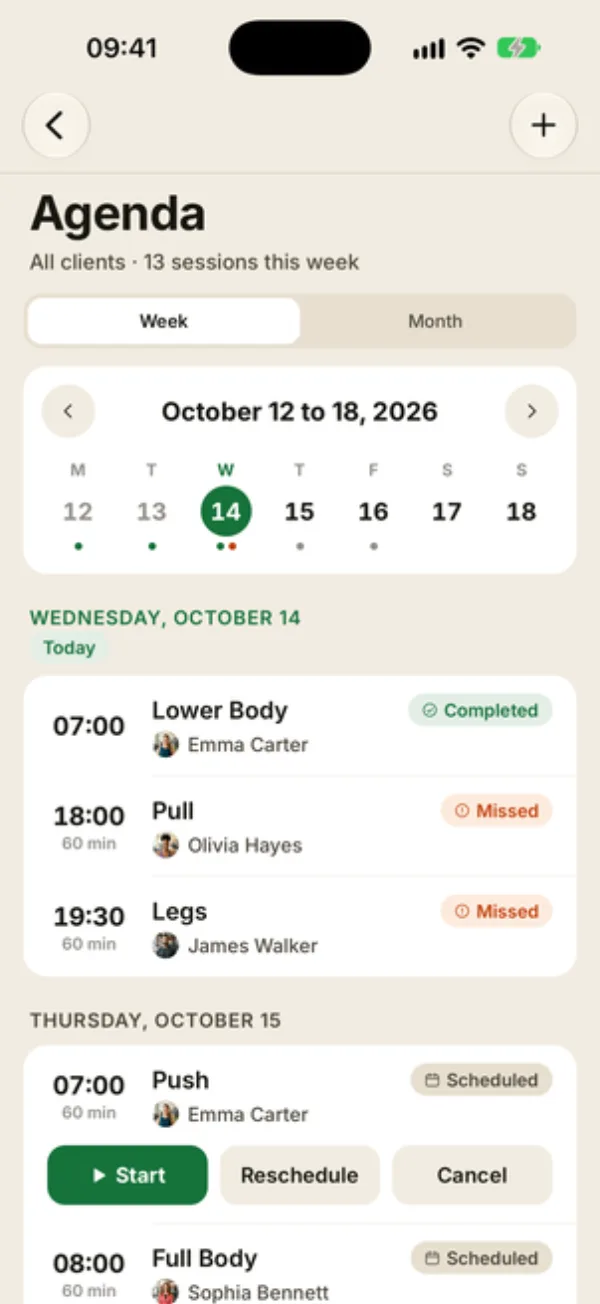
Reschedule a session
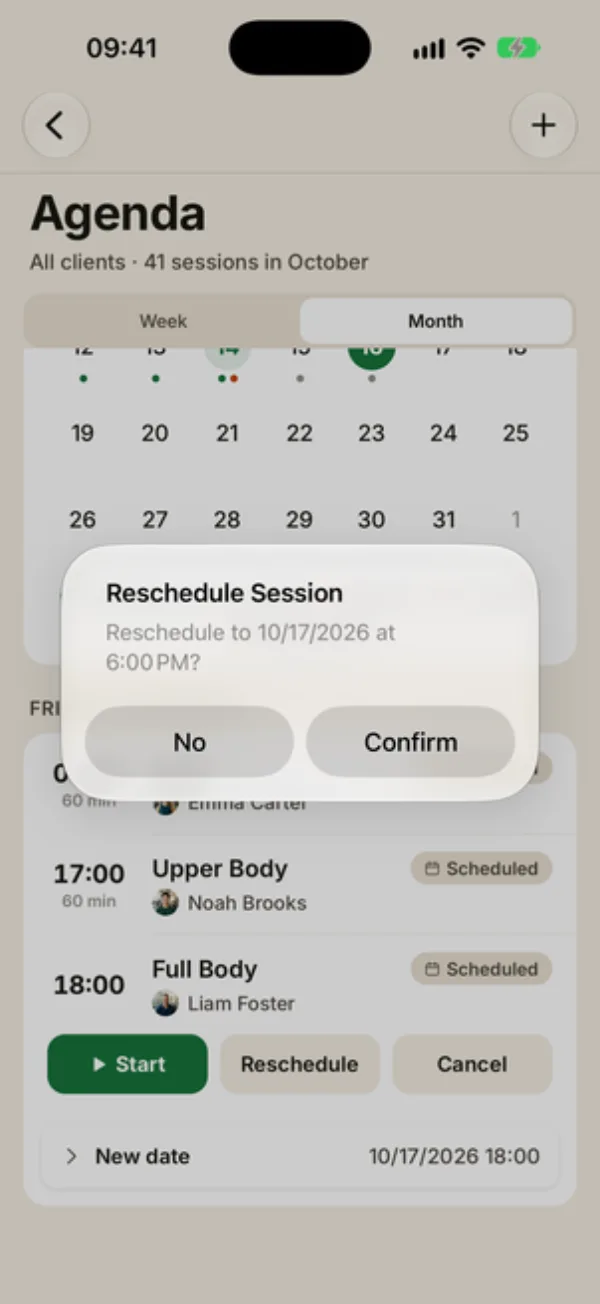
Tap Reschedule and a New date row appears. Tap it, pick the day and time, then Confirm (on Android, you only pick the day and tap OK: the session keeps its time). Coachigo asks “Reschedule to … at …?”: tap Confirm. You’ll see “Session rescheduled”.
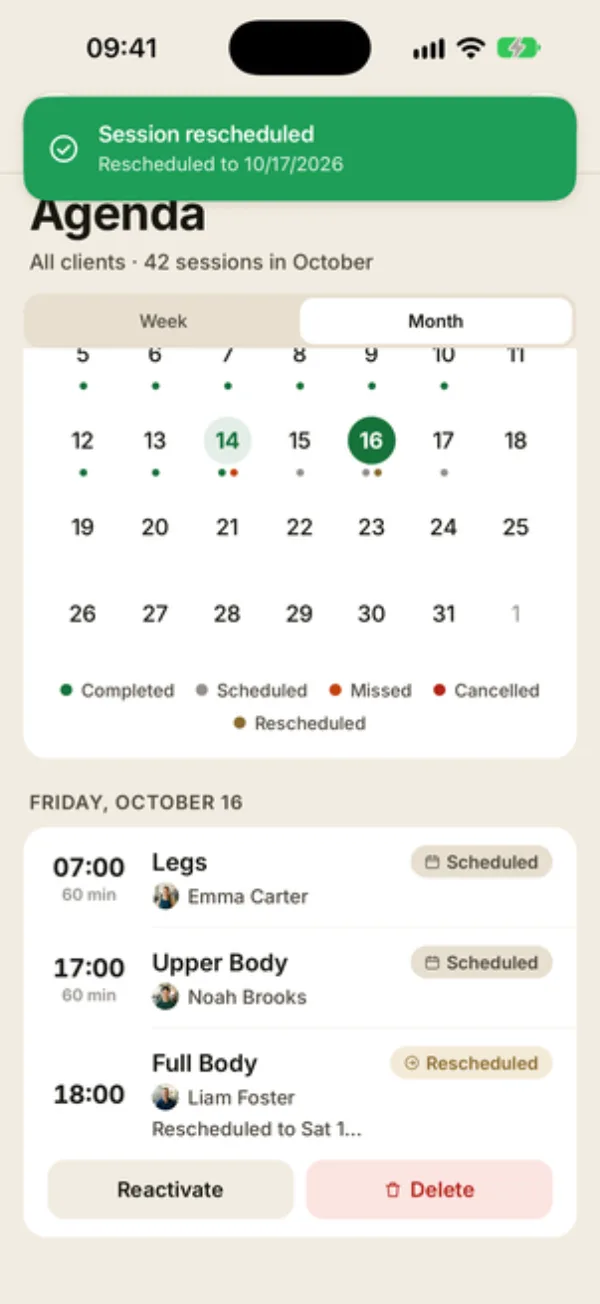
Find the rescheduled session
The original session stays on its date, marked Rescheduled with its new date (“Rescheduled to …”). A new Scheduled session is created on the day you picked, labeled “Moved from …”. You can start, reschedule or cancel it like any other. Don’t tap Reactivate on the original session: the new one would stay scheduled and your client would end up with two sessions.
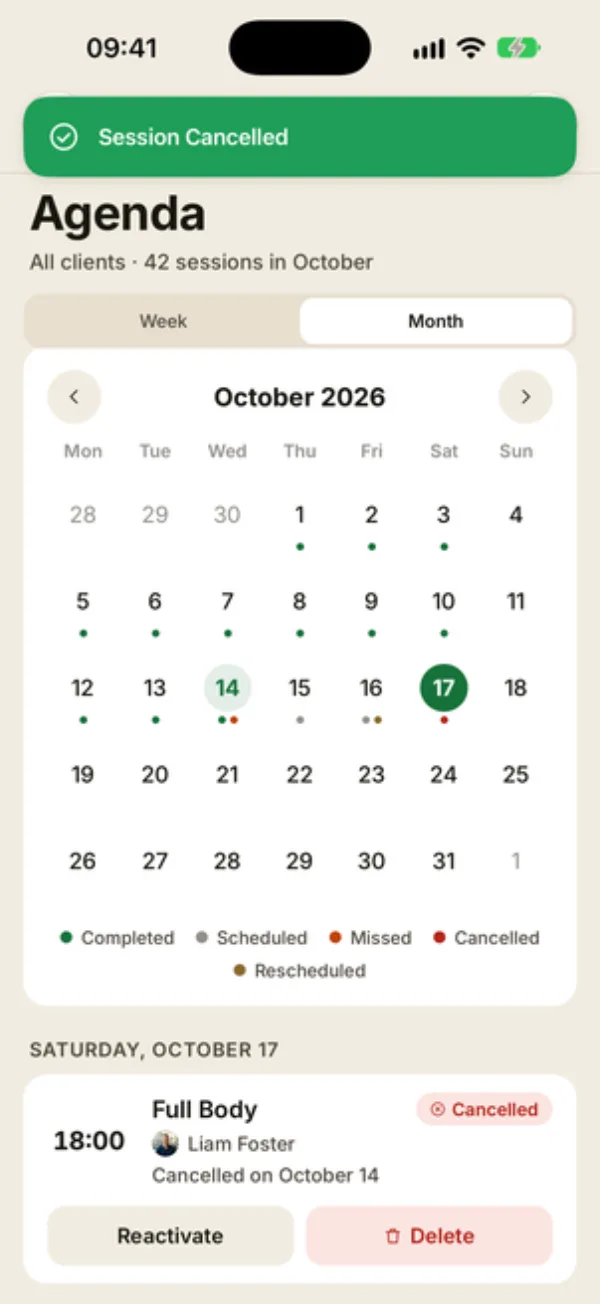
Cancel, reactivate or delete
Tap Cancel, then Cancel session to confirm. The session stays on the agenda as Canceled, with the date you canceled it (“Canceled on October 14”).
Open it again to:
- Reactivate it: it goes back to Scheduled;
- Delete it: it’s gone for good, after you confirm.
On the client’s profile, Calendar and recurrences offers the same actions for each scheduled session, plus a trash icon to delete it. There, Reschedule opens a Reschedule session sheet: pick the New date, then tap Save.
One session at a time
Rescheduling or canceling only affects that one session, even if it’s part of a recurrence. To change every slot in a series, edit the recurrence from the client’s calendar.
FAQ
Does my client get notified?
Not at the time: Coachigo doesn’t send a notification when you reschedule or cancel a session, so give them a heads-up yourself. Reminders do follow along, though: a canceled session no longer triggers one, and a rescheduled session triggers it at its new time, on your phone and on your client’s if they’ve joined their profile.
Cancel or delete?
Cancel to keep a record: the session stays visible as Canceled, which makes no-shows easy to spot. Only delete a session you created by mistake: in the agenda, cancel it first, then tap Delete. For a session that comes from a recurrence, stick with Cancel: once deleted, it can show up again in the agenda.
Why don’t I see these buttons on a shared profile?
A shared profile’s schedule is managed by its owner. You can start its sessions, but not reschedule, cancel or delete them.