 Coachigo
Your clients
How to read your client list in Coachigo
Today's sessions, statuses, activity dots and last session: how to read the My clients screen in Coachigo and spot at a glance who's slipping.
The My clients screen is your home base: today’s sessions at the top, all your clients below, and a color code that shows at a glance who’s training and who’s slipping.
The header
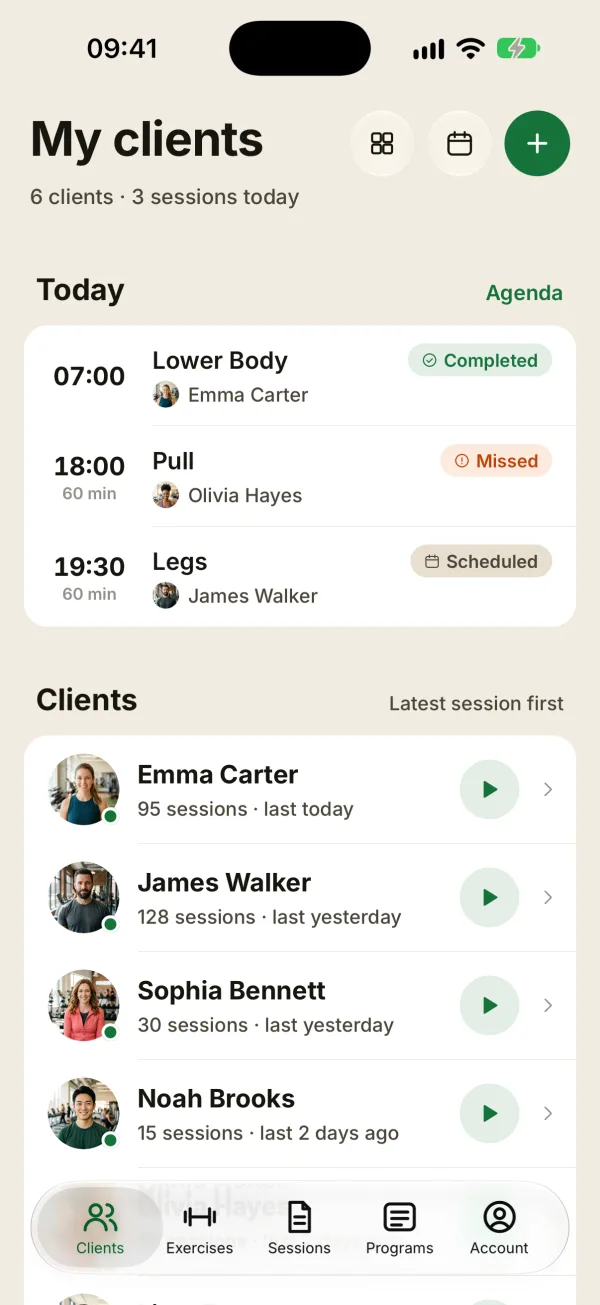
Under the title, one line sums up your day, like “6 clients · 3 sessions today”.
The buttons at the top right open:
- the dashboard (grid icon), with your clients sorted by priority;
- the agenda (calendar icon);
- +, to add a client or join a profile.
The “Today” block
It lists the sessions planned for today, with the time, duration, session name and client. A small tag shows their status:
- Completed: the session was done from that slot. A session started without a slot also shows up as Completed, on its own row;
- Scheduled: the time hasn’t come yet;
- Missed: the time has passed and the session wasn’t done from that slot;
- Canceled and Rescheduled, if you canceled or moved the slot (a rescheduled session shows up again on its new date).
Tap a row to show its actions: Start, Reschedule, Cancel, View for a completed session, and Reactivate or Delete for a canceled or rescheduled one. The Agenda link opens the full week.
Start sessions from their slot
For a slot to show Completed, start the session with its Start button (here, in the agenda or on the client’s profile), then finish it. Started any other way, the session is still saved on its own row, but the slot turns Missed once its time has passed.
The client list
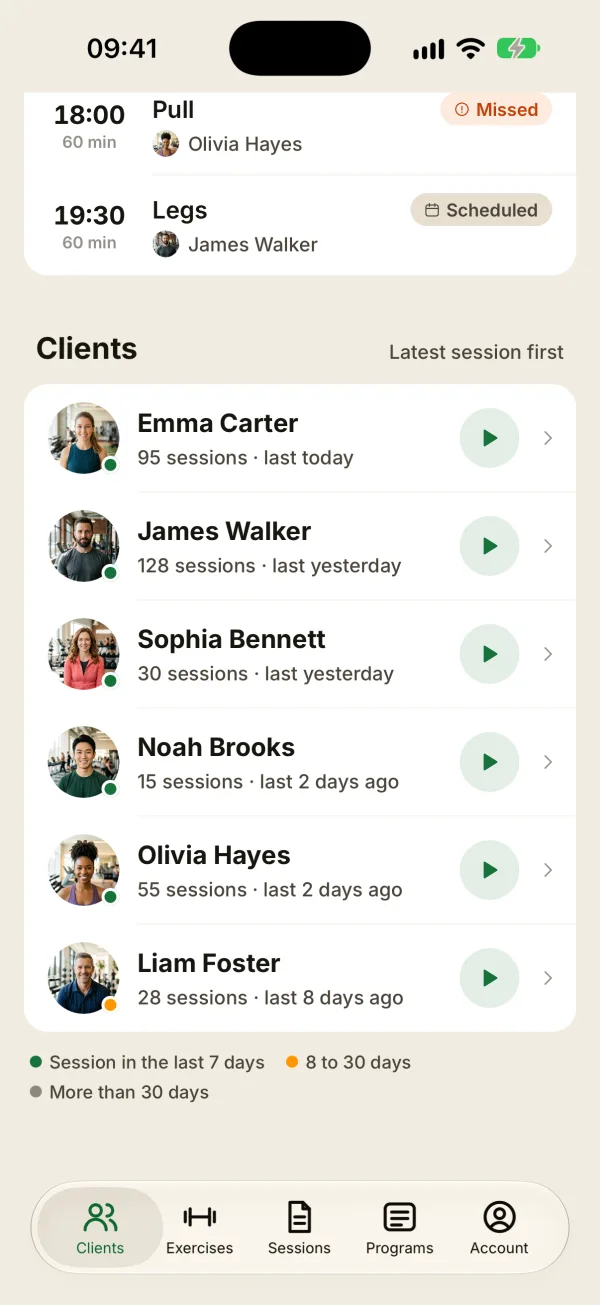
Each client shows their session count and when the last one was: “last today”, “last yesterday”, “last 8 days ago”. The list is sorted by latest session: your most active clients at the top, those with no sessions at the bottom.
The dot on their photo shows recent activity:
- green: a session in the last 7 days;
- orange: the last one was 8 to 30 days ago;
- gray: more than 30 days, or no sessions at all.
A Shared tag marks profiles shared with another account, or that you joined with a code. The play button starts a new session, and tapping the row opens their profile.
FAQ
Can I sort or search for a client?
Not on this screen: it’s always sorted by latest session. The dashboard offers other sorts: Urgent, A-Z, Recent and Program.
Why do some clients have an orange dot?
Their last session was more than a week ago. It’s a good cue to check in before they drop off.
Does it look the same on a computer?
In the web app with a wide window, the list turns into a table (client, sessions, last session, program), with Today, This week and Needs attention blocks alongside.