 Coachigo
Exercises
How to read an exercise sheet in Coachigo
Animated demo, target muscles, step-by-step instructions, the templates that use it and your client's stats: everything an exercise sheet shows in Coachigo.
An exercise sheet puts everything you need to walk a client through a movement in one place: the exercise in motion, the muscles it works, the cues, and the templates you’ve already programmed it in.
Open the sheet
- In the Exercises tab, tap a row.
- While adding exercises to a session or template, tap the (i) button on a row.
- During a session, open the exercise menu and tap View exercise.
- In a finished session’s summary, tap the exercise name.
The sheet opens full screen, titled Exercise. The X closes it, and the star at the top right adds the exercise to your favorites or removes it.
The demo and the name
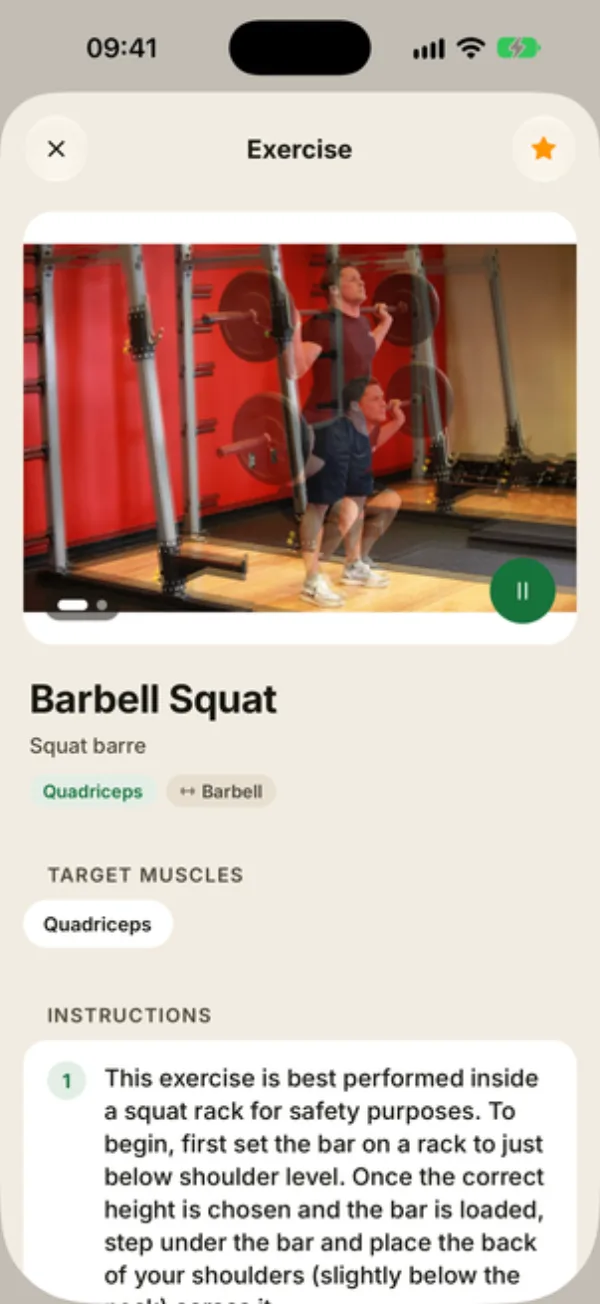
At the top, two images alternate to show the start and end positions. The green button pauses or restarts the animation. Offline, you only get the thumbnail. For a custom exercise, you see its photo, if it has one.
Below that is the exercise name. Library exercises also show their French name underneath: Barbell Squat, then “Squat barre”.
The pills show the muscle group, in green, and the equipment. Exercises you created also carry a Custom pill.
Target muscles and instructions
- Target muscles: the main muscle worked. Custom exercises don’t have this section.
- Instructions: the coaching cues, broken into numbered steps.
Used in
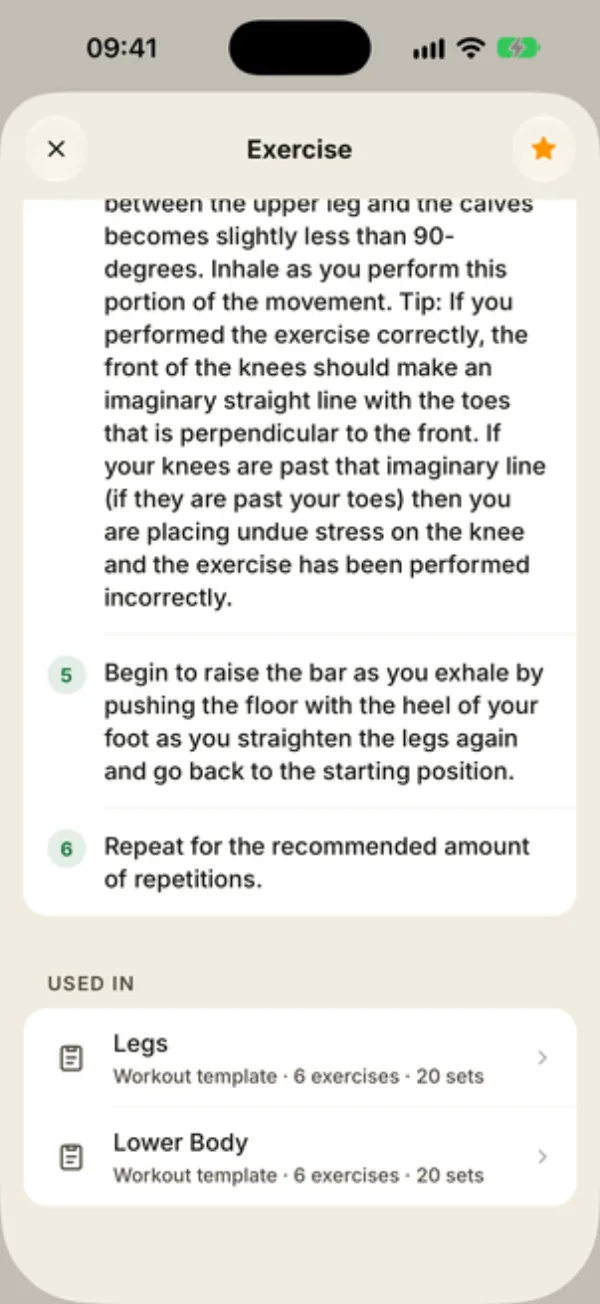
This section lists your templates that include the exercise, with how many exercises and sets each one has: “Workout template · 6 exercises · 20 sets”. Tap one to open it.
Handy before you swap an exercise out: you can see right away which templates need updating. See how to create a workout template.
On a custom exercise, Edit and Delete sit at the bottom: see how to create a custom exercise.
Your client’s stats
When you open the sheet from an exercise’s menu in a session, or from a finished session’s summary, it also shows View analytics, with a quick summary: the client’s name, how many sessions they’ve done this exercise in, and their record if they have one. Tap it to open that client’s progress on the exercise: see how to track progress on an exercise.
From the Exercises tab or the (i) button, that row doesn’t show up, since the sheet isn’t tied to any client.
Show it to your client
Mid-session, open the sheet and let the demo loop: your client sees the movement you’re after while you fix their setup.
FAQ
Why don’t I see View Analytics?
You opened the sheet from the Exercises tab or the (i) button. Open it from the exercise menu in one of your client’s sessions, or from the summary of one of their sessions.
Can I edit a library exercise?
No. Create a custom exercise with your own cues instead: it’ll sit right next to the original.
It says “Exercise not found”
Its author most likely deleted it. Past sessions still keep it in their history.