 Coachigo
During a session
How to read a session summary in Coachigo
Volume, sets, duration, how it felt, records and comparison: what a finished session summary shows in Coachigo, and how each number is calculated.
Once a session is finished, Coachigo keeps a full summary of it: the volume lifted, the sets, how your client felt, their records and how it stacks up against a similar session. Here’s how to read it.
To open it, tap a session under Recent sessions on the client profile, or tap See all for the full history. You can also get there from the agenda, the client’s calendar, their program or an exercise’s stats.
Header and total volume
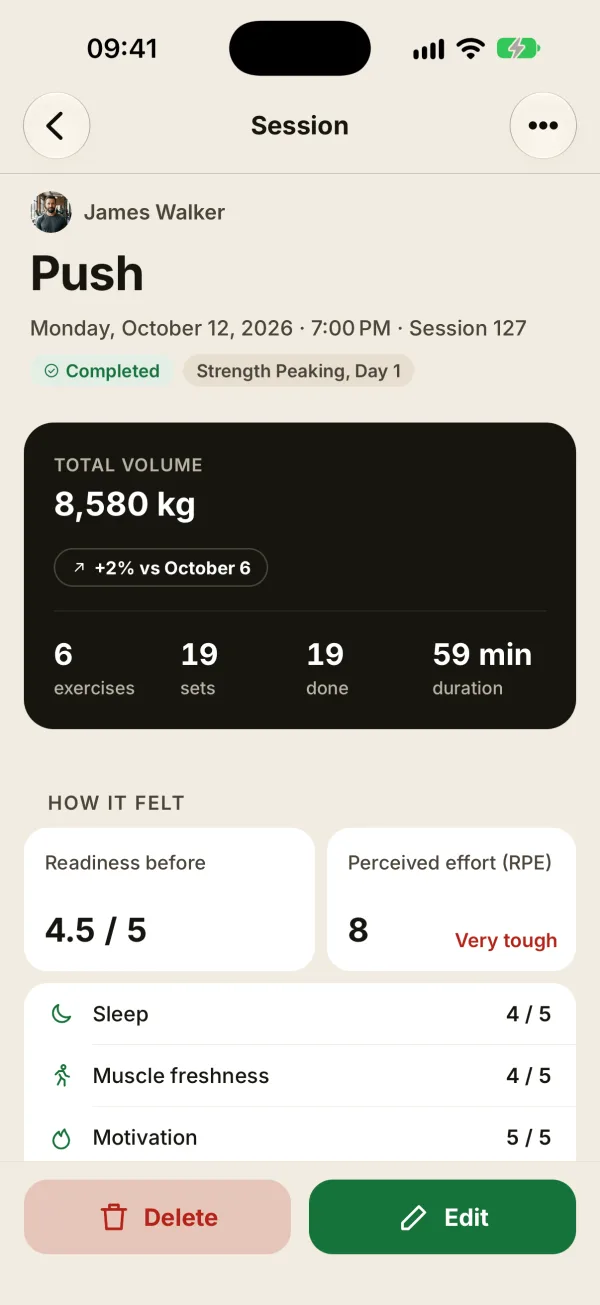
At the top: the client’s name (tap it to open their profile), the session name, then the date, time and session number, like “Session 127”. That number is the session’s rank among all of the client’s sessions, by date.
Two badges follow: the status (Completed) and the session type (Template, Freestyle, or the program name and day).
The big card at the top shows the total volume: weight × reps added up across every checked set. Below it:
- exercises and sets: the number of exercises and planned sets, checked or not;
- done: the sets that were checked;
- duration: from opening the session to the last time it was saved.
Volume only counts load
Bodyweight and timed exercises count as 0 in the volume. A session of planks and push-ups therefore shows “0 kg”: check the total reps or seconds under each exercise instead.
How it felt and records
The How it felt block shows Readiness before (the check-in) and the Perceived effort (RPE) logged at the end, with each rating and the recovery your client picked. Anything left blank shows Not filled in.
If your client set a record, the Key points block shows it with a trophy: “Record: Barbell Deadlift”, the weight, reps and estimated 1RM. Records are compared against all of the client’s earlier sessions, so an exercise done for the first time never counts as one.
Exercise details
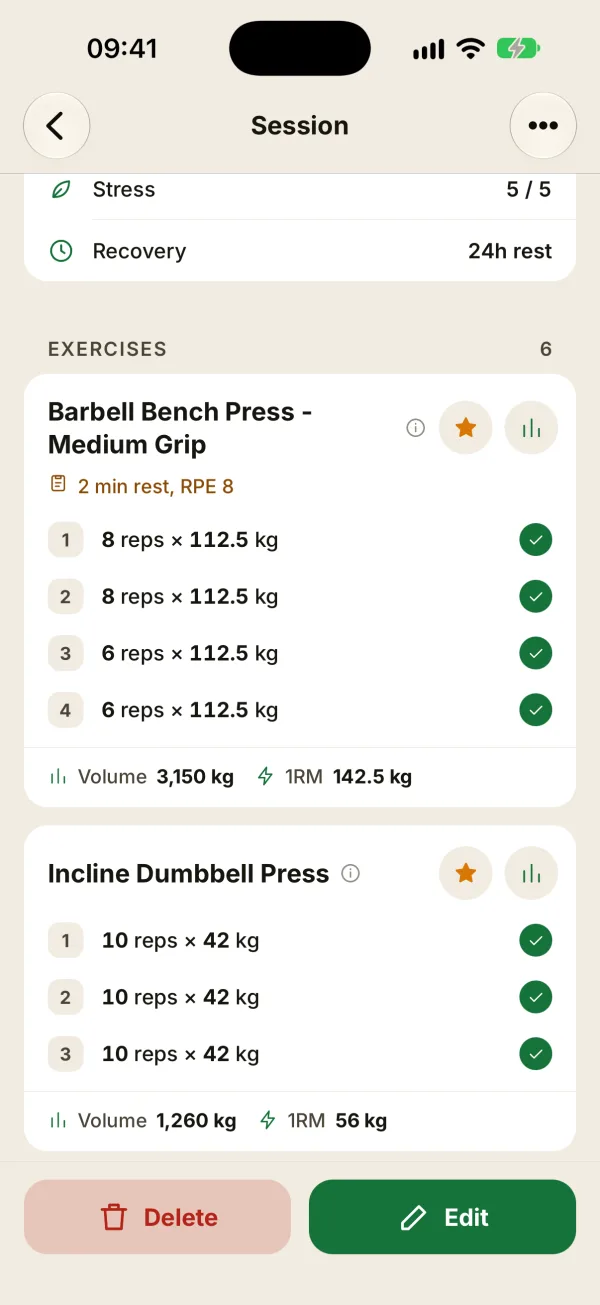
The Exercises section lists each exercise with its sets:
- one line per set, like “8 reps × 112.5 kg”, “12 reps · Bodyweight” or “45 s”;
- a filled check for a completed set, an empty circle for one that wasn’t checked;
- at the bottom of each exercise, its volume and estimated 1RM, or the total reps or seconds.
The star adds the exercise to your favorites, and the chart button opens its stats for this client. A superset or circuit has two tabs: By round, a table of rounds with the volume, Circuit time and Fastest round underneath, and By exercise, which shows each exercise’s usual card.
Comparison
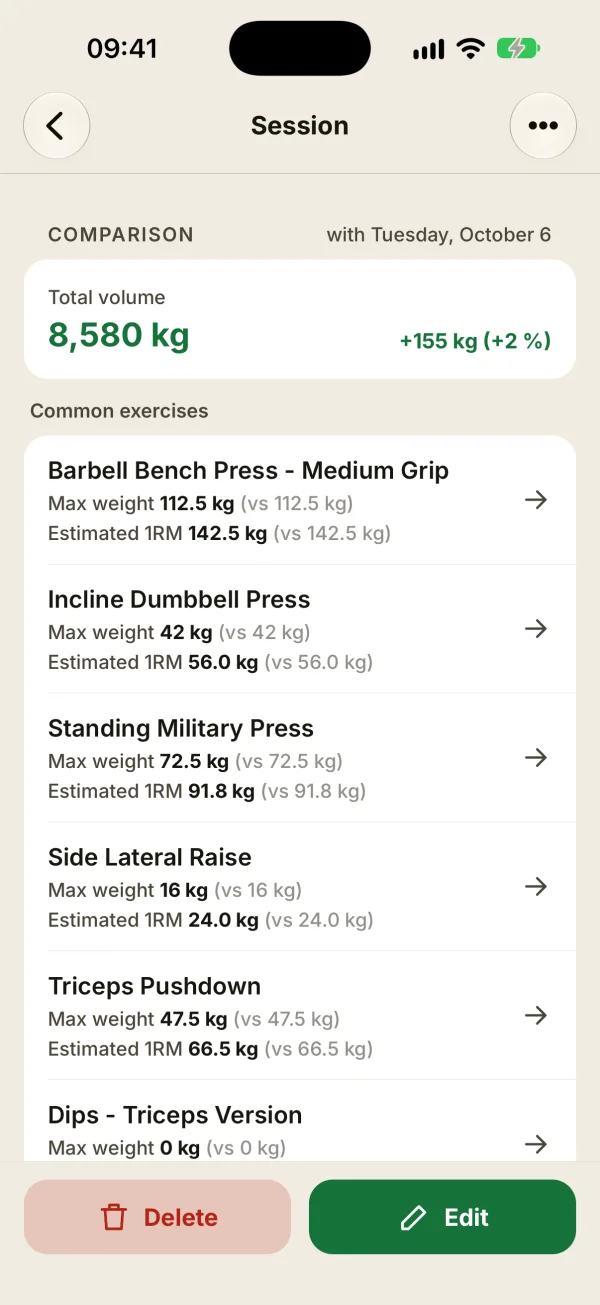
The percentage under the total volume, like “+2% vs October 6”, and the Comparison section at the bottom compare this session with an earlier one.
Heads up: it isn’t necessarily the session right before. Coachigo picks the earlier session with the most exercises in common. For each shared exercise, you see both sessions’ max weight and estimated 1RM, plus a trend arrow based on estimated 1RM: up, flat or down. On a tie, it picks the most recent session; with no exercise in common, there’s no comparison.
Actions
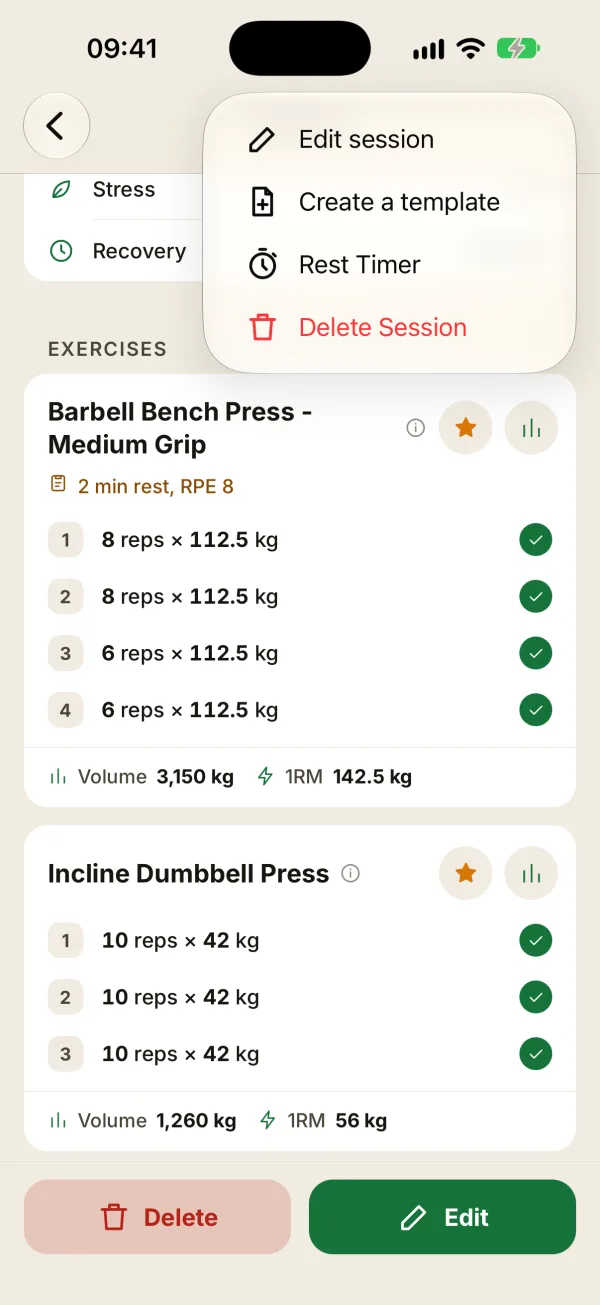
At the bottom of the screen: Delete and Edit. The … button at the top right also offers:
- Edit session;
- Create a template, to reuse these exercises in future sessions;
- Rest timer, to adjust rest settings;
- Delete session.
FAQ
Why isn’t the duration showing?
Duration is measured from opening the session to the last time it was saved. If that’s more than 6 hours (say, a session started in the morning and finished in the evening, or edited hours later, since saving the edit sets a new end time), Coachigo hides it. If the session was recorded in Apple Health (iPhone or Apple Watch), that duration is shown instead, with no 6-hour limit.
Does my client see the same summary?
Yes, if you’ve shared their profile with them. They can edit sessions they logged themselves, but not yours, and they can’t delete sessions. On your sessions, a banner tells them they’re read-only.
Can I share or export the summary?
No, this screen has no share or export option. To back up your data, Account > Export clients and sessions creates a JSON file with every session.