 Coachigo
Weight, measurements and photos
How to log weight and body measurements in Coachigo
Weight, body fat, BMI, waist, arm or thigh: log your clients' measurements in Coachigo and see how they change at a glance.
The scale doesn’t tell the whole story: a client who drops an inch off their waist without moving the scale is still making progress. In Coachigo, each measurement groups weight, body composition and circumferences, on whatever date you took them.
Add a measurement
Open the client’s profile. In the Photos and measurements section, tap Add, then A measurement. Once the client has data, the section’s row opens the Body screen, where the + at the top right does the same thing.
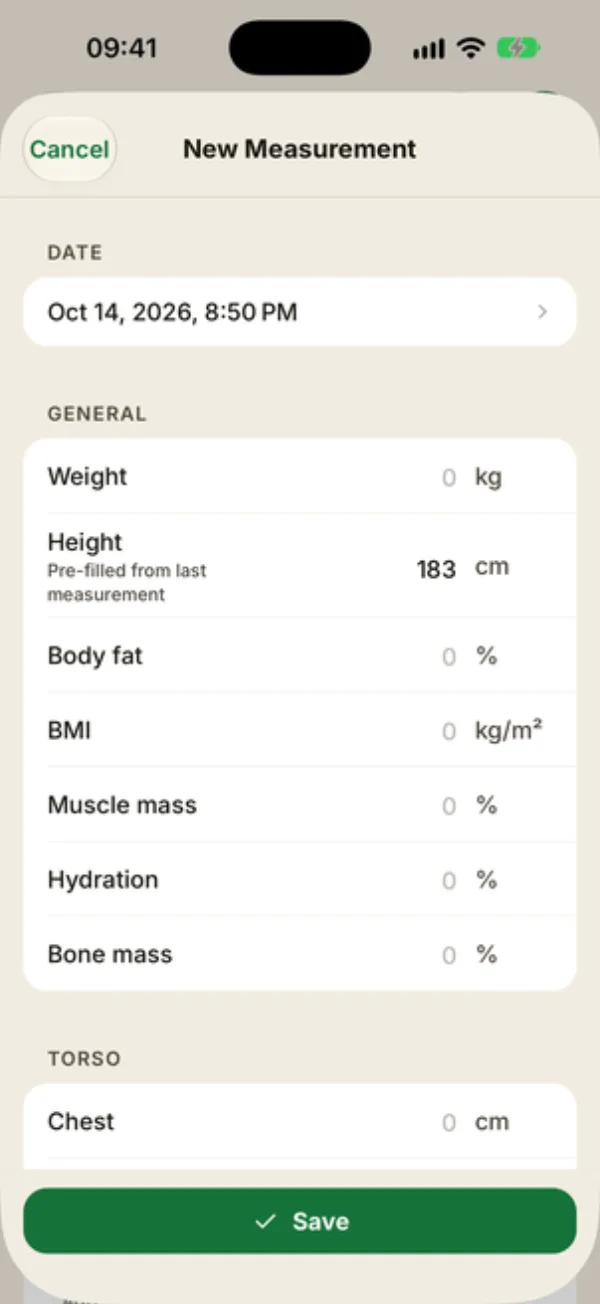
The New measurement form is split into blocks:
- Date: now by default, change it to log a measurement taken on another day;
- General: Weight, Height, Body fat, BMI, Muscle mass, Hydration and Bone mass;
- Torso: Chest, Waist, Hips, Shoulders and Neck;
- Arms and Legs: arm, forearm, thigh and calf, left and right;
- Notes: fasted, post-workout, which scale you used…
Only fill in what you measure: one value is enough. Commas and periods both work as decimal separators. Height carries over from the last measurement (or the client’s profile) and shows “Pre-filled from last measurement”. Leave BMI blank and Coachigo calculates it from weight and height. Tap Save.
Track the trend
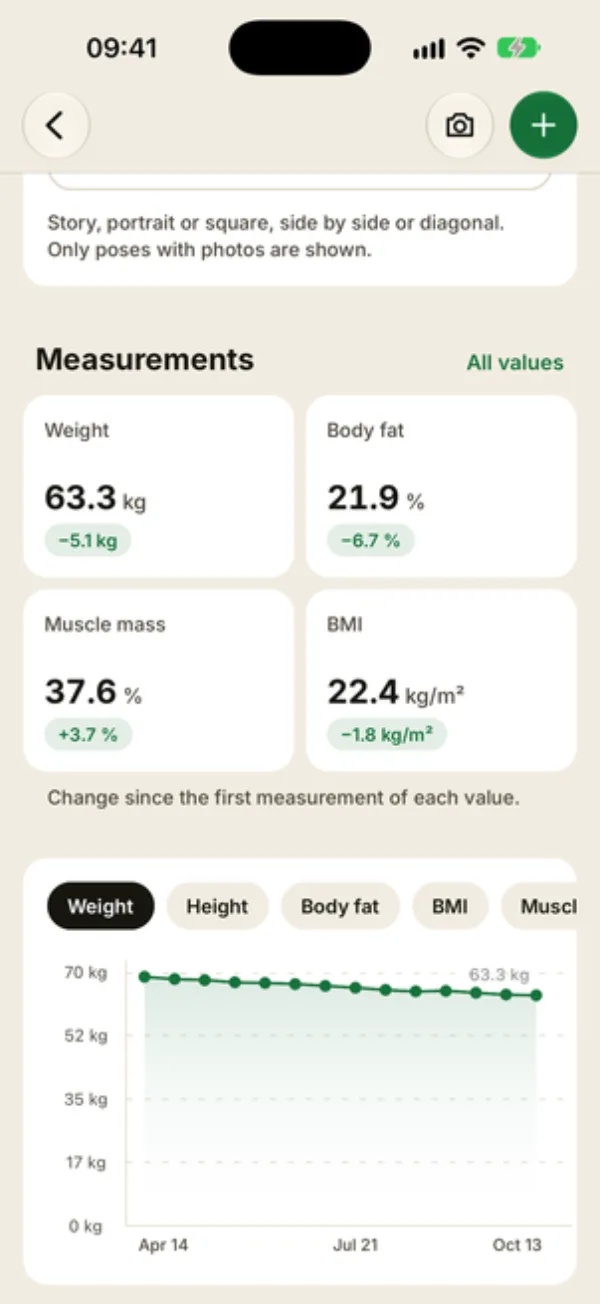
On the Body screen, the Measurements area shows the latest measurement in up to four tiles (weight, body fat, muscle mass, BMI, or circumferences depending on what you track). The badge under each value shows the change since the first measurement of that value. It turns green when things move the right way and red when they don’t: down is good for weight, body fat, BMI, waist and hips, up is good for everything else.
From the second measurement on, a chart shows up below. Weight is shown by default: tap another chip to switch values.
Further down, Measurement history lists the last 5 measurements. See all expands the full list and Show less collapses it.
Edit or delete a measurement
Tap a row in Measurement history to open that measurement. All values, next to the Measurements heading, jumps straight to the latest one. Make your changes and tap Save, or tap Delete at the bottom of the screen and confirm.
Two things to watch when editing: a saved BMI isn’t recalculated when you change weight or height, so update it too. And clearing a field doesn’t remove the value: to get rid of it, delete the measurement and log it again.
Pounds or kilograms, feet or centimeters
Set your units in the Account tab, under During sessions: Weight in kg or lb, Measurements in cm or ft (circumferences then show in inches). The setting applies across the app, including forms, tiles and charts.
To pair the numbers with pictures, see how to take progress photos.
FAQ
Can my client log their own measurements?
Yes, if they follow their shared profile in the app. They see your measurements and can add their own. They can only edit the ones they entered: yours open read-only for them. You can edit every measurement on the profile.
Does weight sync with Apple Health?
No, measurements are entered in Coachigo. Apple Health is used to save sessions, not weight.
Do I need Coachigo PRO to track measurements?
No. Measurements, the chart and the history are all available without a subscription.