 Coachigo
During a session
How to log perceived effort (RPE) in Coachigo
Rate how hard a workout felt from 1 to 10 and how much recovery it calls for: how session RPE works in Coachigo and where to find it afterward.
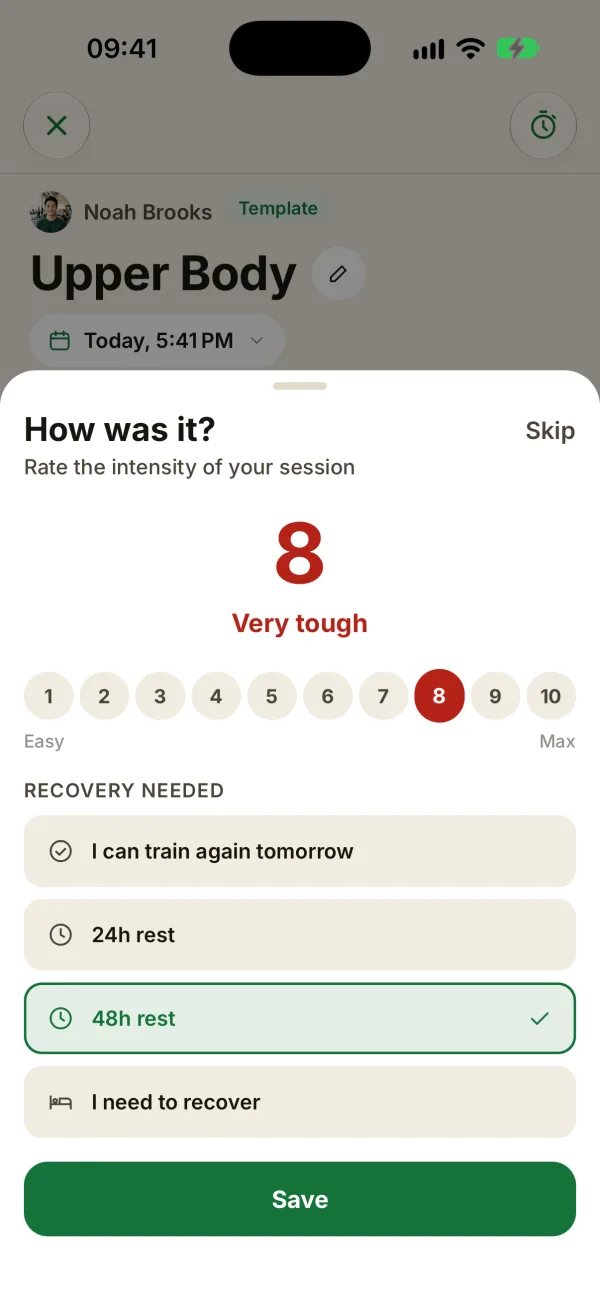
RPE (Rating of Perceived Exertion) measures how hard a workout felt on a 1 to 10 scale. In Coachigo, your client rates it at the end of the session (or you rate it for them), along with how much recovery they think they need. Two taps, and you know whether the workout was too easy, just right or too much.
When the RPE sheet shows up
Tap Finish session at the bottom of the screen (or the X at the top left). The Finish session? summary opens (exercises, sets done, duration) with three options:
- Finish session opens the RPE sheet.
- Continue later keeps the session in progress, with no RPE for now.
- Discard session deletes the session and everything logged in it, after you confirm.
The RPE sheet shows up for every session you finish this way, freestyle sessions included.
Rate the effort from 1 to 10
The How was it? sheet starts at 5. Tap a value from 1 (Easy) to 10 (Max): the big number and its label update, in green from 1 to 4, orange from 5 to 7 and red from 8 to 10.
| RPE | Label |
|---|---|
| 1 | Very easy |
| 2 | Easy |
| 3 | Light |
| 4 | Moderate |
| 5 | Demanding |
| 6 | Hard |
| 7 | Very hard |
| 8 | Very tough |
| 9 | Near max |
| 10 | Max effort |
Log the recovery needed
Below the scale, Recovery needed offers four answers. 24h rest is selected by default.
- I can train again tomorrow
- 24h rest
- 48h rest
- I need to recover
It’s how your client feels, not a prescription: a handy hint for scheduling the next session.
Save or skip
- Save finishes the session with the RPE and the recovery.
- Skip also finishes the session, just without an RPE.
Either way, the session is saved. Tapping the dimmed background (or the Android back button) counts as Skip: the session is saved without an RPE, and you don’t go back to it.
Where to find the RPE
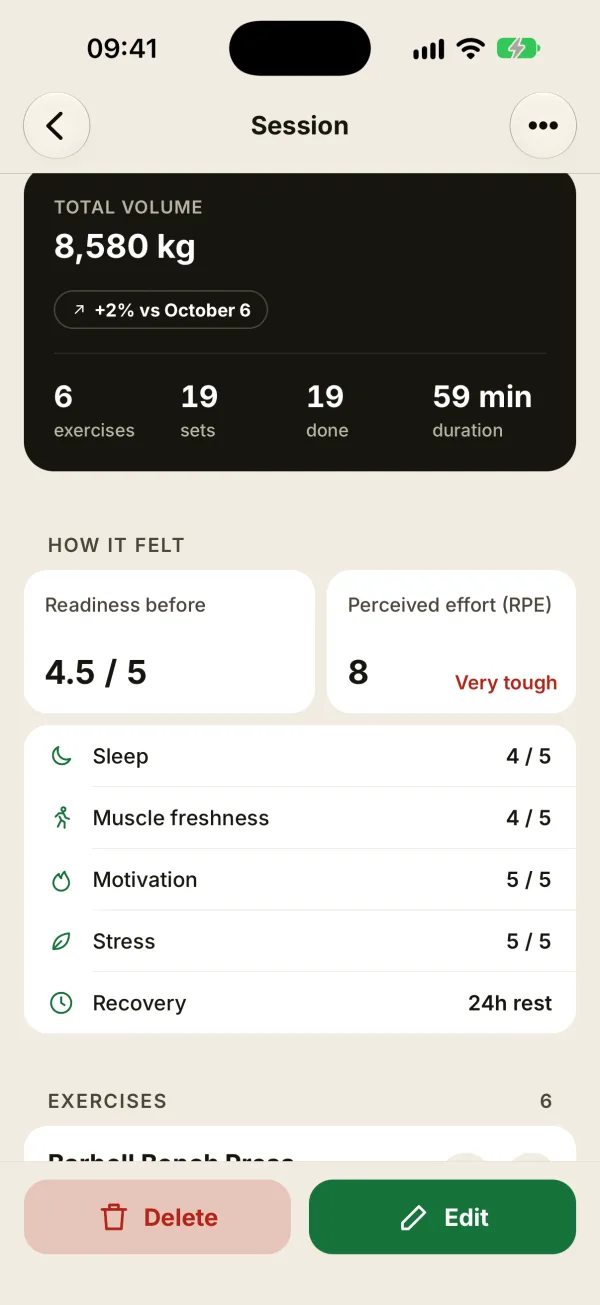
- In the finished session, How it felt block: the Perceived effort (RPE) tile shows the rating and its label, and the Recovery row shows the answer they picked. Without an RPE, the tile says Not filled in.
- In the session list on the client profile: each rated session shows “RPE 8” next to its exercise and set count.
- In the client’s Detailed statistics, Readiness and RPE card: the average RPE shows at the top of the card once 5 sessions in the selected period have an RPE. The card only appears if at least one session in the last 8 weeks has a readiness check-in.
Read RPE alongside the load
RPE really pays off when you compare it with past sessions’ RPE. Same weights and a lower RPE: your client is getting stronger, and you can think about adding load. RPE creeping up for no clear reason: check the sleep and muscle freshness scores from the readiness check-in before you push harder.
FAQ
Can I add or change the RPE afterward?
No. When you edit a finished session, the RPE sheet doesn’t show up. The saved rating stays as is.
How is this different from an “RPE 8” in an exercise note?
They’re two different things. A cue like “RPE 8” in an exercise note is a target you set before the sets. Session RPE is your client’s overall rating of the workout, given once it’s over.
Can my client log it themselves?
Yes. If you share their profile and they log their own sessions on their own phone, the RPE sheet shows up when they finish. You’ll see their rating in that session on the client profile.
Can I log RPE on Apple Watch?
No. A session finished from the watch is saved without an RPE. To rate it, finish the session on your iPhone.