 Coachigo
During a session
How to log a workout in Coachigo
Sets, reps, weight and the rest timer: how to log your clients' workouts in Coachigo without slowing down between sets.
Every exercise in a Coachigo workout is a simple table: one row per set, with reps, weight and a checkbox. Here’s how to fill it in fast enough to keep your eyes on your client, not your phone.
Start the session
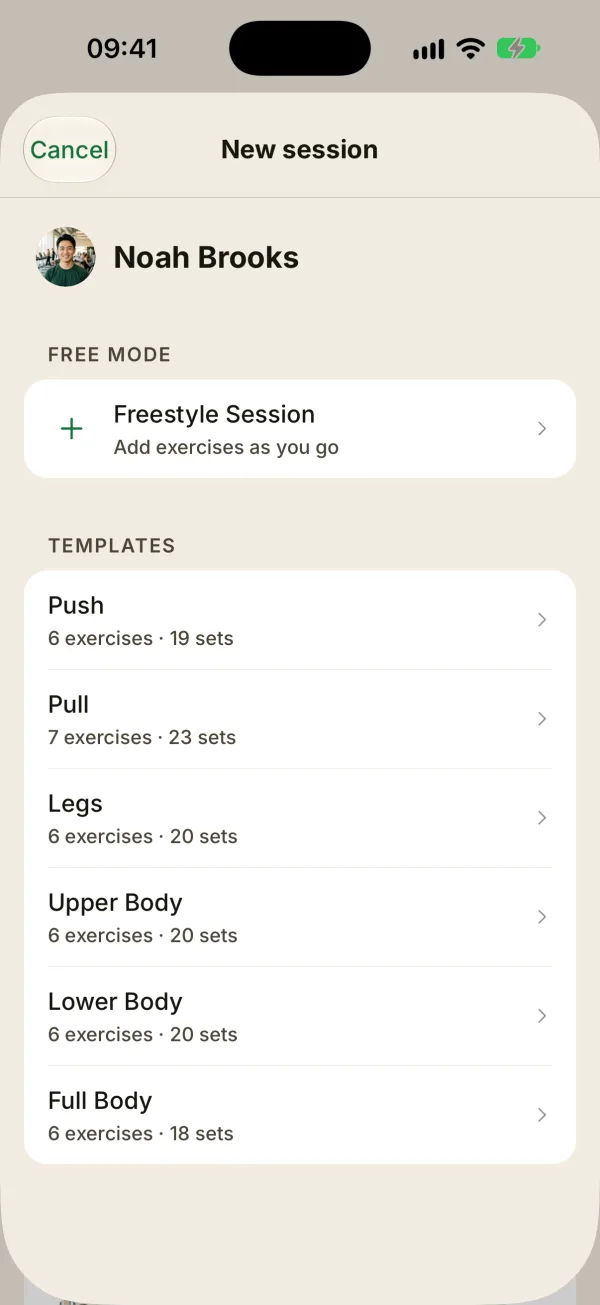
On your client list, tap the green play button next to a client. Then pick the next workout from their program (Follow the program), one of your templates, or a Freestyle session if you’d rather add exercises as you go.
If that client has a session scheduled today, start it with its own Start button instead, in the agenda or on the client’s profile, so it turns Completed.
With a template or a program, the readiness check-in pops up first: sleep, muscle freshness, motivation and stress, one tap each. Tap Skip to jump straight to the exercises. A Freestyle Session starts without a check-in.
Read the exercise card
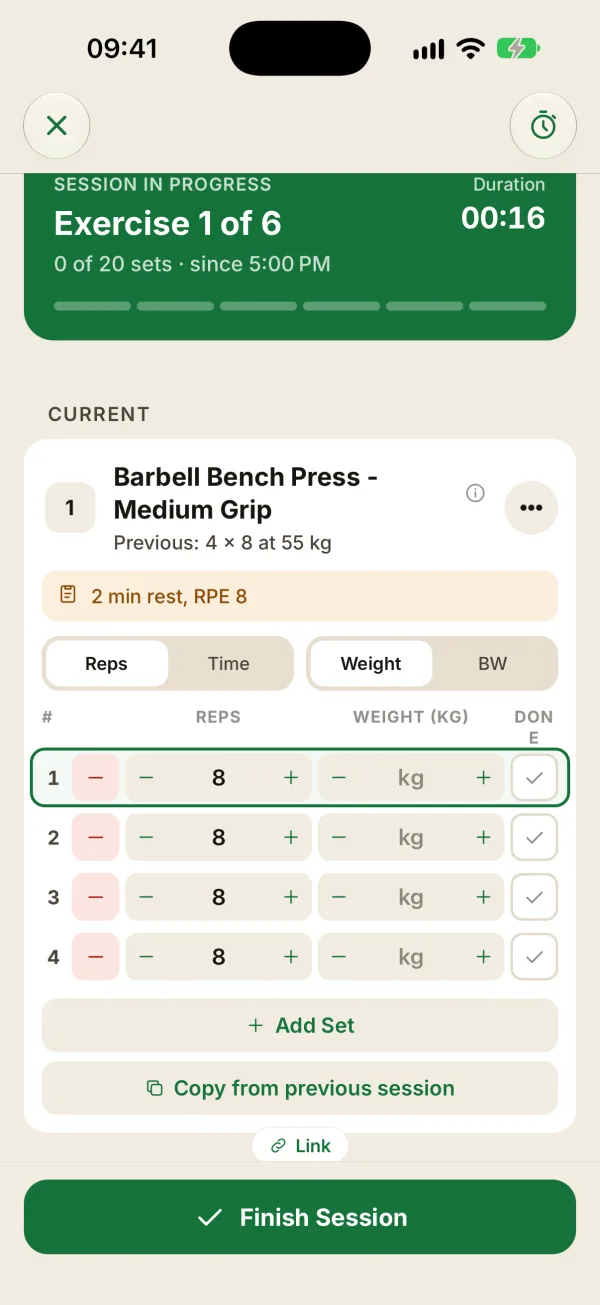
- Previous sums up the last time your client did this exercise: sets, reps and top weight, like “4 × 8 at 55 kg”.
- The beige banner shows the notes you wrote for this exercise in the template.
- Reps / Time switches between reps and a duration, to time a plank or a carry.
- Weight / BW switches between loaded and bodyweight. Heads up: switching to BW clears the weights already entered for that exercise.
- The outlined row is the next set to do.
The exercise’s … button and Add exercise let you add or remove an exercise on the fly, and Link pairs two exercises into a superset or circuit.
Enter reps and weight
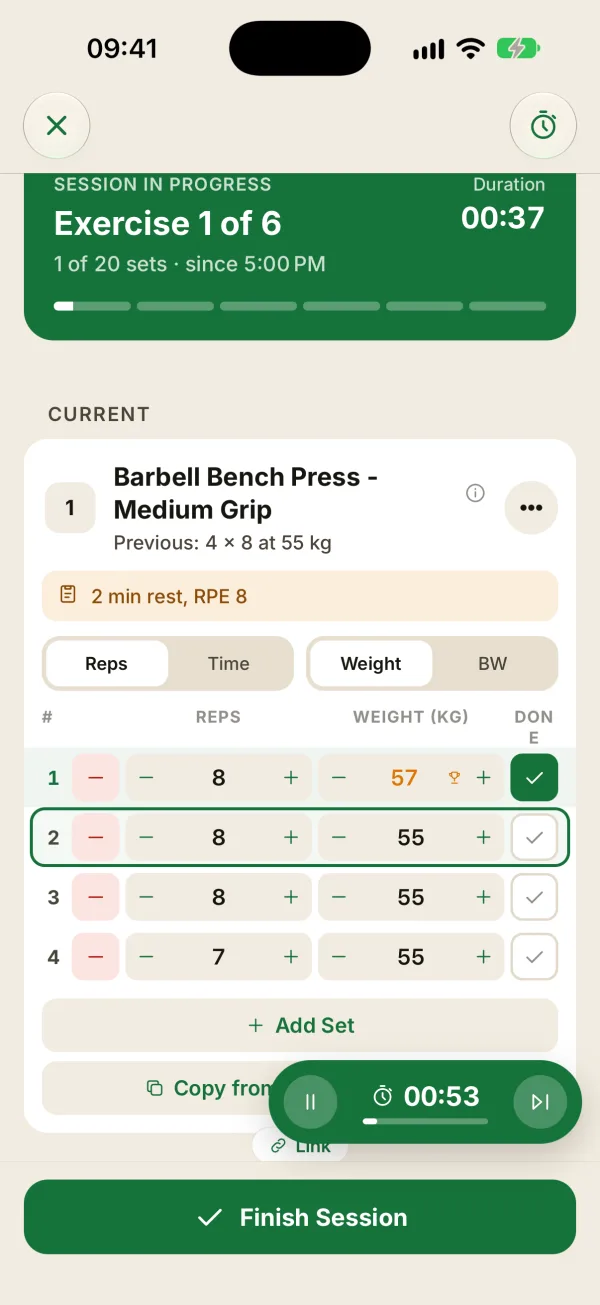
- + and − change reps by 1 (or time by 5 seconds) and weight by 1 unit (kg or lb, depending on your settings). Hold the button to go faster.
- Tap a number to type it in, for example 57.5.
- Copy from previous session pulls in the reps and weights of the sets your client completed last time. If the rows already have numbers, like the target reps from a template, confirm with Copy. You only adjust what changed.
- Add set adds an empty row. The red button on the left of a row deletes that set right away, with no confirmation (it shows up once the exercise has at least two sets).
Pro tip
Start every exercise with Copy from previous session, then add weight on the sets your client owned last time. It’s faster than typing, and progressive overload becomes the default instead of something you have to remember.
Check off each set
Tap the box in the Done column when a set is finished. The next set gets outlined and the rest timer starts at the bottom of the screen: 60 seconds by default, or the rest set in the template. Use its buttons to pause it or skip ahead when your client is ready early. For duration, sound and vibrations, see how to set up the rest timer.
If the weight beats the heaviest your client has ever logged on that exercise, a New record! animation plays and the weight turns orange with a small trophy. The first time they do an exercise, there’s no record to beat yet.
Finish the session
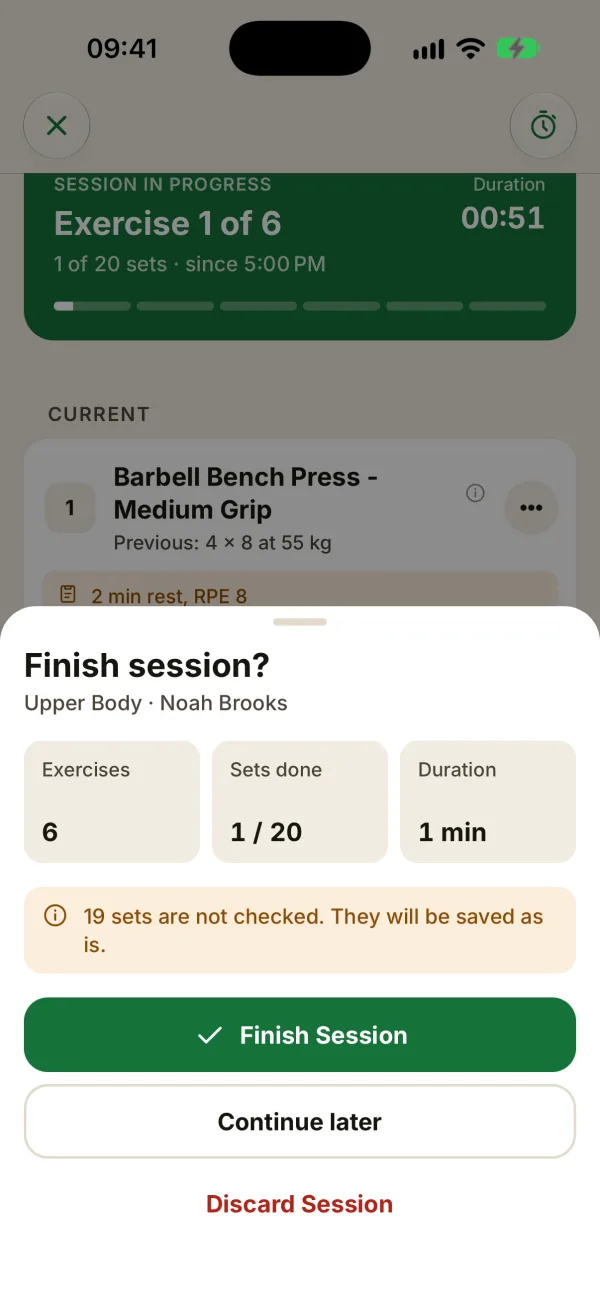
Tap Finish session at the bottom (or the × at the top left). You get a quick summary: exercises, sets done and duration.
- Finish session saves everything. Unchecked sets are kept as they are. Coachigo then asks How was it?: the session’s intensity (RPE) from 1 to 10 and how much recovery your client needs. Tap Skip if you’re in a hurry. You land back on the client’s profile, where the session joins their history with its summary.
- Continue later keeps the session open. For 24 hours you can pick it back up from the client’s profile with Resume session; after that, from the session itself.
- Discard session deletes everything you logged, once you confirm.
FAQ
What if the app closes mid-session?
Nothing is lost. The session saves itself a few seconds after every change, even without a connection, and you’ll find it on the client’s profile under Resume session.
Where do I set the rest time?
During a session, tap the stopwatch icon at the top right: quick durations, auto-start, sound, vibrations and Start a rest now. The same settings live in the Account tab, under During sessions. They’re saved per device. The full rundown is in how to set up the rest timer.
How do I fix a session that’s already finished?
Open it from the client’s profile, then tap Edit at the bottom of the screen. See how to edit a past session.
Can my client log the session themselves?
Yes, once they’ve joined their profile with a share code. Sessions they log show up on your side in real time, and they can only edit the sessions they logged.