 Coachigo
Dashboard
How to follow up with a client in Coachigo
A client running late, a pack running out, an expiry date or a pending payment: see who to contact in Coachigo PRO and send a prefilled message through WhatsApp.
The dashboard tells you who to contact, and Coachigo drafts the message. You read it over, then send it from WhatsApp or whichever app you prefer. The Follow up button is a Coachigo PRO feature. The dashboard itself stays free.
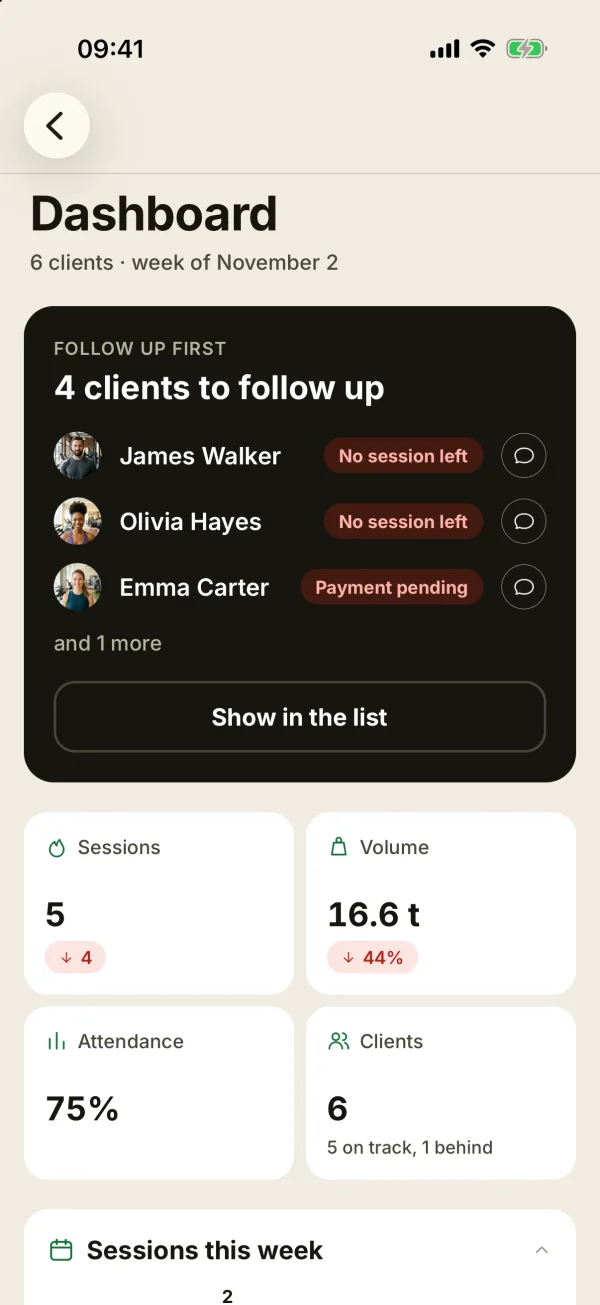
See who needs a follow-up
Open the dashboard. The FOLLOW UP FIRST card lists up to three clients, then “and N more”, with the reason on each line, most urgent first:
- No session left: the pack is used up.
- Expired: there are sessions left after the expiry date.
- Payment pending: all or part of the price isn’t recorded as paid.
- +Nd: the client is behind their pace, or shows To restart or Inactive when no pace is known.
- N sessions left: the balance has reached your alert threshold.
- Expires soon: the expiry date is 7 days away or less, with sessions left.
Tap the message icon next to a name to prepare the follow-up. Follow up also appears further down, on the cards of clients who have a pack, and on their Packs and payments screen.
Send the message
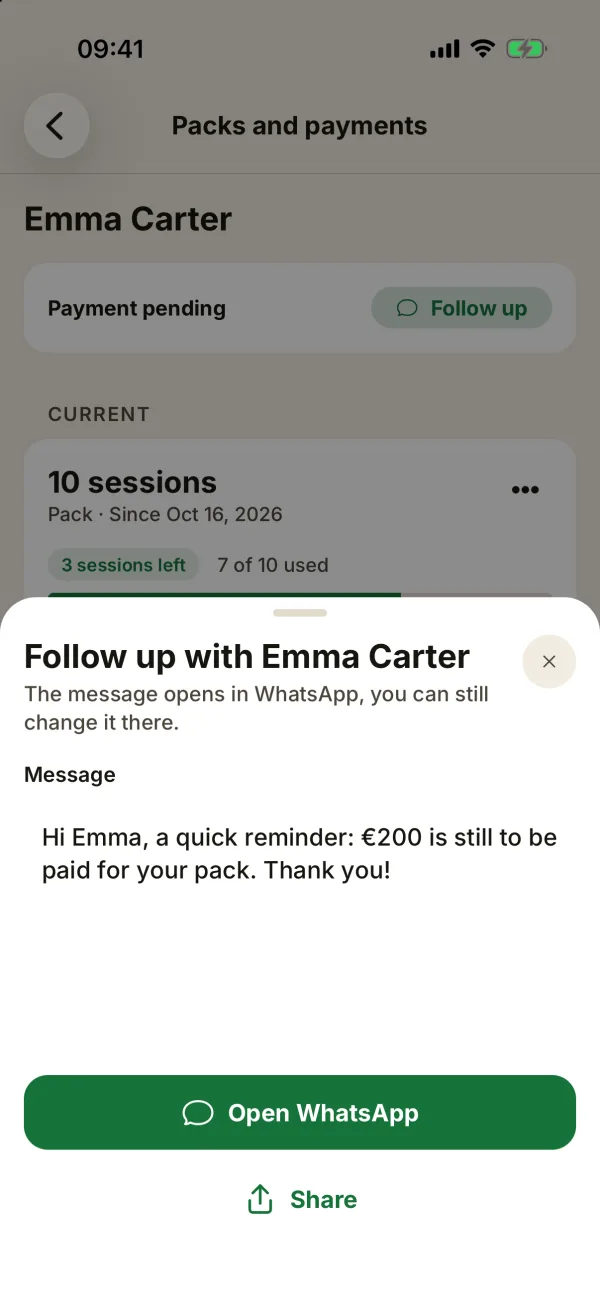
The Follow up sheet opens with a message prefilled for the most urgent reason. For a client who’s behind, for example: “Hi Emma, we have not seen each other for a few days. When would you like to plan your next session?” Change it however you like, then:
- Open WhatsApp if the client’s number is saved. WhatsApp opens on their conversation with the text already in place, and you’re the one who hits send.
- Share otherwise: your phone’s share sheet lets you pick the app. On a computer, if the browser has no share sheet, the message is copied and you just paste it.
The number goes in the Phone field of the profile, ideally in international format (+44 7700 900123). See how to edit a client. Only you can see it.
A 3-day pause after you reach out
As soon as WhatsApp or the share sheet opens, Coachigo records the follow-up: the client drops off the card for 3 days, which gives them time to answer. The date stays on their Packs and payments screen (“Contacted on Nov 5, 2026”). They stay in the dashboard’s client list, and you can follow up sooner if you want.
Coachigo can’t tell whether the message was sent or answered. If you close WhatsApp without sending, the pause still applies.
Set the end of pack alert
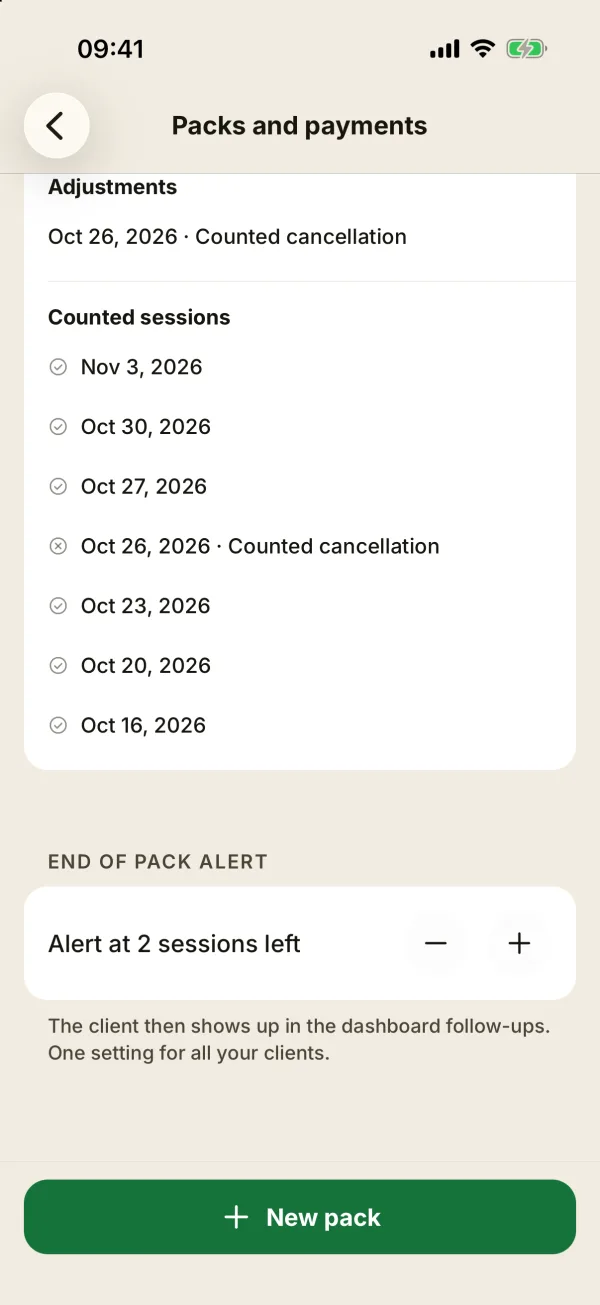
At the bottom of the Packs and payments screen, the End of pack alert section sets the threshold: 2 sessions left by default. It’s one setting for all your clients.
The reminder on your phone
Coachigo also schedules a reminder on your phone, at 9 AM:
- the morning after the session that reaches the threshold, like “Emma: 2 sessions left”;
- 3 days before the expiry date of a pack with sessions left.
To turn it off, switch off End of pack in the Account tab, Notifications section. The row appears once you’ve created a pack. The web version doesn’t have this reminder. To set up packs, see how to track session packs.
FAQ
Does the client get anything automatically?
No, nothing goes out without you. Coachigo drafts the text, and you send it from WhatsApp or another app.
I don’t see the Open WhatsApp button
The number is missing, or Coachigo can’t work out the country from it. Save it in international format, with the country code, in the profile’s Phone field.
What if I’m not on Coachigo PRO?
The dashboard still shows clients who are behind. Tapping Follow up opens the Coachigo PRO page. See what Coachigo PRO includes.