 Coachigo
Account and subscription
How to export and import your Coachigo data
Save your clients and their workouts to a file, import it again or hand it to another coach: what the file includes and what it leaves out.
Exporting saves a copy of your clients and their workouts to a file. Use it as a backup, or to hand clients off to another coach, who imports them into their own Coachigo. Export and import are both free.
Export
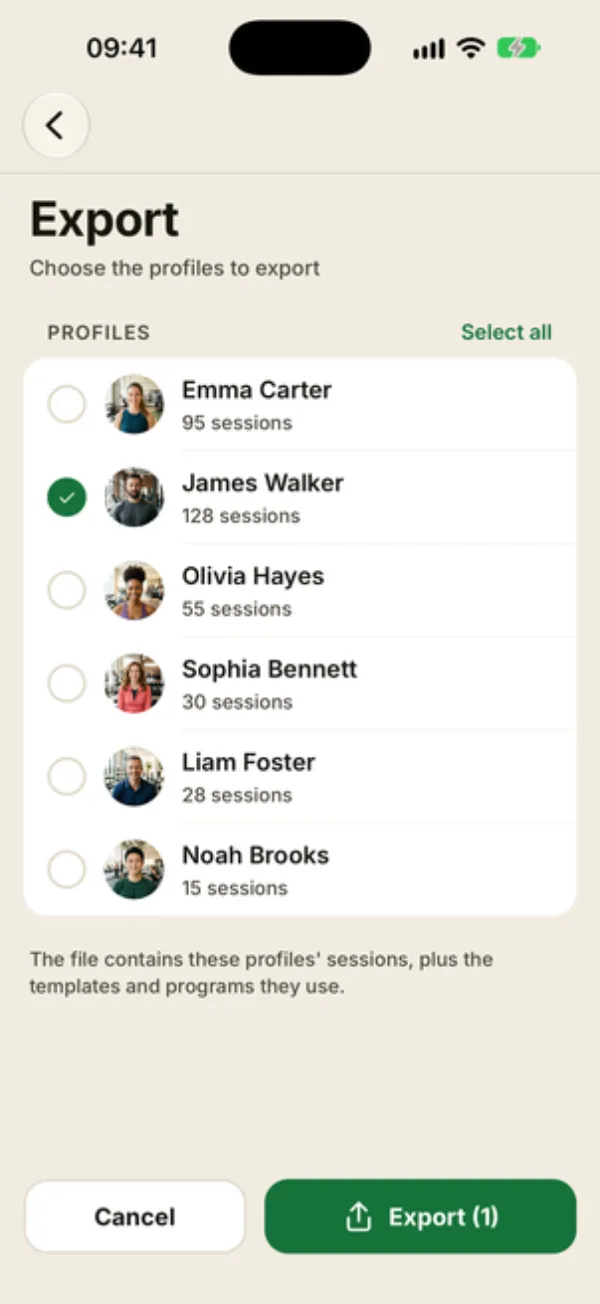
Open the Account tab, Data section, then tap Export clients and sessions (Export profiles and sessions in personal use).
Check the profiles you want, or tap Select all. Each row shows how many sessions it has. Tap Export (n): your phone’s share sheet opens so you can save the file to Files, email it, AirDrop it or send it through another app.
If you don’t have any profiles yet, the app shows “No profiles”: create one first.
What’s in the file
- the profiles you picked: first and last name, color, photo, goal, level, frequency and height;
- all their workouts, including sets, weights and the Apple Health data saved with each session;
- the templates used by those workouts or by their programs;
- the programs assigned to those profiles.
Not included: body weight and measurements, progress photos, scheduled sessions and recurring sessions from the agenda, your custom exercises, your favorites and your settings.
A JSON file made for Coachigo
The file is in JSON format and dated with the day you export it. It’s meant to be imported back into Coachigo: it won’t open as a spreadsheet, and there’s no CSV or PDF version. To present results to a client, see how to create a client PDF report.
Import
- Make sure your phone is online: you can’t import without an internet connection.
- In Account, Data section, tap Import a file.
- Pick a file exported from Coachigo.
- The Confirm import window shows how many profiles and sessions it contains: tap Import.
The Import complete summary shows, for profiles, sessions and templates, what was added and what already existed. Anything already there is skipped, so importing the same file twice won’t create duplicates.
Programs aren't imported
Even when they’re in the file, and even if the summary shows a Programs line, programs aren’t recreated on import. Whoever imports gets the profiles, their workouts and the templates, then has to rebuild and reassign the programs.
FAQ
Can I import data from another app or a spreadsheet?
No. Import only accepts files exported from Coachigo.
How do I hand a client off to another coach?
Export their profile and send the file: the other coach opens it with Import a file. They get the profile and the workout history, without programs, measurements or progress photos. If you want to work on the same profile together, share it with a code instead.
Is an export a full backup of my account?
No, it only holds the items listed above. If you created a Coachigo account, your data is already saved there: sign in on a new phone to get everything back.