 Coachigo
Your clients
How to edit or delete a client in Coachigo
Update a client's photo, goal or level, or delete their profile: what you can change, what deleting removes and what it leaves alone.
A client switches goals, moves up a level or stops training with you: their profile updates in a few taps, and you can delete it when you no longer need it.
Open edit mode
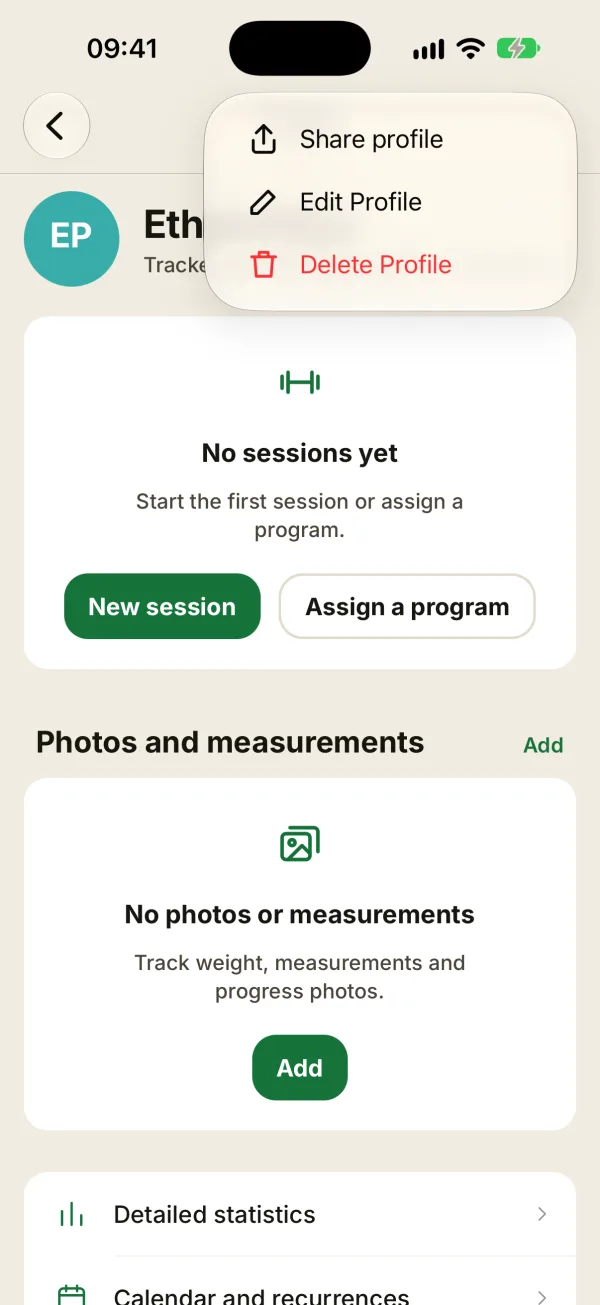
Open the client’s profile, tap … at the top right, then Edit profile. You’ll also find Edit profile at the very bottom of the profile.
The same menu has Delete profile, plus Share profile on iPhone (elsewhere, sharing has its own button at the top of the profile). These options only show up for the profile’s owner.
What you can change
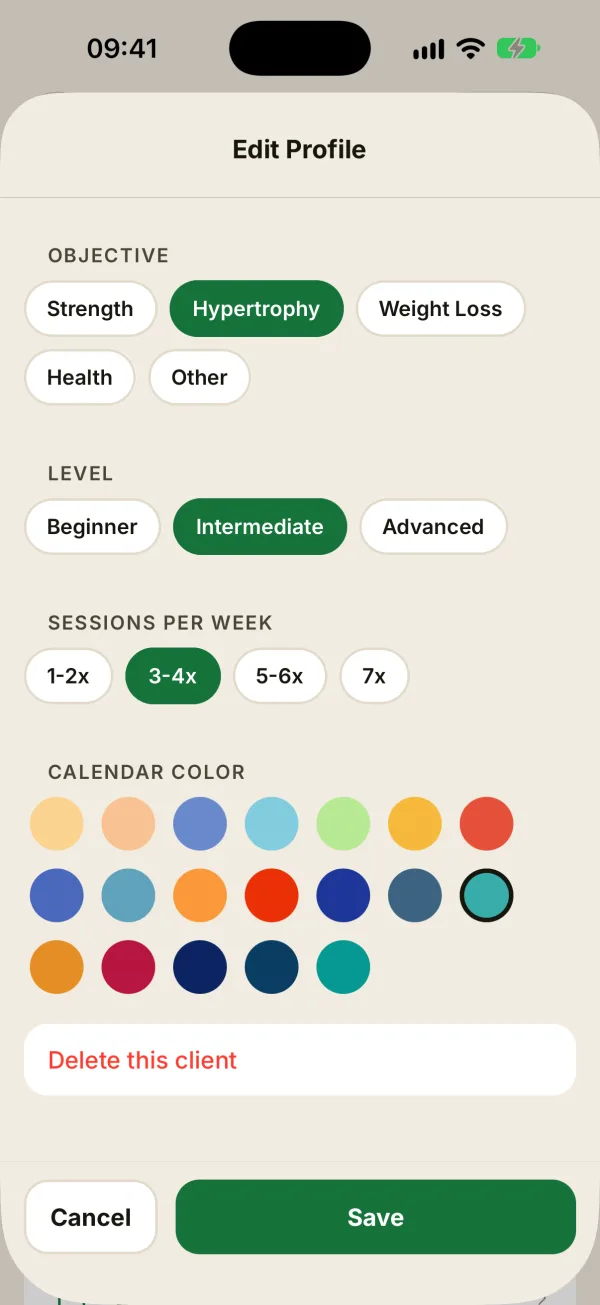
The Edit profile form has every field from when you created the client:
- the photo, which you can also remove on iPhone;
- first name, last name and height;
- objective, level and sessions per week;
- calendar color.
Tap Save. If you tap Cancel after changing something, Coachigo asks you to confirm.
Delete a client
Tap Delete this client at the bottom of the form, or … then Delete profile on their profile. Coachigo asks you to confirm twice:
- Delete profile: “All associated sessions will also be deleted.”
- Confirm deletion: tap Delete permanently.
The client disappears from your list, along with all their sessions.
There's no undo
Once deleted, a client can’t be recovered from the app. Before deleting a client with a history, export your data first: Account > Export clients and sessions.
FAQ
What if the profile is shared with my client?
The second confirmation shows how many people it’s shared with and says they keep their copy. Their copy of the profile does stay, but every session logged on it is deleted, including your client’s, so give them a heads-up and export your data first.
I don’t see Edit or Delete
That means you don’t own the profile: you joined it with a code. In that case, the menu only offers Leave This Profile, which removes your access without deleting anything on the owner’s side.
Can I archive a client instead of deleting them?
Not yet. A client you no longer train simply stays at the bottom of the list, with a gray dot.