 Coachigo
Account and subscription
How to customize Coachigo
Coach mode, rest, notifications and reminders, units, theme, accent color and language: every setting in Coachigo's Account tab and what it changes.
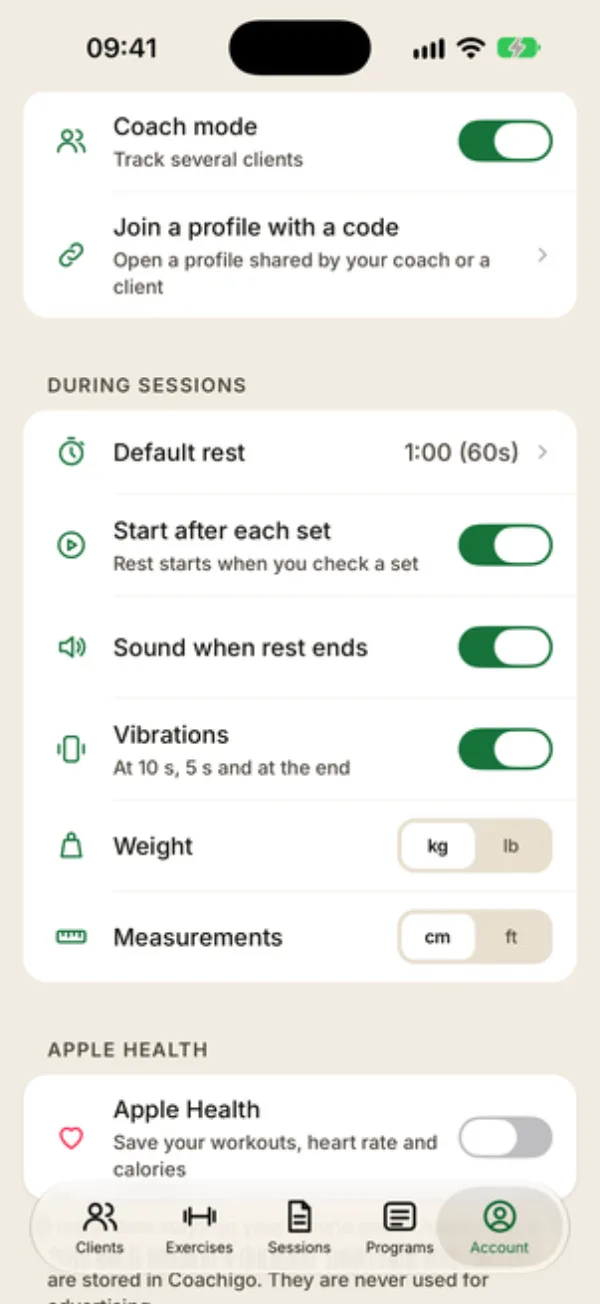
All of Coachigo’s settings live in the Account tab, grouped into sections: Usage, During sessions, Notifications and Appearance. Every change applies right away, with nothing to save.
Usage
- Coach mode: when it’s on (“Track several clients”), the app is set up for working with clients, with your My clients list on the home screen. Turn it off for personal use, built around your own training. You can switch anytime: no data is deleted or moved.
- Join a profile with a code: enter the code your coach or client gave you to open their profile. At least one of the two accounts has to be PRO (see Free or PRO).
During sessions
- Default rest: the rest time between sets, 60 seconds out of the box. On iPhone, tap the row and enter a value from 5 to 600 seconds. You can also change it mid-workout from the timer: see How to set up the rest timer.
- Start after each set: rest starts as soon as you check off a set.
- Vibrations: at 10 seconds, 5 seconds and when rest ends.
- Weight: kg or lb, for loads and body weight.
- Measurements: cm or ft, for height and body measurements.
Notifications
On iPhone and Android, the Notifications section comes after During sessions:
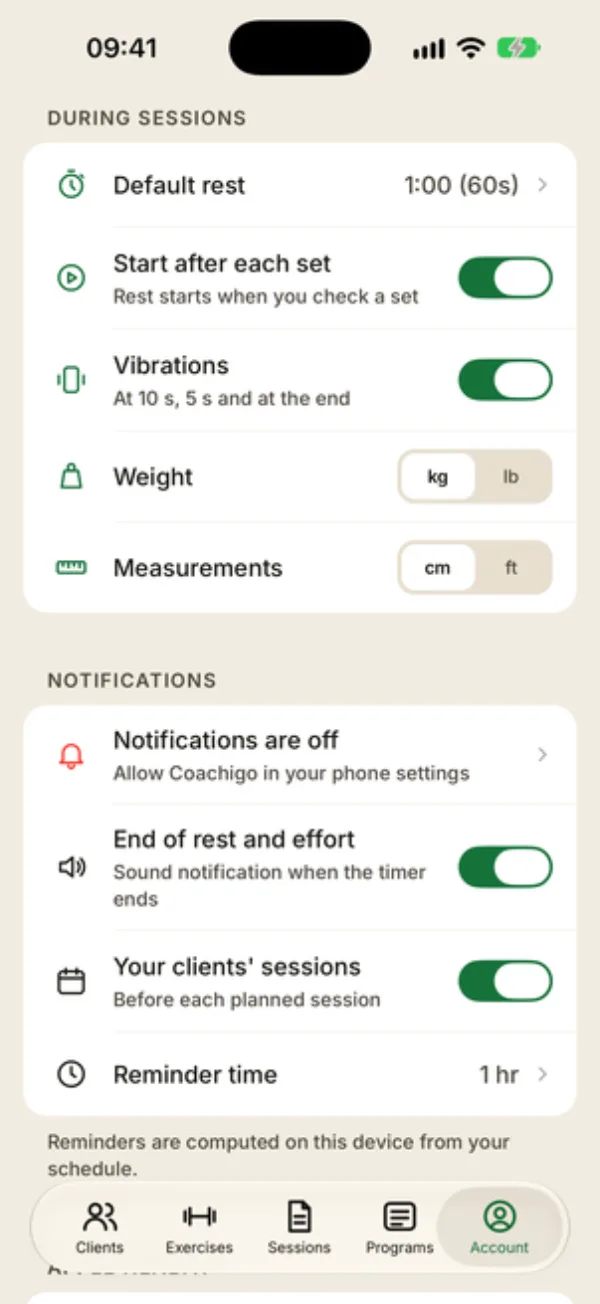
- Allow notifications: this row shows until you’ve answered the permission prompt. Tap it to bring the prompt up. If you said no, the Notifications are off row opens your phone settings so you can allow Coachigo.
- End of rest and effort: a sound notification when the rest timer or a timed exercise ends.
- Your clients’ sessions (in coach mode) or Session reminders (without coach mode): a reminder before each scheduled session. See How to schedule a session.
- Reminder time: 15 min, 30 min, 1 hr or 2 hr before the session. 1 hr by default.
- On-time reminders (Android): this row shows if your phone doesn’t yet let Coachigo set exact alarms. Tap it and allow “Alarms & reminders”, otherwise Android may delay a reminder by up to an hour.
Without coach mode
The Session reminders row replaces Your clients’ sessions, and one more row shows up:
- Weekly summary: on Sundays at 7 PM, a “Your week at a glance” notification counts your sessions over the last 7 days, the total weight lifted and the records you broke. Tapping it opens your stats.
All of these switches start out on. Reminders and the summary are worked out on the phone, from your schedule and sessions. The web app doesn’t send notifications.
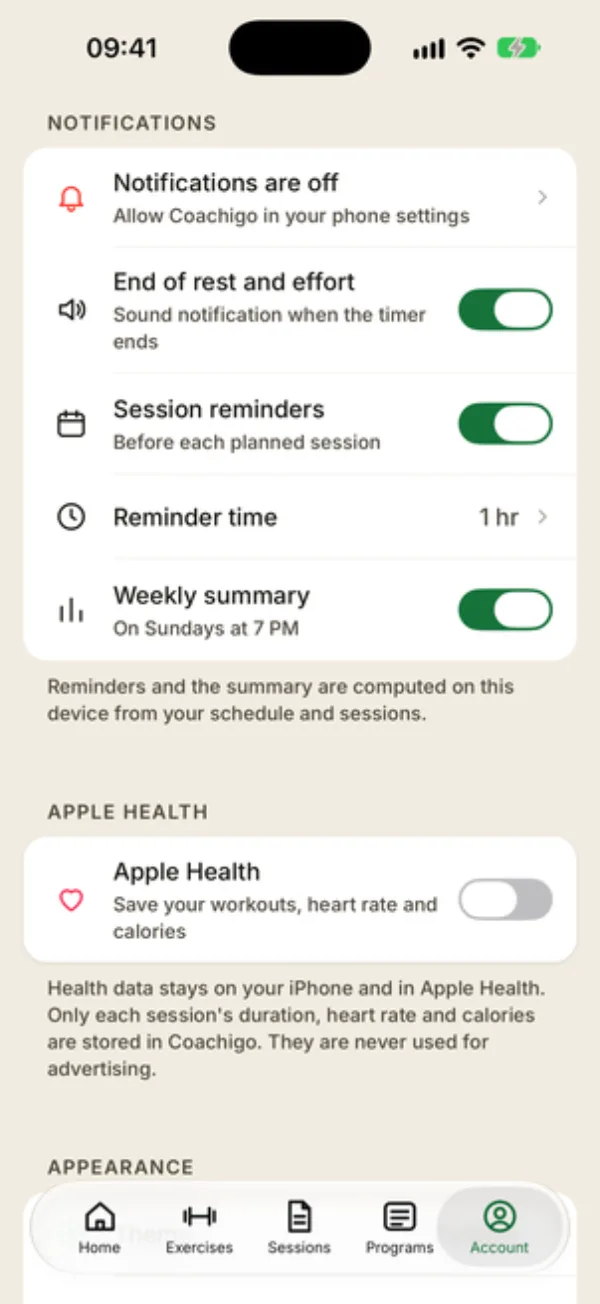
On iPhone, the Apple Health section sits right below.
Appearance
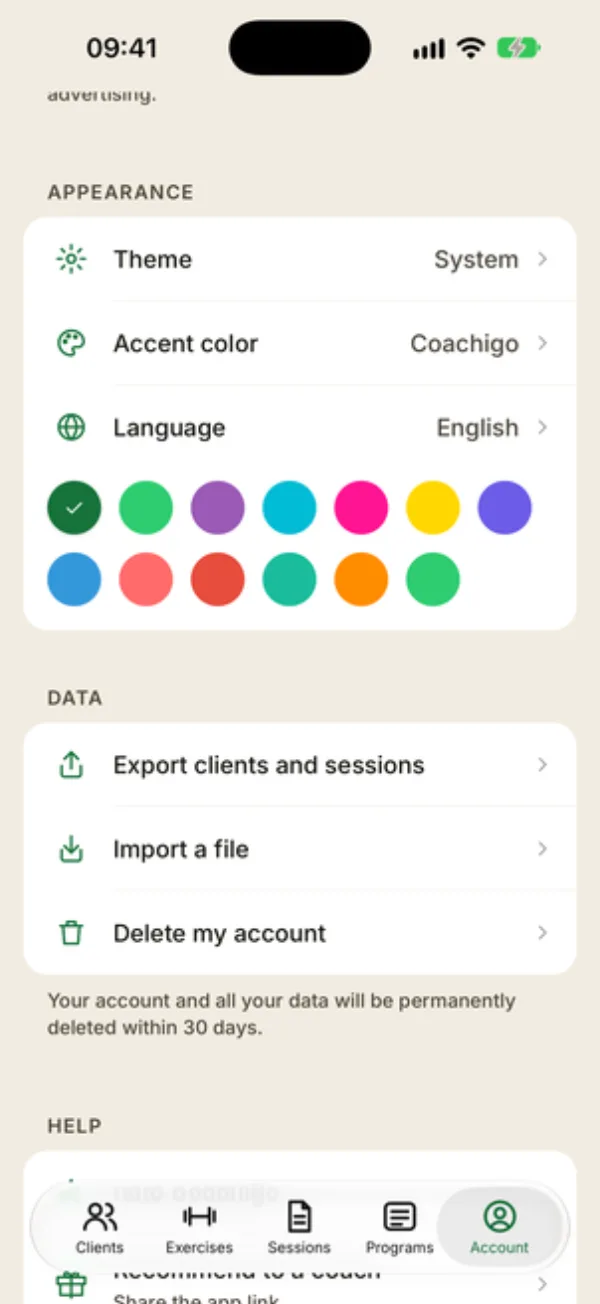
- Theme: each tap cycles from Light to Dark, then System, which follows your phone’s setting (the default).
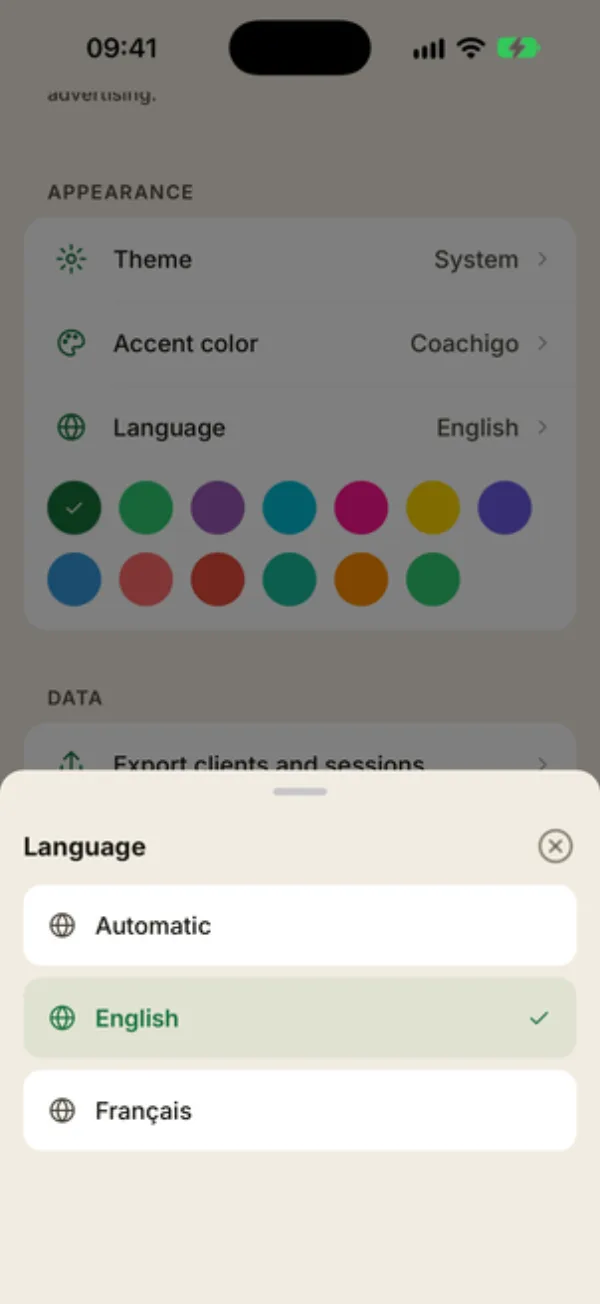
- Accent color: tap the row to open a grid of 13 colors, then tap the one you like. It colors buttons, switches and active items. Coachigo is the original color.
- Language: see below.
Language
Tap Language to pick one:
- Automatic: Coachigo follows your phone’s language;
- English or Français: the app stays in that language, whatever your phone uses.
The app switches right away, no restart needed.
Your photo
If you’re signed in to an account, tap the small camera on your avatar at the top of the Account tab to pick a photo from your library or, on iPhone, take a new one.
FAQ
Do my settings follow me to another phone?
Some of them. Coach mode and units are saved to your account. Rest settings, notifications, theme, accent color and language stay on the phone.
Does coach mode cost anything?
No. It doesn’t unlock anything and doesn’t require a subscription.
Can I choose the first day of the week?
No, Coachigo doesn’t have that setting.