 Coachigo
Calendar
How to create recurring sessions in Coachigo
Days, times, date range and template, or a link to the client's program: how to create, edit and pause a recurring schedule in Coachigo.
Got a client who trains every Monday and Thursday at 6:00 PM? Instead of scheduling each session one by one, create a recurrence. Coachigo puts every slot on the agenda at once, up to the end date you choose. Recurrences repeat weekly.
Pick the days, times and date range
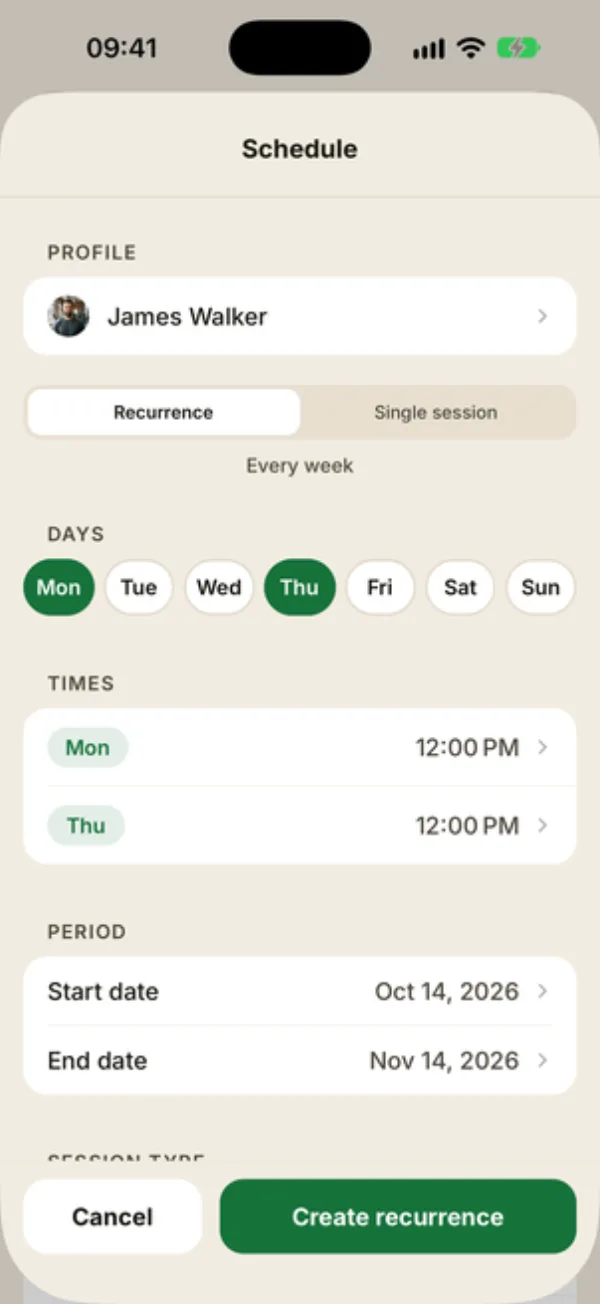
Open the Schedule form: + in the Agenda, or on the client’s profile, Calendar and recurrences then New in the Recurrences section. The Recurrence tab (“Every week”) is selected by default.
- DAYS: tap the training days.
- TIMES: each day you pick is added at 12:00 PM. Tap its row to change the time: every day can have its own.
- PERIOD: the Start date is today and the End date is a month out. Adjust both as needed.
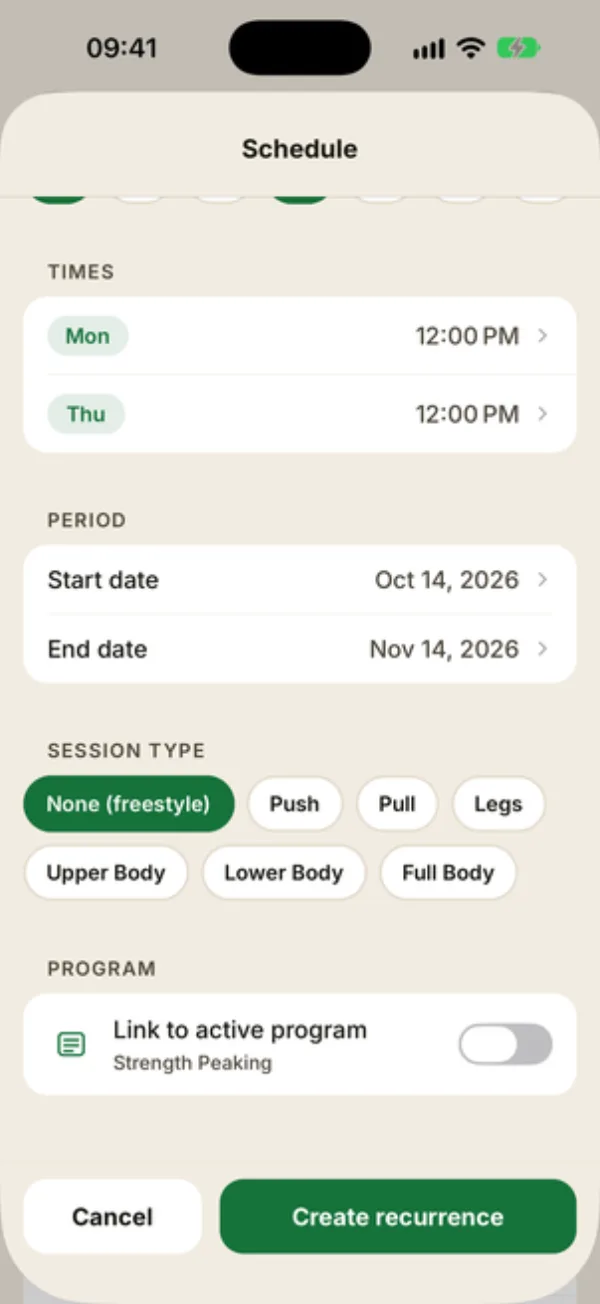
- SESSION TYPE: the workout planned for every slot, or None (freestyle).
Tap Create recurrence. “Recurrence created” tells you how many sessions were scheduled. They show up in the agenda right away, with a repeat icon.
Follow the client’s program
If the client is on a program, the PROGRAM section offers Link to active program. Turn it on and each slot picks up the next session in their program, in order. The template choice goes away, and the end date is worked out from the program.
If you edit the program later, the recurrence’s upcoming sessions are recalculated.
Edit, pause or delete
You manage recurrences from the client’s profile: Calendar and recurrences, Recurrences section. Each one shows its days and time, “Since … · until …” and its state, Active or Paused.
- Edit opens Edit recurrence. After you tap Save, upcoming sessions that are still scheduled get recreated with the new settings. Past, canceled and rescheduled sessions stay as they are.
- Pause removes the upcoming sessions, and Resume brings them back.
- Delete removes the recurrence and all its upcoming sessions. Sessions already done stay in the client’s history.
No open-ended recurrences
Every recurrence has an end date. When it gets close, tap Edit and push the End date back to keep the series going.
FAQ
Can I schedule a session every other week?
No, recurrences are weekly only. For a different rhythm, schedule single sessions.
How do I move just one session in the series?
In the agenda, tap the session, then Reschedule or Cancel: only that occurrence changes. See how to reschedule or cancel a session. To change the whole series, edit the recurrence.
Does each session in the series get a reminder?
Yes. Every upcoming slot gets its own reminder, just like a single session, and a paused recurrence stops sending them. Set the lead time in the Account tab, under Notifications.
Can I manage recurrences from the agenda?
The all-clients agenda shows the sessions, but recurrences can only be edited from each client’s calendar.