 Coachigo
Workout templates
How to create a workout template in Coachigo
Exercises, sets, target reps, rest and cues: build a workout template once in Coachigo and reuse it with every client, with sets prefilled.
A template is a session you plan ahead of time: the exercises, how many sets, the target reps and the rest. Build it once, then run it with any client and their sets show up prefilled.
Start a new template
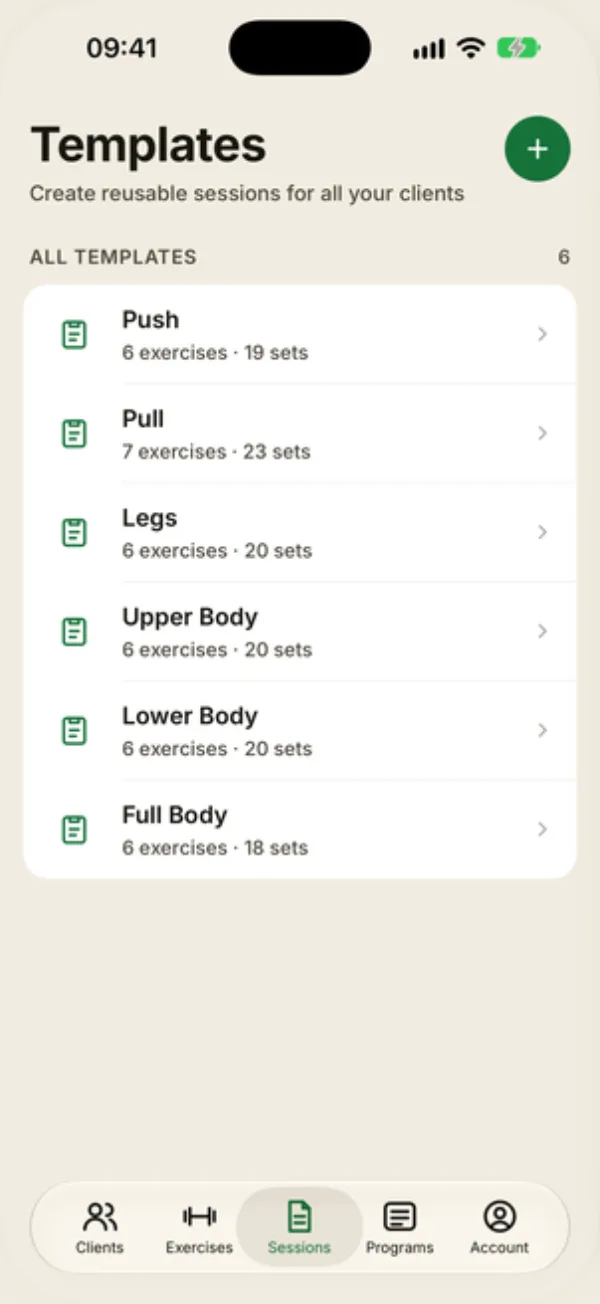
Open the Sessions tab. The Templates screen lists all your templates with their exercise and set counts. Tap + at the top right.
Name the template (“Upper Body”, “Push Day”…), then tap Add exercise. Check one or more exercises and tap Add (the button shows how many you’ve checked). They’re added in the order you checked them, starting at 4 sets of 10 reps.
Set up each exercise
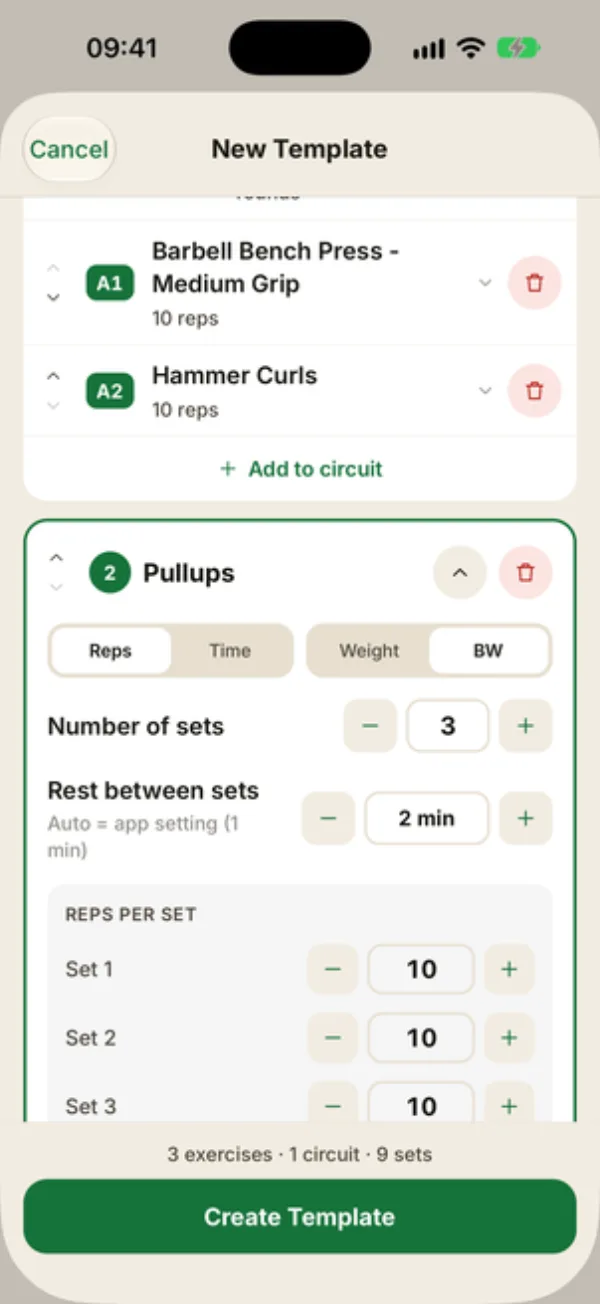
Every exercise gets its own card:
- Reps or Time: reps, or a duration in seconds for planks or wall sits;
- Weight or BW: a loaded exercise, or a bodyweight one;
- Number of sets;
- Rest between sets: Auto follows the app’s timer setting, or pick a duration;
- Reps per set: one target per set. As soon as the targets differ, Same value everywhere shows up and copies set 1 to all the others;
- Notes / Instructions: a cue that shows on the exercise card during the session (tempo, target RPE…).
Use the arrows on the left of each card to reorder exercises, and the trash icon to remove one. A summary at the bottom counts exercises, circuits and sets.
Tap Create template and it appears at the top of the list.
Run it with a client
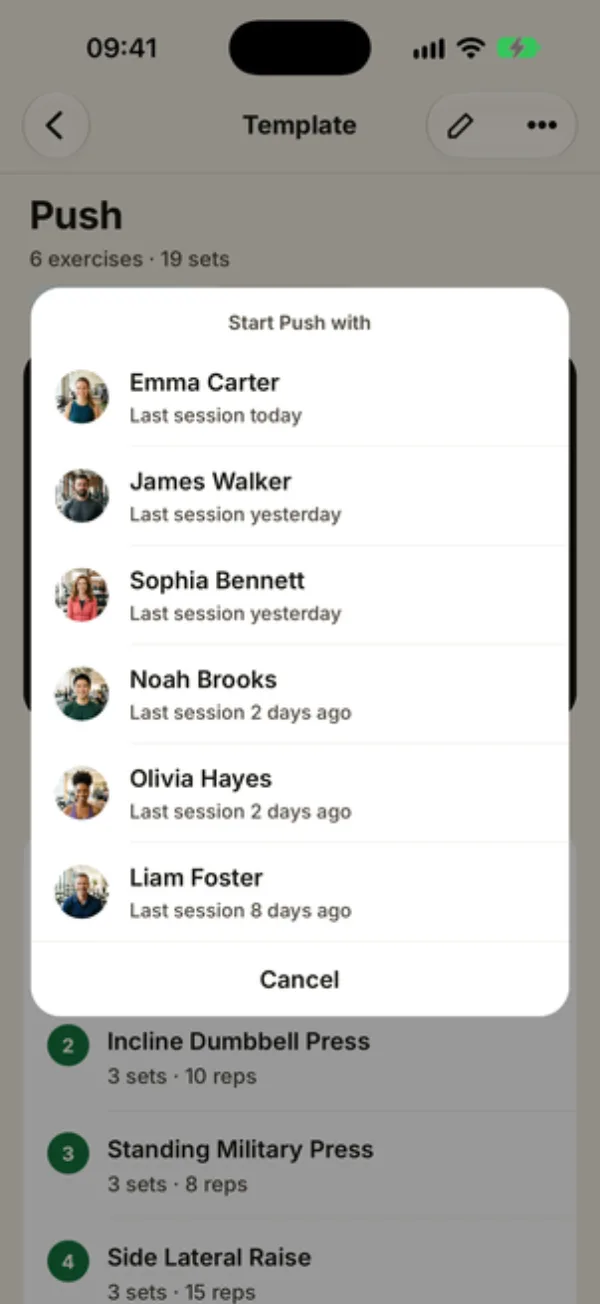
Open the template, tap Start and pick the client. As a shortcut, clients you’ve recently run it with also show up below the button under Recently with: just tap their name. If you only have one client, Coachigo skips the list.
The client’s New session screen opens: tap the template in the list to begin. You can also start from the client’s profile with Other session or the play button, where all your templates are listed.
Editing a template
Tap the pencil at the top of the template, or Edit next to the exercise list, then Save. Past sessions stay as they were, but any program using this template picks up the new version.
FAQ
The Create Template button is grayed out
It turns on as soon as the template has at least one exercise. Don’t forget the name either: without one, Coachigo shows “Name required” and doesn’t save the template.
Are weights saved in the template?
No. A template sets the sets, reps and rest. You enter weights during the session, and Coachigo shows the ones from the previous session as a guide.
Can my clients see my templates?
No, they stay in your account. A client who follows their profile in the app sees the sessions you ran with them, not your templates.
Can I chain exercises with no rest in between?
Yes, with a superset or a circuit: see how to add a circuit to a template.