 Coachigo
Programs
How to create a training program in Coachigo
Phases, weeks or cycles, templates in order: build a multi-week training program in Coachigo once and reuse it with every client.
A program chains your templates over several weeks. Build it once, phase by phase (“Base”, “Volume”, “Peak”…), then assign it to your clients: Coachigo always lines up the right session, in the right order.
Before you start
Programs are built from templates, so create the ones you need first. See how to create a workout template.
Name the program
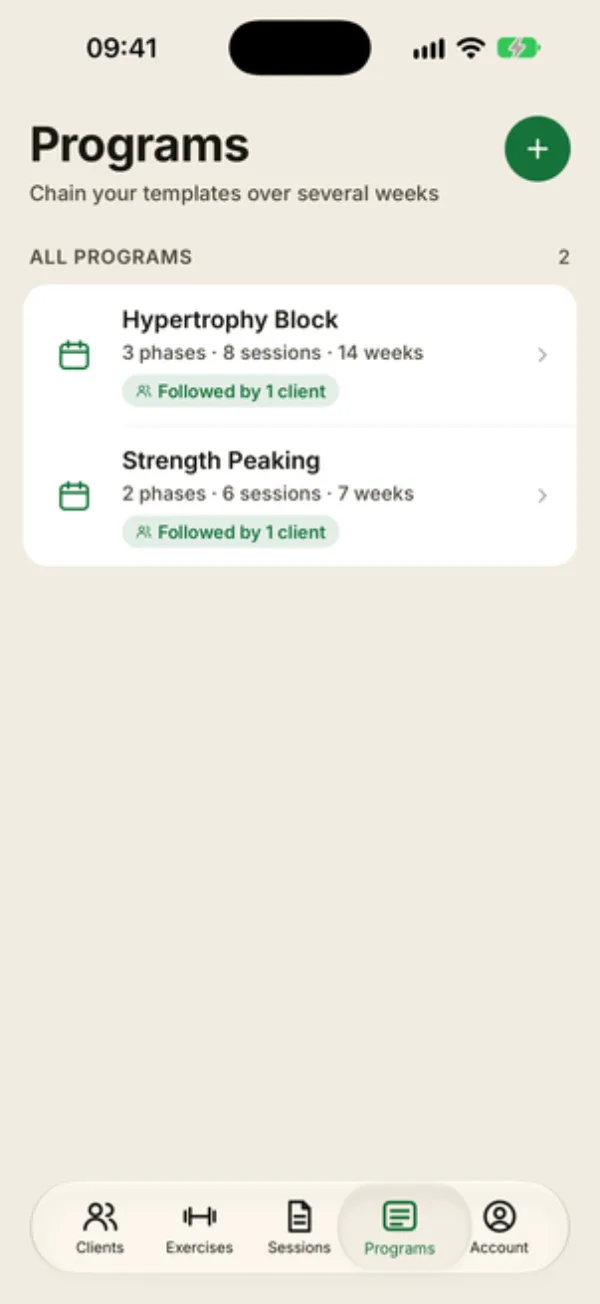
Open the Programs tab and tap + at the top right. The New program screen opens.
Give it a Name (like “PPL 12 weeks”) and, if you like, a Description of its goal.
Add phases and their sessions
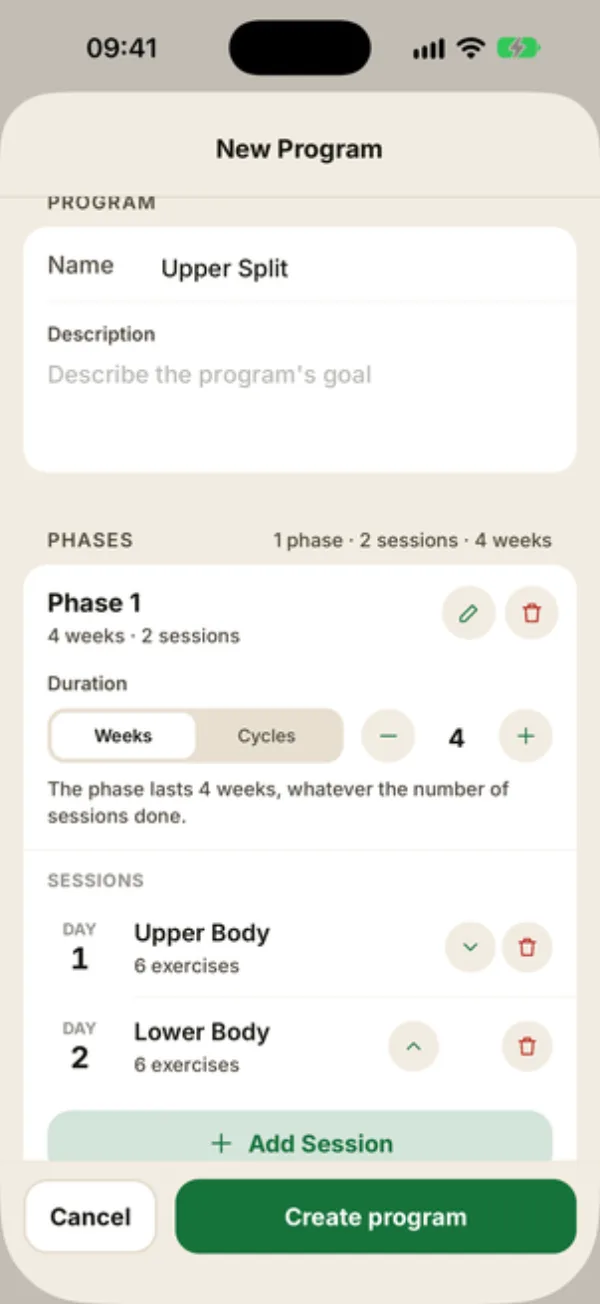
Tap Add phase. Each phase has:
- a name and description, behind the pencil. Without a name, it’s called “Unnamed phase”;
- a Duration in Weeks or Cycles (4 weeks by default, or 3 cycles);
- its SESSIONS: Add session opens your templates, and the one you tap becomes the next day (Day 1, Day 2…).
Tap a day to give it a label, swap its template or set a Minimum rest before it (0 to 14 days). Use the arrows to reorder days and phases, and the trash icon to remove them.
Weeks or cycles?
A program “day” isn’t a calendar day: it’s the next session in the list. Once your client has done every session in the phase, they move on to the next week (or cycle), however long that took.
- Weeks: handy when your client gets through the whole list in a week, like a 3-day split.
- Cycles: more accurate when the list doesn’t fit in a week. “3 cycles” means the full list is done 3 times.
Either way, the program moves forward the same way. Only the label changes (“Week 2/4” or “Cycle 2/3”), and the estimated end counts one cycle as one week.
Tap Create program and it shows up in the Programs tab.
Edit a program
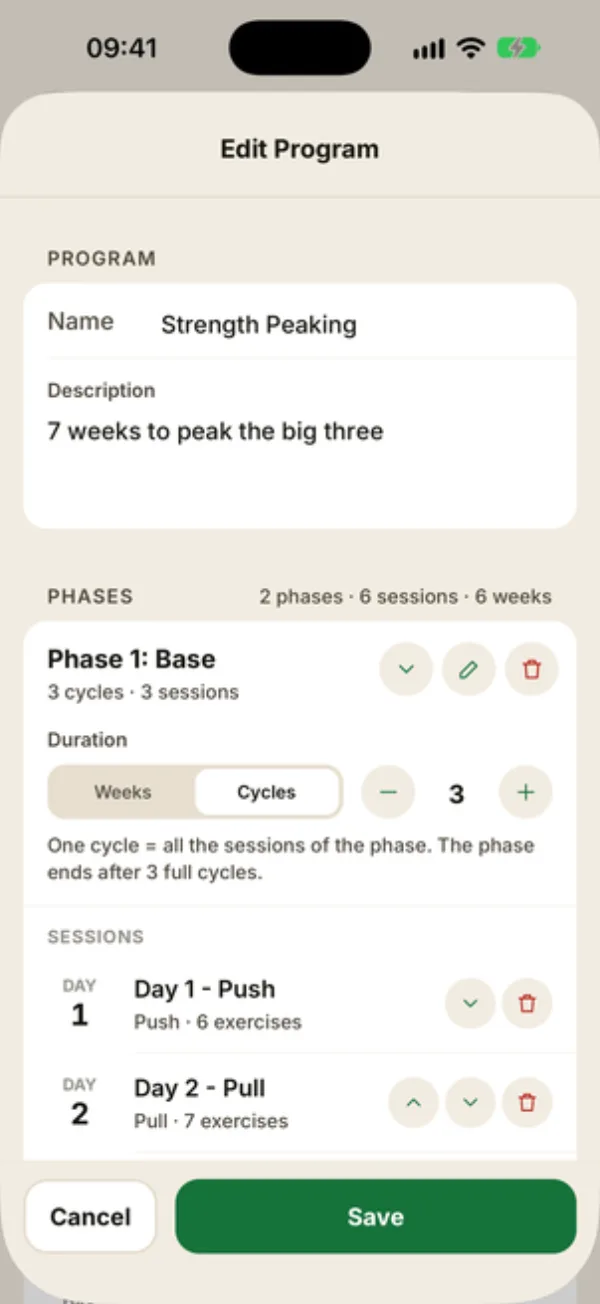
Open the program and tap the pencil, or … then Edit program. Make your changes and tap Save.
Clients already following the program switch to the new version right away (their estimated end date stays the same). Avoid deleting the phase or day a client is currently on: their progress could get stuck.
FAQ
The Create program button is grayed out
You need a name, at least one phase, and at least one session in every phase.
Can I schedule rest days?
There’s no rest day to add to the list. Use a session’s Minimum rest to say how many days to leave before it. It’s a guideline: nothing is blocked.
Are sessions scheduled in the agenda?
Not automatically: a program sets the order of sessions, not their dates. To book time slots, create an Every week recurrence for the client in the agenda and turn on Link to active program. Each slot then picks up the next session in their program.