 Coachigo
Getting started
How to create a Coachigo account
Why you'd want a Coachigo account, where to find sign-up in the app, the three fields to fill in and what happens to the clients and sessions you already have.
You can use Coachigo without an account: on first launch, the app quietly sets up an anonymous space and everything works right away. An account with an email and password does one crucial thing: it lets you get your data back on another phone or on a computer. It’s free and takes a minute.
No account means deleting the app deletes everything
Until you create an account, your clients, sessions and programs aren’t tied to any email. If you delete the app or switch phones, there’s no way to recover them. Create your account first.
Open sign-up
Tap the Account tab. While you’re not signed in, a card at the top says Back up your clients (in Coach mode) or Back up your data (in Solo mode), with two buttons. Tap Create account.
You can also get there from the sign-in screen: under Don’t have an account?, tap Sign up.
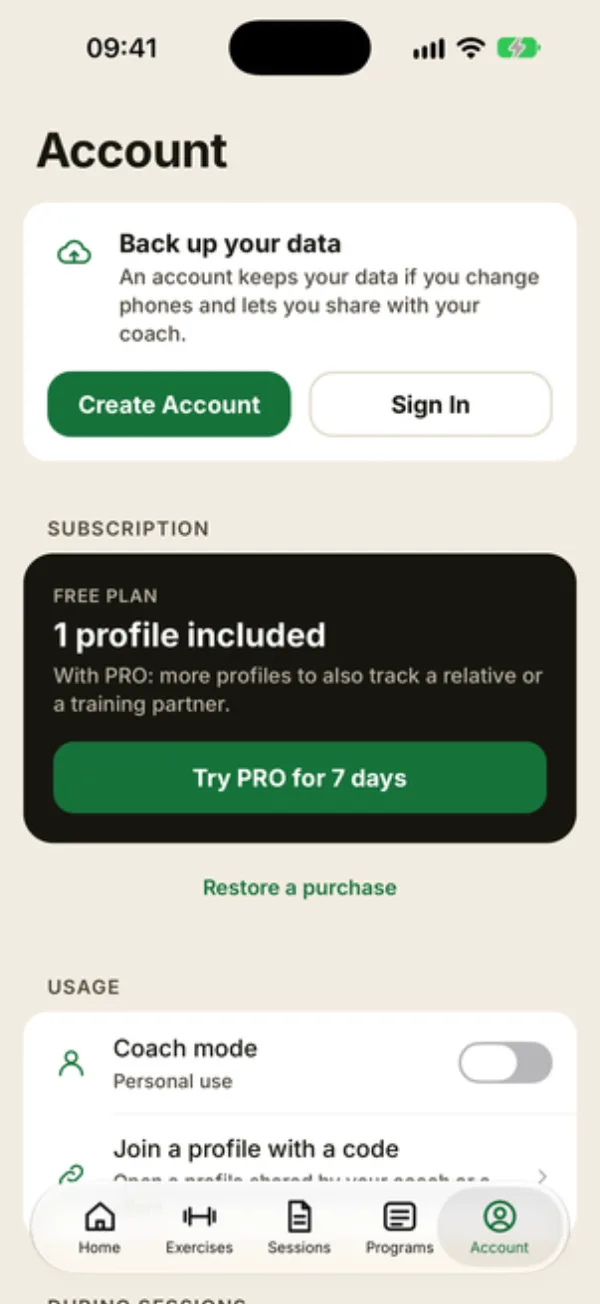
Fill in the form
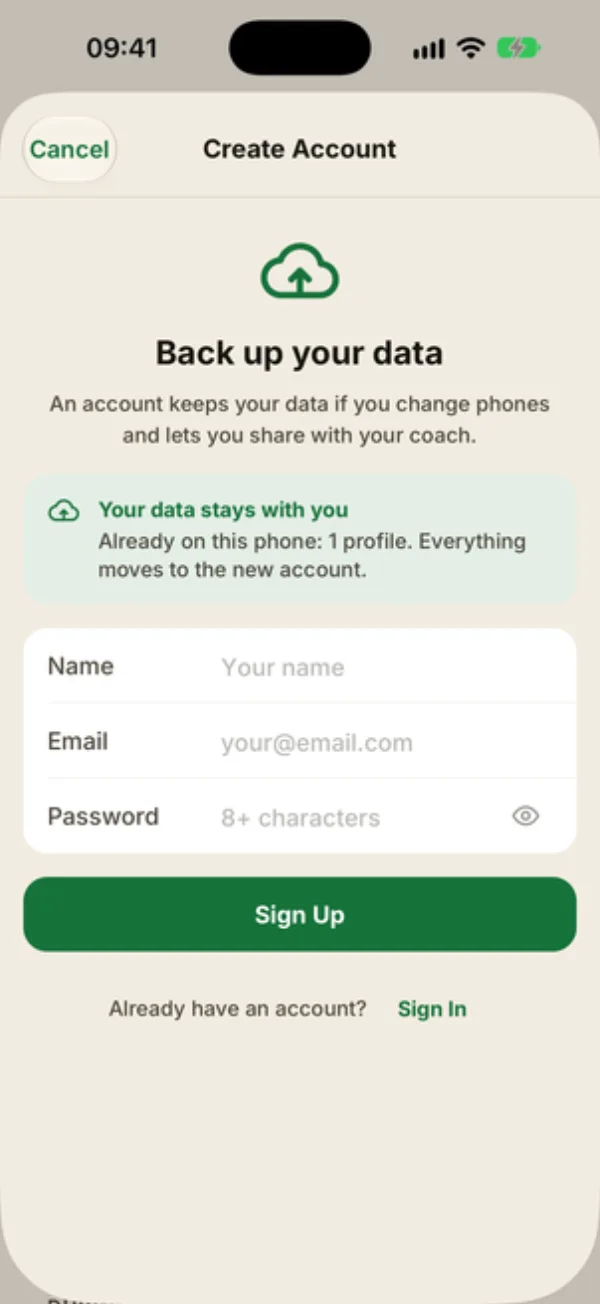
The Create account screen asks for three things, all required:
- Name: the name shown on your account.
- Email: this is what you’ll sign in with.
- Password: at least 8 characters. Tap the eye icon to show it and double-check your typing, since you only enter it once.
If you already have data on the phone, a Your data stays with you box tells you what will move to the account, such as “2 clients and 5 sessions.”
Tap Sign up.
What happens next
You’ll see Account created with Your data has been preserved. Your anonymous space simply becomes your account: clients, sessions, programs, measurements and settings all stay put, with nothing to transfer.
There’s no confirmation email: the account works immediately. In the Account tab, the top card now shows your name, your email and Synced.
From here you can sign in on another device or on a computer with the same email.
If you see an error
- This email address is already in use: there’s already an account with that email. Tap Sign in instead of creating a new one.
- Invalid email address: check for a stray space or a typo.
- Please fill in all fields: one of the three fields is empty.
Keep your password somewhere safe
If you forget it, the Forgot password? link on the sign-in screen emails you a link to choose a new one.
FAQ
Does an account cost anything?
No. The account is free and separate from a Coachigo PRO subscription.
Can I sign up with Apple or Google?
No, Coachigo only uses an email and password.
How do I delete my account?
In the Account tab, tap Delete my account, enter your password and tap Confirm request. The request is processed within 30 days. See How to delete your Coachigo account for details.