 Coachigo
Progress and stats
How to create a client PDF report in Coachigo
Period, color, your message, next steps and optional photos: create a polished PDF report for your client in Coachigo PRO, then send it over.
A report turns the sessions of a given period into a PDF your client can keep: their consistency, strength and records, along with your message. This is a Coachigo PRO feature. On a phone, it needs version 1.3.0 of the app or later.
Open the report
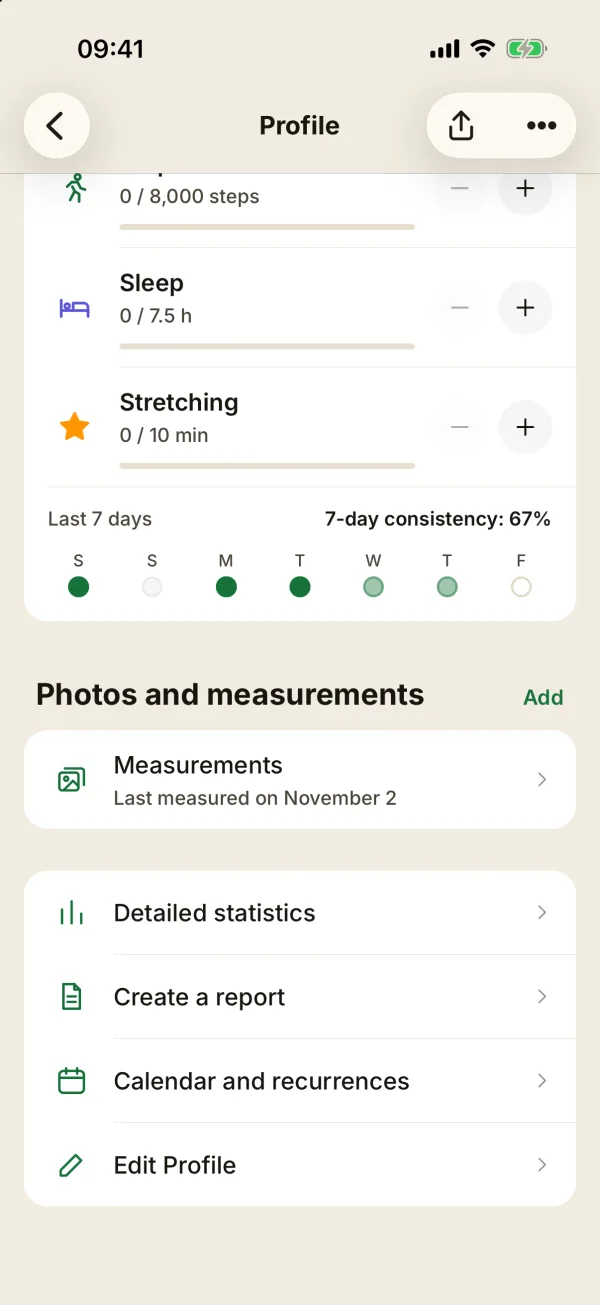
On the client’s profile, tap Create a report in the links at the bottom, right under Detailed statistics. The same button also sits in Detailed statistics, under the first figures. If it isn’t there on your phone, update the app.
Set up the report
- Period: 2 weeks, 1 month, 3 months (the default), 6 months, 1 year or Dates.
- Color: eight shades (Coachigo green, Blue, Turquoise, Violet, Pink, Red, Orange, Black) or your own Hex code, your brand color for instance. It applies to the charts, and the text stays black. A color too light to stay readable is refused. Coachigo starts from the one on your last report.
- Include photos: off by default, because progress photos are sensitive data. You need two photo entries, one of them taken during the period.
- Coach’s message: your note, up to 450 characters and 6 lines on the PDF.
- Next steps of the program: one step per line, 5 at most if they’re short. The app warns you if something won’t fit on the PDF.
Pick exact dates
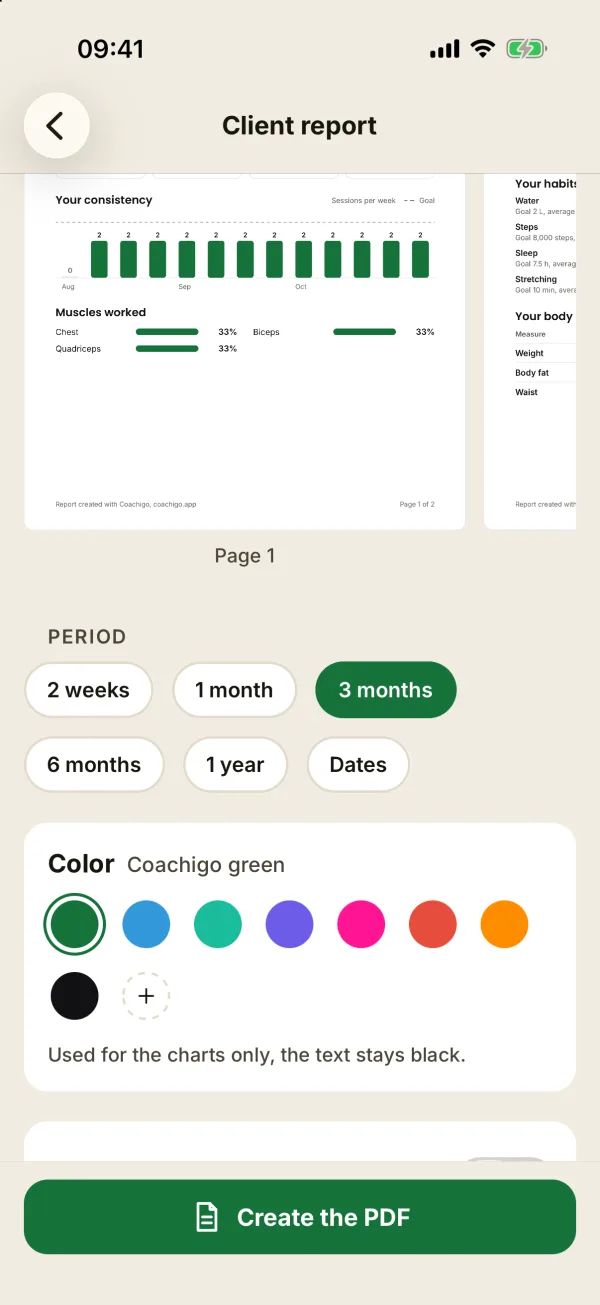
Tap Dates, then set From and To to the day, to cover a whole pack or a competition prep for example. Neither can be later than today.
Check it and send it
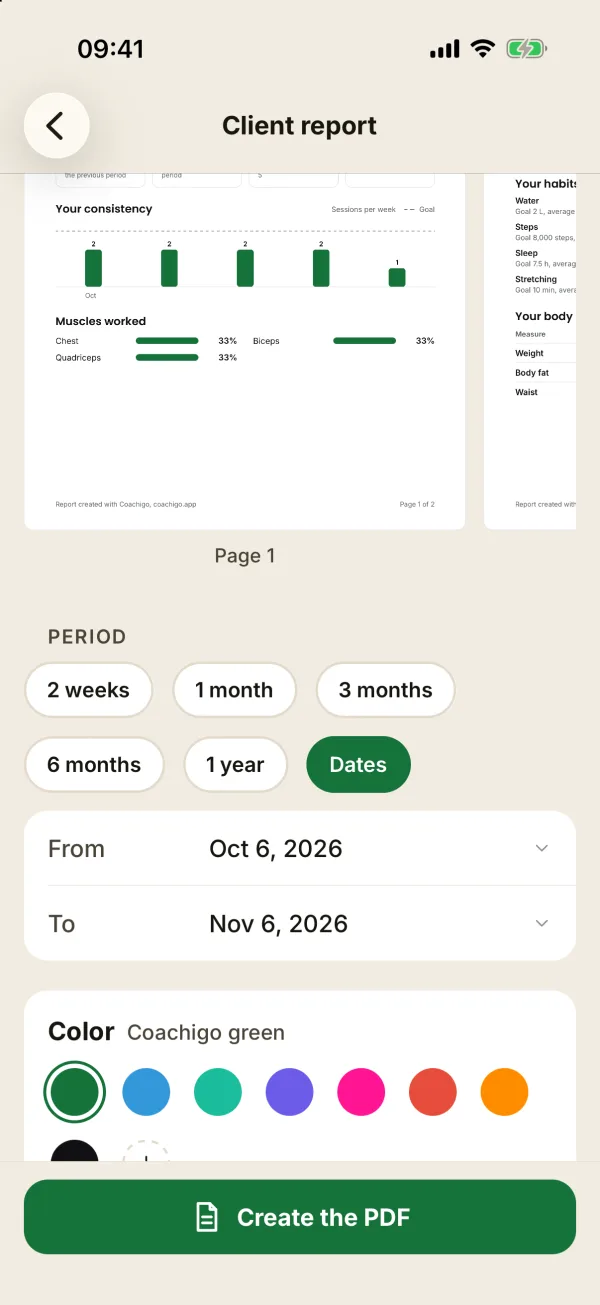
The Preview at the top of the screen updates with every change, page by page. Tap Create the PDF when you’re happy with it.
- On a phone, the share sheet opens so you can send it by WhatsApp, email or another app, or save it.
- On a computer, your browser’s print dialog opens: choose to save as PDF.
What’s in the report
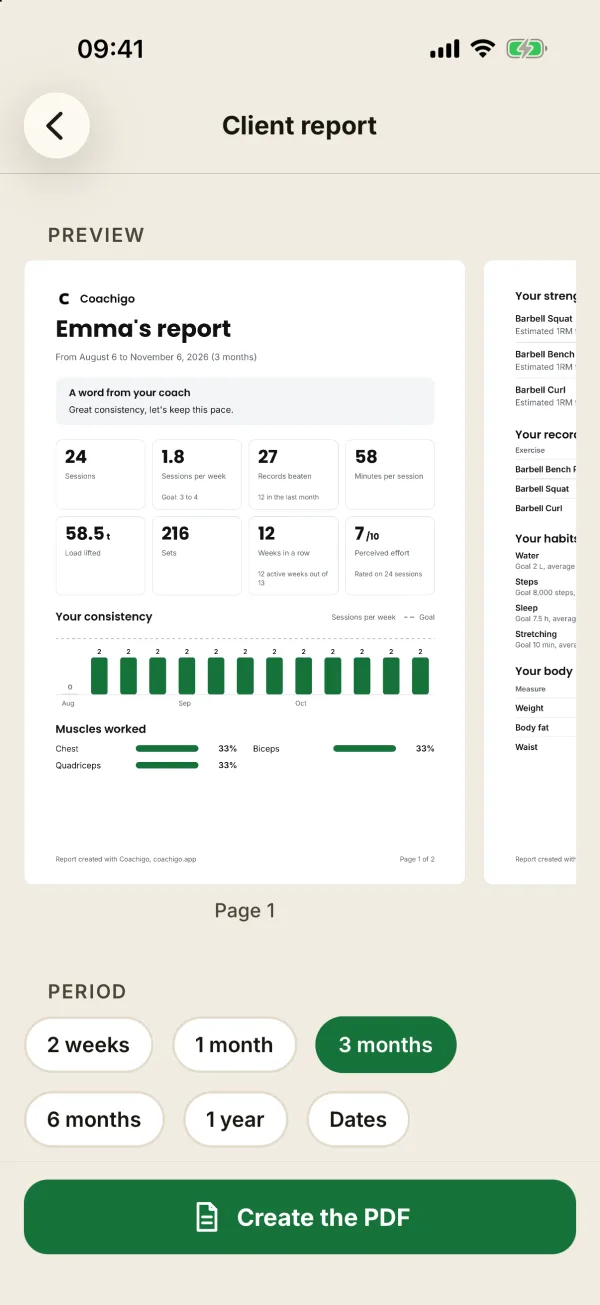
- The key figures: sessions compared with the previous period, sessions per week against the goal, records (the number of exercises that beat their record, with the number of improvements) and minutes per session. As soon as there’s a session, they add load lifted and sets (compared with the previous period), weeks in a row with the number of active weeks, and the average perceived effort once it’s been rated on at least 3 sessions (otherwise, the number of exercises done).
- Your consistency: a chart of the period’s sessions.
- Your strength: the lifts your client trained most, up to six, with the best set of each session and how the estimated 1RM moved.
- Your records over the period: every exercise whose record was beaten during the period, with the At start value to compare. If the list is too long, the end is summed up (“And 3 more exercises with a new record”).
- Your body: weight, body fat, waist and hips, when they’ve been logged.
- Your habits: up to four habits, with the days the goal was reached, when your client logged some during the period.
- Muscles worked, your message, what comes next and, if you chose it, Your photos.
Coachigo lays it all out on three pages at most.
The PDF uses the app’s language. The footer reads “Report created with Coachigo, coachigo.app”.
Check with your client about photos
A PDF is easy to forward. Before you include photos, make sure your client is fine with it, and send the file only to them.
FAQ
I don’t see the Create a report button
It’s at the bottom of the client’s profile and in their Detailed statistics. On a phone, you need version 1.3.0 of Coachigo or later: update the app from the App Store or Google Play.
The photos switch is grayed out
You need two photo entries, one of them taken during the period. See how to take progress photos.
Does my client see the report in their app?
No. The report only exists as the PDF you send. For their day-to-day numbers, see how to read a client’s statistics.
Does the report replace a data backup?
No, it’s meant to present a period. To back up your data, see how to export and import your data.