 Coachigo
Connecting clients to the app
How to connect a client to their profile in Coachigo
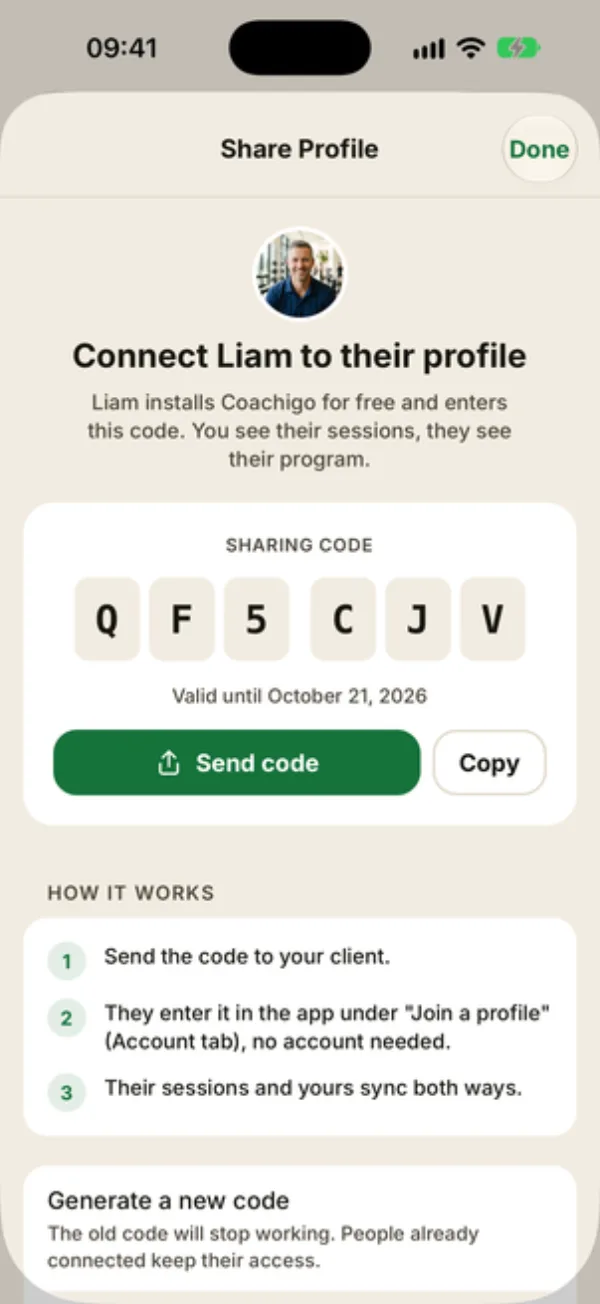
Send your client a 6-character code: they join their profile from their own phone, and your sessions and theirs sync both ways.
Does your client also train on their own? Connect them to their profile: they install Coachigo, enter the code you send them, and every session they log shows up in your app. No link, no QR code, just a 6-character code.
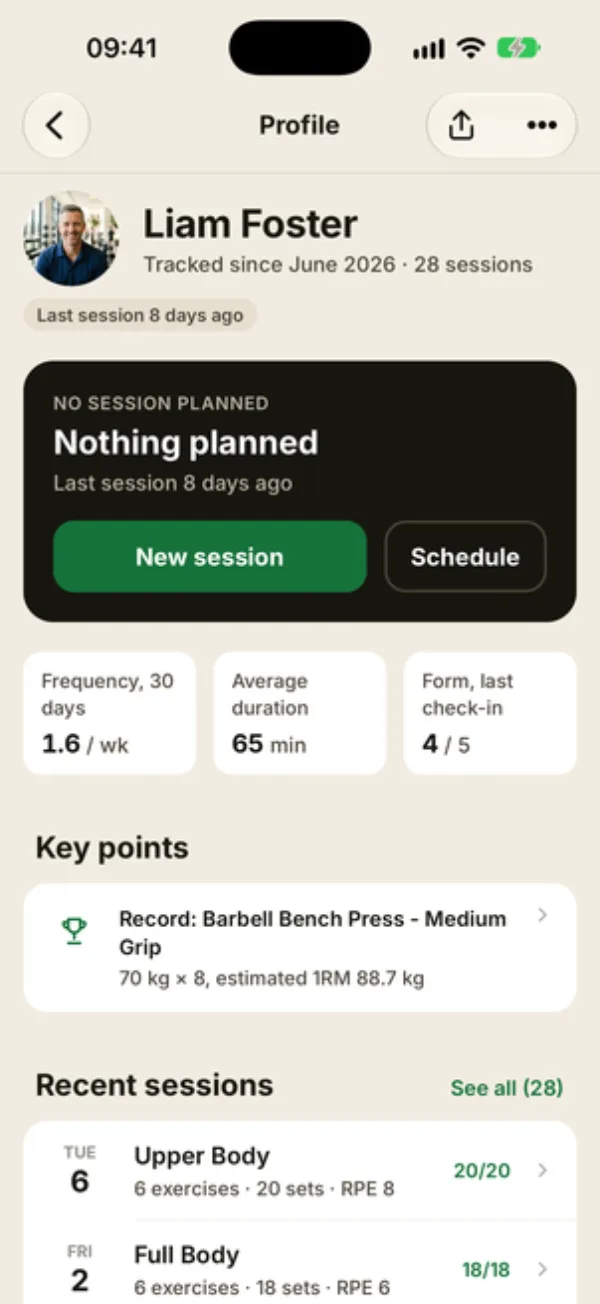
Open the sharing screen
Open your client’s profile and tap the share icon at the top right. On iPhone, the … menu also has Share profile.
Only the profile’s owner can share it. If you don’t see the icon, the profile isn’t yours.
Send the code
The Share Profile screen shows the SHARING CODE and when it expires: each code is valid for 7 days. It’s created automatically the first time you open the screen, and Coachigo keeps showing the same one while it’s valid. Once it expires, a fresh one replaces it the next time you open the screen.
Pick how to send it
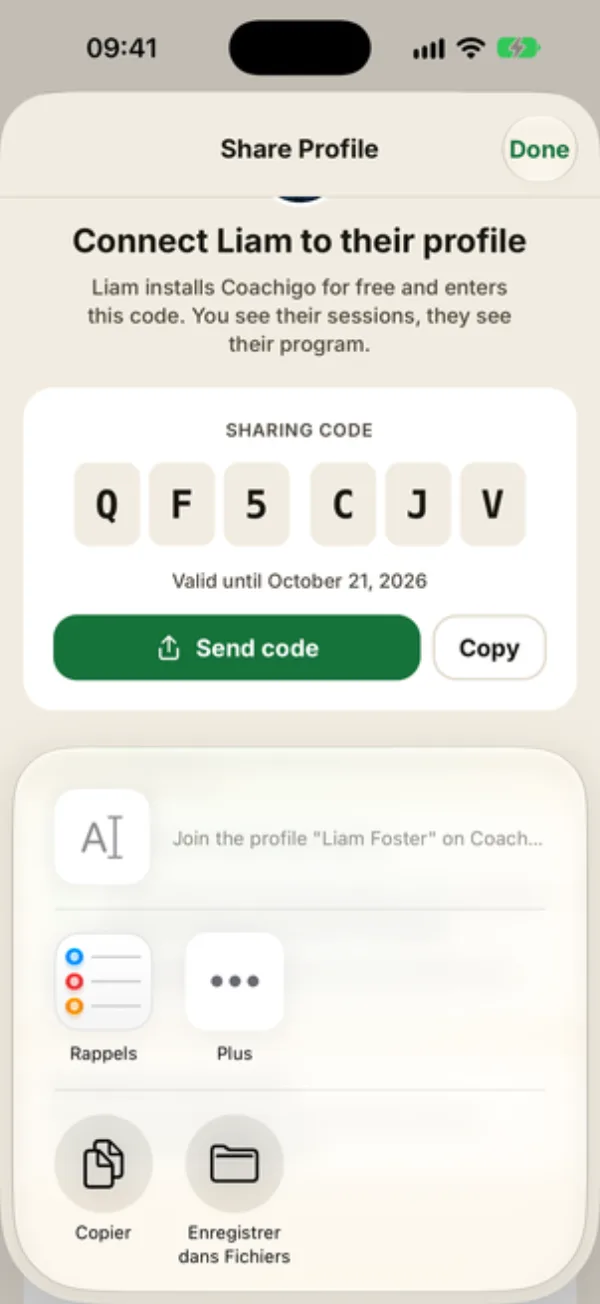
Tap Send code to open your phone’s share sheet and send it by text, WhatsApp or email. The code goes out with a short message:
Join the profile “Liam Foster” on Coachigo with the code: QF5CJV
Rather paste it yourself? Copy puts it on your clipboard.
What your client does
They install Coachigo (it’s free), then enter the code with Join a profile with a code in the Account tab. They don’t need to create an account. Their side is covered step by step in how to join your coach’s profile.
At least one PRO account
For your client to join, at least one of the two accounts needs Coachigo PRO, and yours is enough. The check happens when they enter the code. If you’re on the free plan, the sharing screen says so and shows an Upgrade to PRO button. See Free or PRO.
How you know it worked
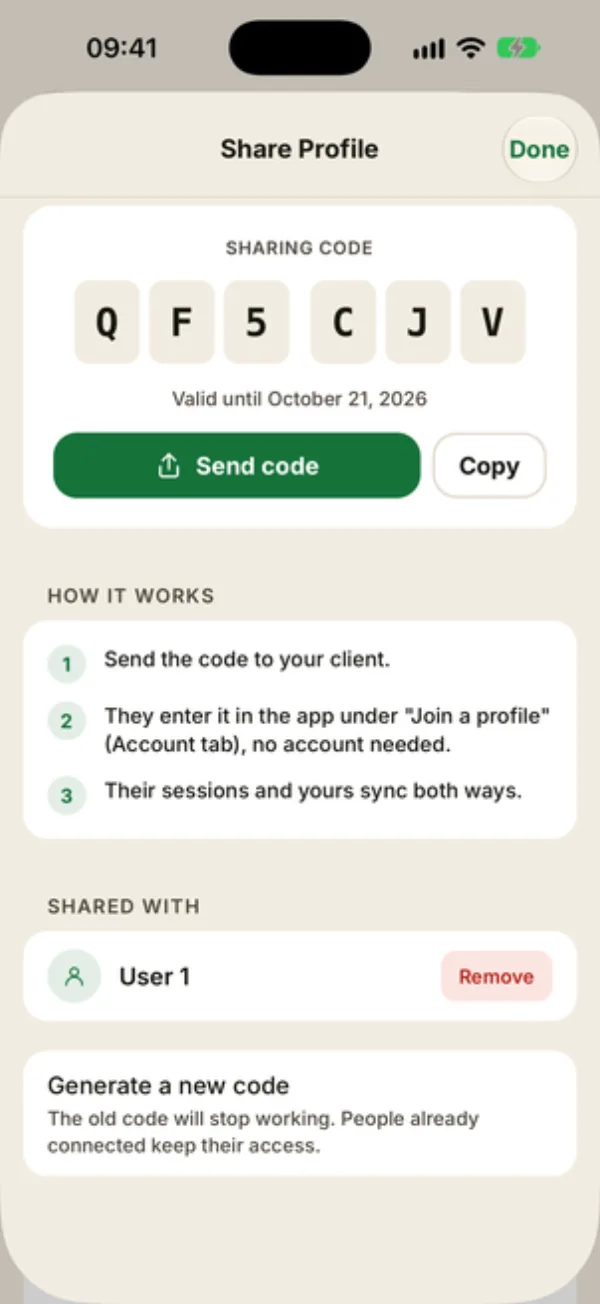
Coachigo doesn’t send a notification. To check, open the sharing screen again: your client shows up under Shared with, with their account name, or “User 1” if they don’t have one.
On the profile and in the list
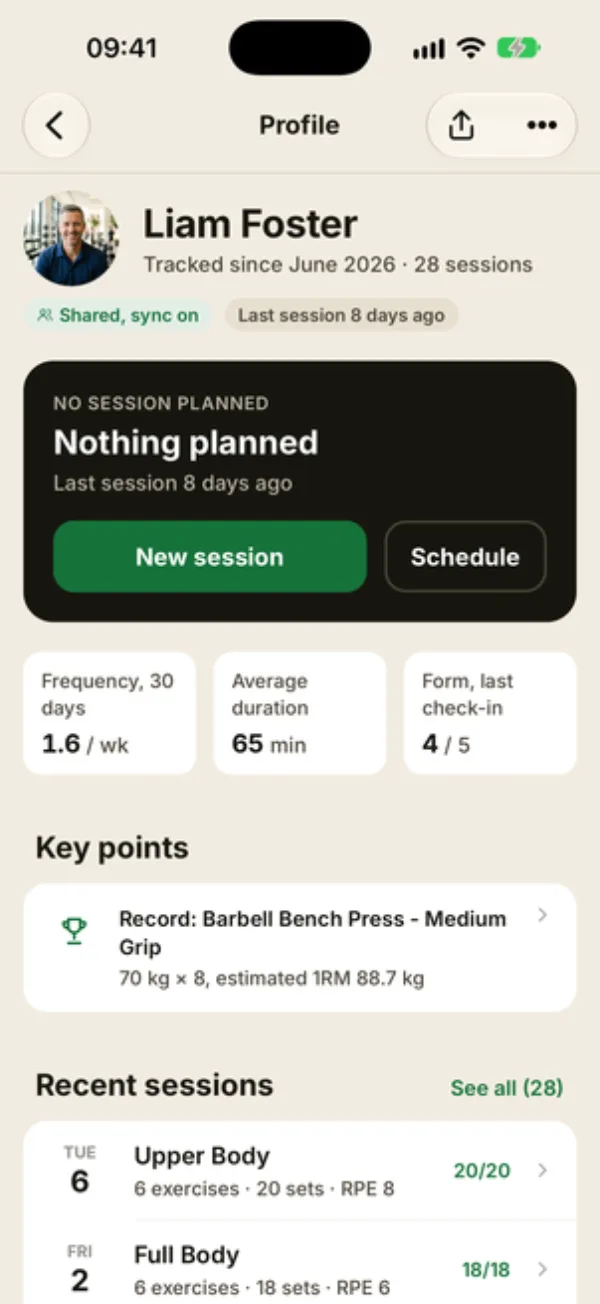
The profile shows a Shared, sync on tag under the client’s name, and gets a Shared tag in your client list.
From then on, everything syncs live: their sessions, measurements and photos land on their profile in your app, just as if you’d entered them. What they can and can’t do is explained in what your client can do on a shared profile.
Internet connection required
Showing the code, joining and removing access all need a connection. Offline, Coachigo shows “Internet connection required for this action.”
FAQ
The code got out. What now?
Tap Generate a new code at the bottom of the sharing screen. The old one stops working right away, and people already connected keep their access.
Can several people join the same profile?
Yes, one code works for several people while it’s valid. They all appear under Shared with.
What if I go back to the free plan?
Existing connections keep working. Only new sharing between two free accounts is blocked.
How do I cut access later?
Use Remove under Shared with: see how to remove a client’s access.