 Coachigo
Programs
How to assign a program to a client in Coachigo
Pick the client and start date, then run the first session: assign a program to a client in Coachigo, and run several programs side by side if needed.
Once your program is ready, assign it to a client: their profile then shows the program, their progress and the next session to do. The same program can be followed by as many clients as you like.
Open the assignment screen
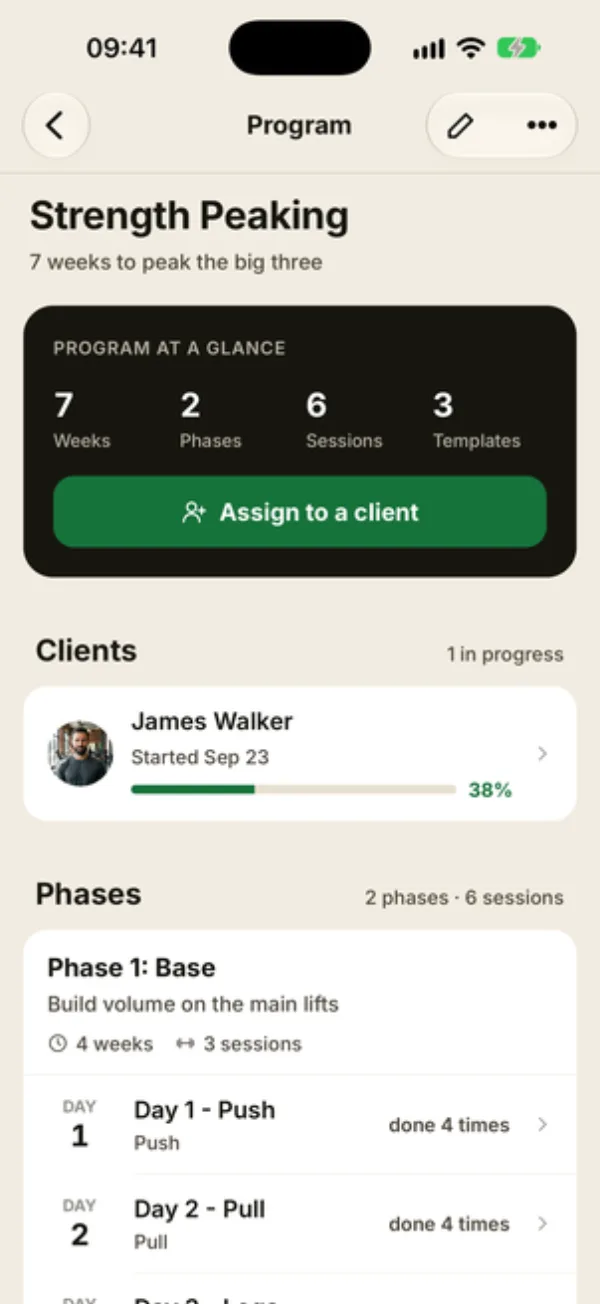
In the Programs tab, open the program. The Program at a glance card sums up its length in weeks, phases, sessions and templates.
Tap Assign to a client. The same button shows up in the Clients section while nobody follows the program yet.
Pick the client and date
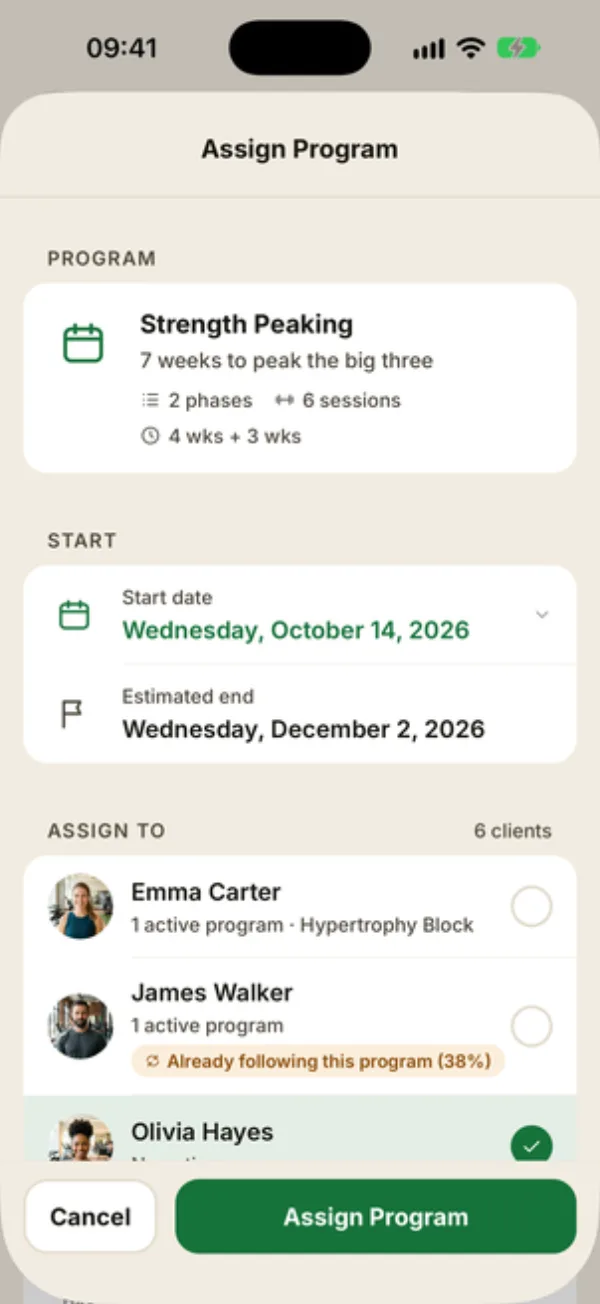
The Assign program screen opens:
- Start date: today by default, or pick another date. The Estimated end is worked out from the program’s length (one cycle counts as one week). Both are reference points only: no session gets scheduled;
- ASSIGN TO: tap the client. Each row shows whether they already follow a program, and a tag flags it if they’re already on this one.
Tap Assign program. You assign one client at a time, so repeat for each one. Profiles another account shares with you don’t show up in the list, since their owner manages their program.
Run the first session
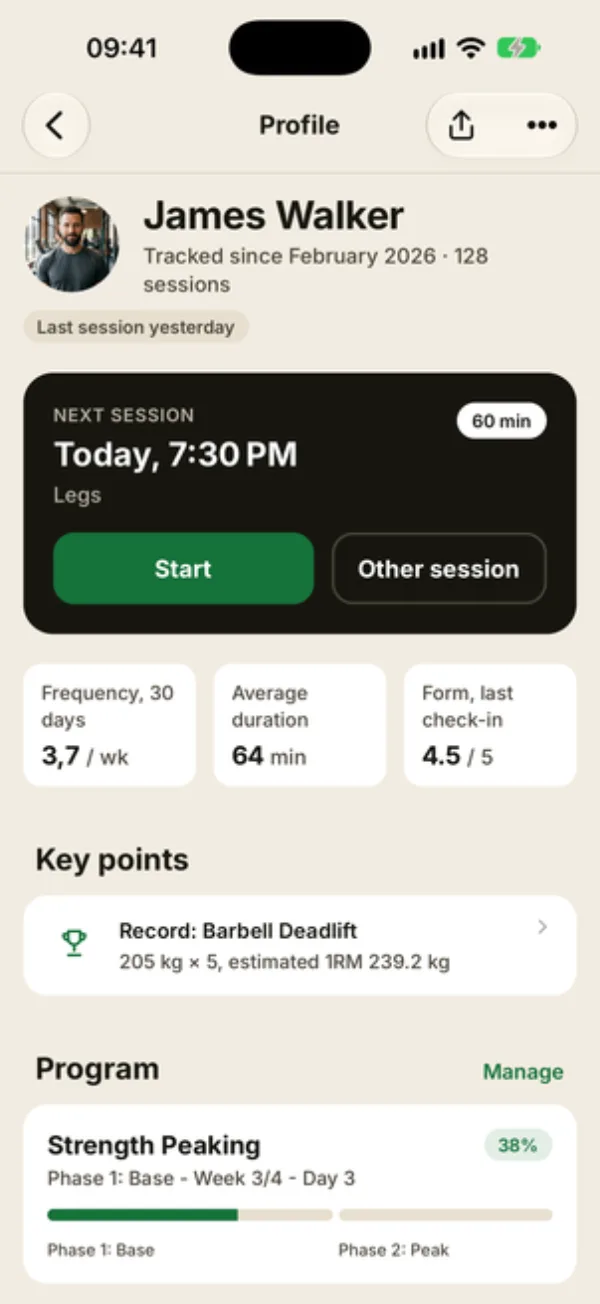
Your client starts on Day 1 of the first phase. Their profile shows a Program section with the name, the current step (“Phase 1: Base - Week 1/4 - Day 1”) and a percentage.
To run today’s session, tap Start on the Next session card of their profile. If a session is already booked in the agenda, that’s what the card shows instead: go through New session, where the Follow the program section offers the program’s next session.
Two programs at once
A client can follow several programs, say a strength program and a mobility program. In New session, the Follow a program section shows the next session of each one, and the one you tap moves that program forward. The client’s profile only shows the first active program, so track the others from the Programs tab.
FAQ
Where’s the “Assign a program” button on the client profile?
It only shows on a brand-new client’s profile, and it takes you to the Programs tab. Assigning always happens from the program screen.
I assigned the wrong program
Open the client’s profile, tap Manage in the Program section, then Abandon program at the bottom of the screen. To clear it out entirely, tap Delete program on that same screen. Then assign the right one.
Can my client see their program?
No. Even if you share their profile with them, the program and their progress only show up in your app.