 Coachigo
During a session
How to add or remove an exercise during a session in Coachigo
Machine taken, a tweaky shoulder, energy for one more movement: how to add, remove or swap an exercise in the middle of a session in Coachigo.
A workout template is just a starting point. The machine is taken, a shoulder feels off, your client has gas left for one more movement: in Coachigo, you add or remove exercises mid-session without touching the template.
Add an exercise
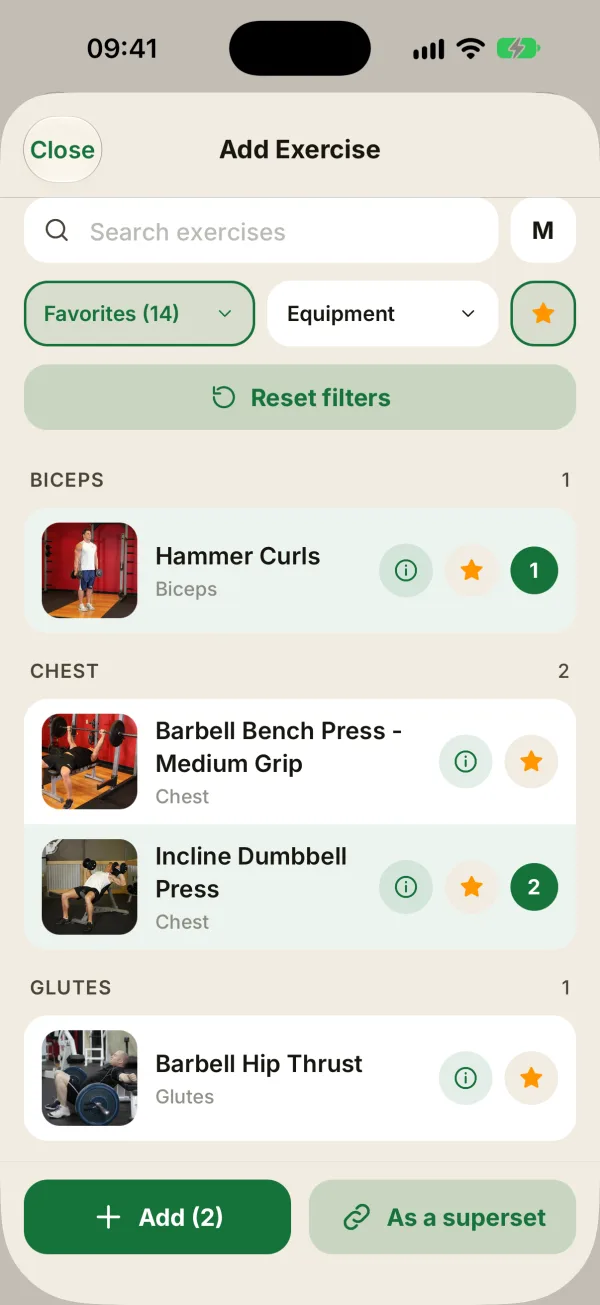
Scroll to the bottom of the session and tap Add exercise. In the list that opens, you can:
- search by name, in English or French, with or without accents;
- filter by favorites, category or equipment. If you have more than 5 favorites, the list opens on them;
- tap one or more exercises: a number shows the order they’ll be added in. Tap again to deselect one.
Confirm with Add (2), the number being how many you picked. With 2 exercises, As a superset adds them as a superset; with 3 or more, it’s As a circuit.
What a new exercise starts with
- It goes at the end of the session, and the screen scrolls down to it.
- It starts with 4 empty sets, in Reps and Weight mode. Switch it to Time for a plank, or BW for a bodyweight movement.
- If your client has done it before, the Previous line shows their last performance, like “Previous: 3 × 12 at 25 kg”. The Copy from previous session button then fills in the sets your client checked last time (reps and weights), adding sets if needed.
Remove an exercise
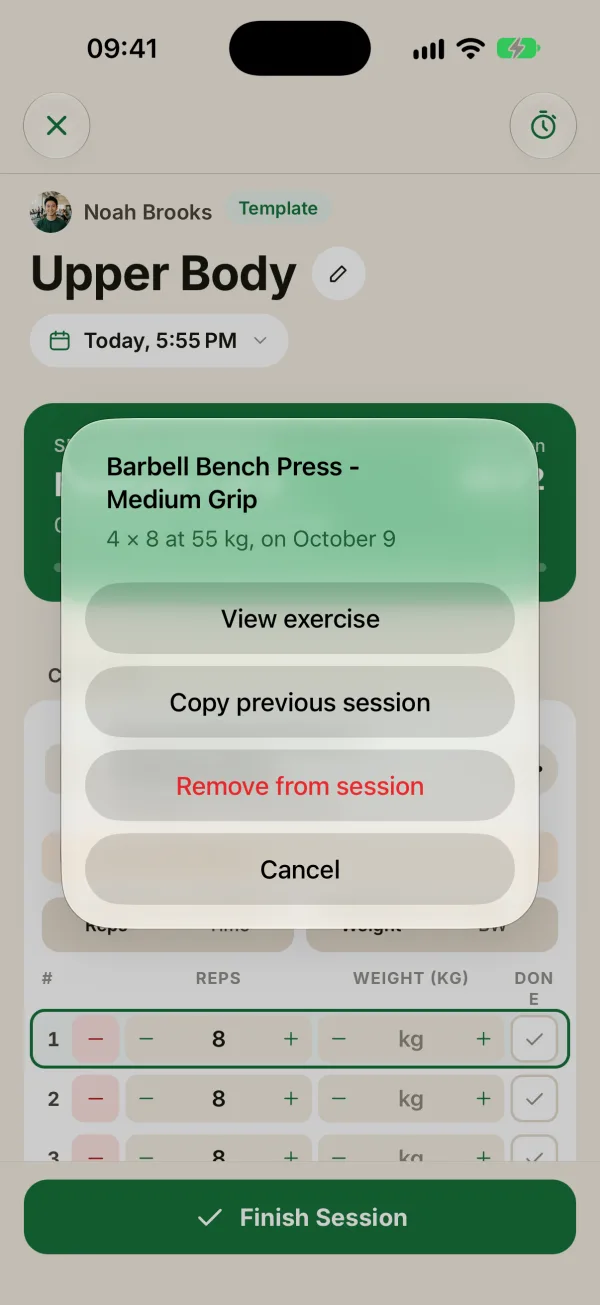
Tap the … button to the right of the exercise name, then Remove from session. Coachigo asks you to confirm: tap Delete.
Heads up: there’s no undo. Any sets already logged on that exercise are gone.
The same menu has View exercise (images, target muscles, instructions, your client’s stats) and, if your client has done it before, Copy previous session.
Swap one exercise for another
There’s no “Replace” button. To swap an exercise, remove it, then add the new one: it lands at the end of the session. Since you can log sets in any order, that won’t get in the way of the rest of the workout.
Add or remove a set
- Add set, below an exercise’s sets, adds an empty set at the end.
- The red − button next to each set number deletes that set. It only shows up when there are at least two sets, and it deletes right away.
Can't find an exercise?
You can’t create an exercise from inside a session. Create it in the Exercises tab with the + button. If the session has already started, tap the X at the top left, then Continue later: the session stays in progress. Once the exercise is created, open your client’s profile and tap Resume session.
FAQ
Does adding an exercise change the workout template?
No. Changes only apply to the current session. To keep them, edit the template, or open the finished session and tap Create a template.
Can I reorder exercises?
Not during a session. But you don’t have to follow the order: check off sets in whatever order you like. Once all of an exercise’s sets are checked, it moves to Done.
Can I edit the note under an exercise, like “2 min rest, RPE 8”?
Not during a session. That note comes from the workout template, so edit it there; the change applies to future sessions. For a comment about today’s session, use Session notes at the bottom of the screen.
How do I take one exercise out of a superset or circuit?
Open the … menu on the superset or circuit, tap Split into separate exercises, then remove the exercise from its own … menu. To group the others again, tap Link between two exercises.