 Coachigo
iPhone and Apple Watch
How to add Coachigo widgets
Upcoming sessions, last session, quick start and stats: the four Coachigo widgets for your iPhone Home Screen and how to add them.
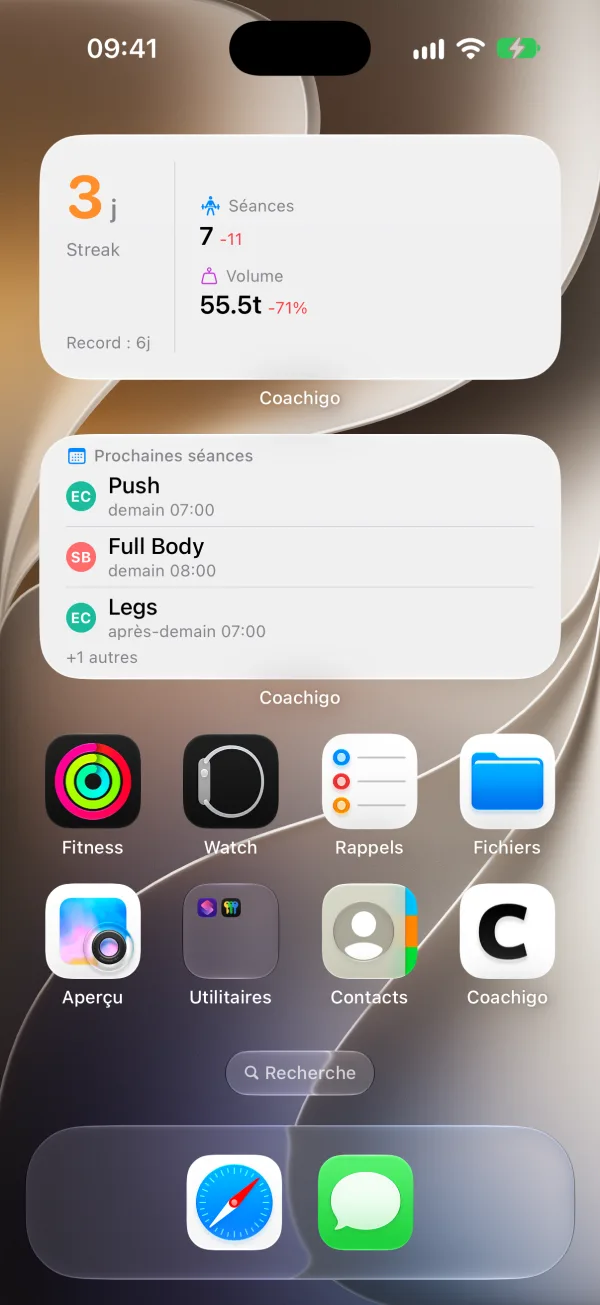
On iPhone, Coachigo offers four Home Screen widgets: your upcoming sessions, your last session, a shortcut to start one and your weekly stats. One glance, no need to open the app.
Add a widget
- On your Home Screen, touch and hold an empty spot until the icons start to jiggle.
- Tap Edit at the top left, then Add Widget (on iOS 17, tap the + button).
- Search for “Coachigo” and tap it.
- Swipe to pick the widget and its size, then tap Add Widget.
- Drag it where you want it and tap Done.
Repeat for each widget you want: they’re added one at a time.
Upcoming sessions (“Prochaines séances”)
Shows the sessions scheduled in your agenda, across all profiles, up to ten.
- Small: the next session, the profile and how soon it starts.
- Medium: the next three sessions, with “+N” more when there are others.
- Large: the next five sessions, with the total count at the top.
With nothing scheduled, it says there are no planned sessions. To fill it, see how to schedule a session.
Last session (“Dernière séance”)
Sums up your most recent finished session.
- Small: its name, the volume lifted and how long ago it was.
- Medium: volume, number of exercises and duration.
Start (“Démarrer”)
A shortcut, small size only. If you have a single profile, it opens a new session for that profile right away. Otherwise it opens Coachigo so you can pick the profile.
Stats (“Statistiques”)
Across all profiles.
- Small: your training streak in days and how many sessions you’ve done this week.
- Medium: your current streak and your best, plus this week’s sessions and volume compared with last week.
iPhone Home Screen only
Widgets need iOS 17 or later. There are no widgets for the Lock Screen, Apple Watch or Android. For now, widget names and some widget text are shown in French, whatever your app language: the French names are in parentheses above.
How widgets stay up to date
Widgets get their data from the app: whenever your sessions change in Coachigo on this iPhone, they refresh. If a widget asks you to open Coachigo, open the app once to send it your data.
FAQ
Can I pick a specific client for a widget?
No, widgets combine all your profiles. The Start widget only targets a profile when you have just one.
My widget doesn’t show my last session
Open Coachigo on this iPhone: the app is what sends the widget its data.
Coachigo doesn’t show up in the widget list
Make sure your iPhone runs iOS 17 or later and Coachigo is installed, then open the app once and try again.