 Coachigo
Weight, measurements and photos
How to share a before and after in Coachigo
Story, portrait or square, side by side or diagonal: create a clean before and after image in Coachigo and send it to your client or post it.
A great transformation deserves to be seen: by the client, to keep them motivated, or on your social media, with their permission. Coachigo puts the two photos together in a ready-to-post image, in the format you choose.
Create the image
On the client’s Body screen, set up the Before / after card first: the pose and the two dates you pick are the ones used in the shared image. See how to compare a before and after.
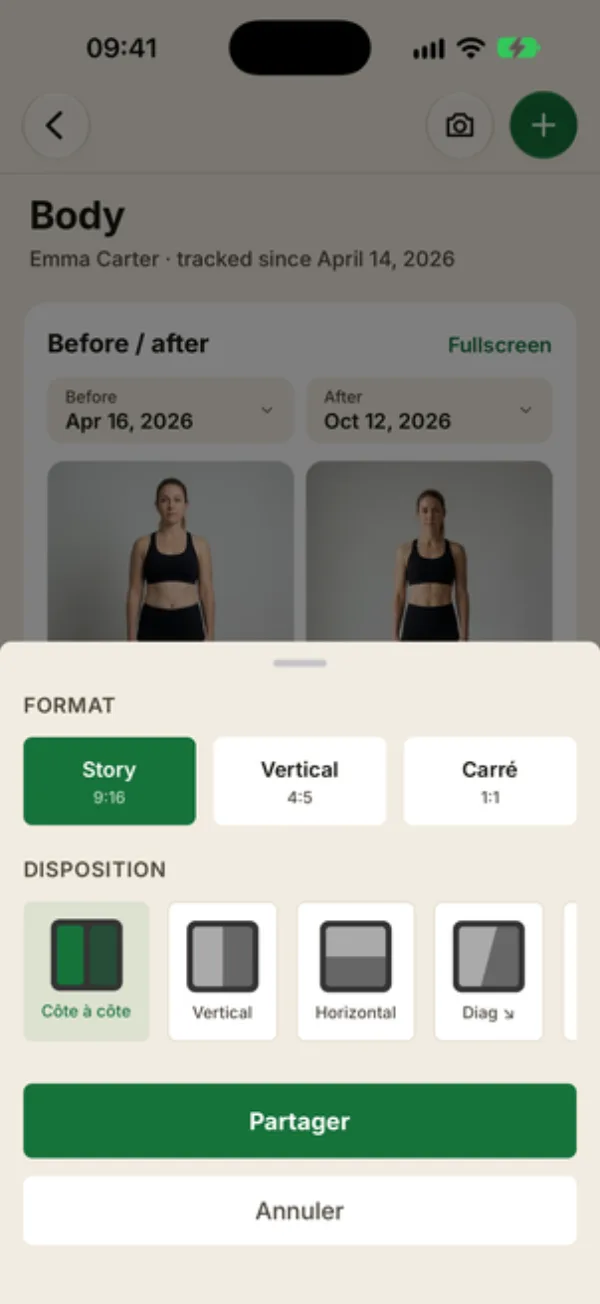
Then tap Share the before / after, below the photos. A sheet opens with two settings. Its labels are in French for now, but the choices are easy to read:
- format: story (9:16, the default) for stories, vertical (4:5) for an Instagram feed post, or square (1:1, labeled “Carré”) for a classic post;
- layout (labeled “Disposition”): side by side (two separate photos, the default), or a single frame split in two: vertical (before on the left, after on the right), horizontal (before on top, after at the bottom), or one of two diagonal cuts.
Tap “Partager” (Share). Coachigo builds a high-resolution PNG, then opens your phone’s share sheet: Messages, your other apps, or saving to your photos. In the web version, the image downloads.
What’s in the image
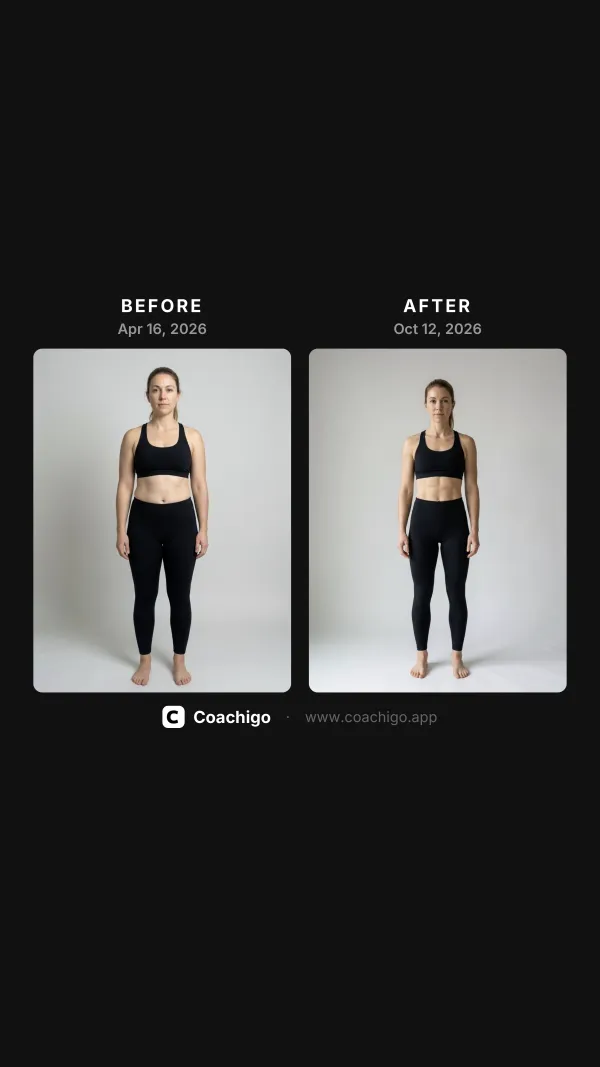
The image shows both photos, each labeled BEFORE or AFTER with its date. At the bottom, the “Coachigo · www.coachigo.app” footer is always there.
It doesn’t include the client’s name or measurements: just the photos and their dates. If you want to mention the numbers (pounds lost, inches off the waist), add them to your message or caption.
Ask your client first
Progress photos are personal. Before posting a before and after, get the client’s permission, ideally in writing, and show them the image. Coachigo doesn’t blur faces or crop photos: pick photos that work, or a back pose if the client would rather not be recognized.
FAQ
Can I remove the Coachigo footer?
No. The “Coachigo · www.coachigo.app” footer appears on every shared image, whatever the format.
Which format works best for Instagram?
Story for a story, vertical (4:5) for a feed post, since it takes up more of the screen than square. For a feed post, the side by side layout is the easiest to read.
I can’t find the share button
It lives in the Before / after card, which needs at least two photos of the same pose. Start by taking progress photos on different dates.