 Coachigo
Your clients
How to read a client profile in Coachigo
Next session, frequency, average duration, readiness, records, program and history: everything a client profile shows in Coachigo, and how it's calculated.
A client profile pulls together everything you need before a session: what’s planned, where your client stands, their latest records and their history. Tap a client in My clients to open it.
Header and next session
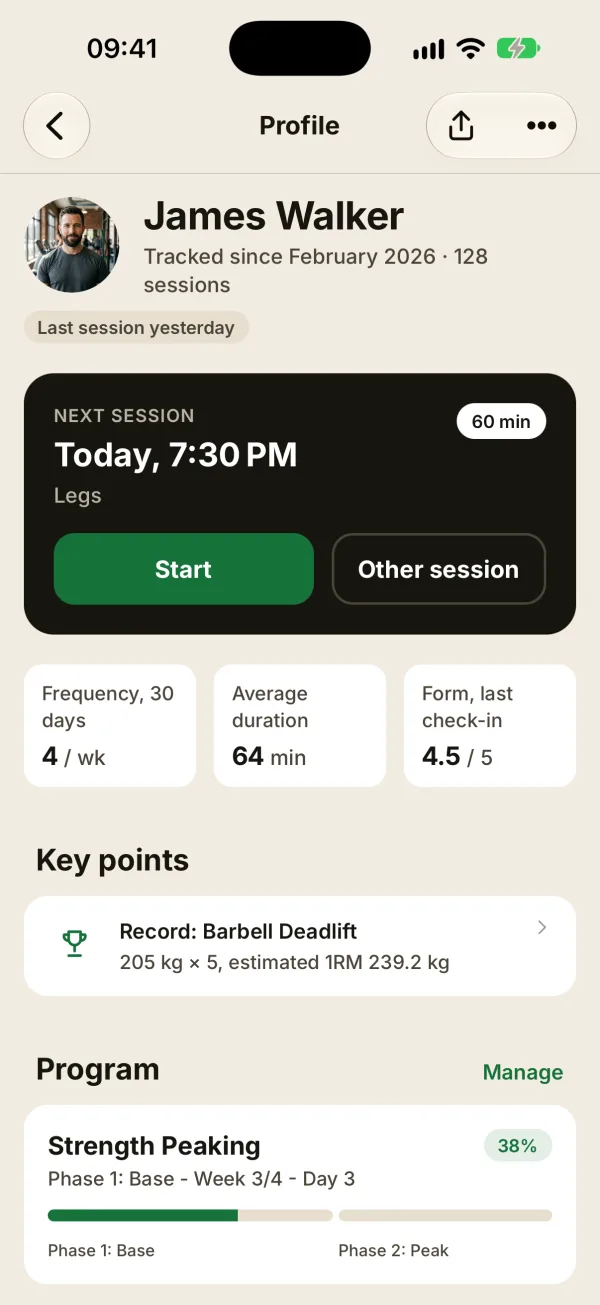
At the top: the client’s name, “Tracked since” (the date their profile was created) and their session count. A tag shows when their last session was, and another one shows if the profile is shared.
The large card shows what’s coming up, in this order:
- Session in progress with Resume session, if a session was started in the last 24 hours;
- several sessions planned today (like “2 sessions today”), each with Start, plus Other session;
- Next session: the next planned session, with Start and Other session;
- the next session in their program, if nothing is planned;
- otherwise No session planned, with New session and Schedule.
Key numbers
- Frequency, 30 days: the average number of sessions per week over the last 30 days.
- Average duration: the average length of their sessions, across their whole history.
- Form, last check-in: the score of their latest readiness check-in, out of 5. The label switches to Form, today’s check-in when it’s from today.
Key points
This block highlights what deserves your attention:
- Record: their latest estimated 1RM record on a weighted exercise, if it was set in the last 30 days;
- Plateau: an exercise with no new record in at least 3 weeks, or whose average 1RM is dropping. Coachigo needs at least 6 sessions with that exercise over 8 weeks, including recent ones, to spot one.
Tap a row to open that exercise’s stats.
Program, sessions and measurements
- Program: the current program, its progress percentage and its phases. Manage opens its tracking.
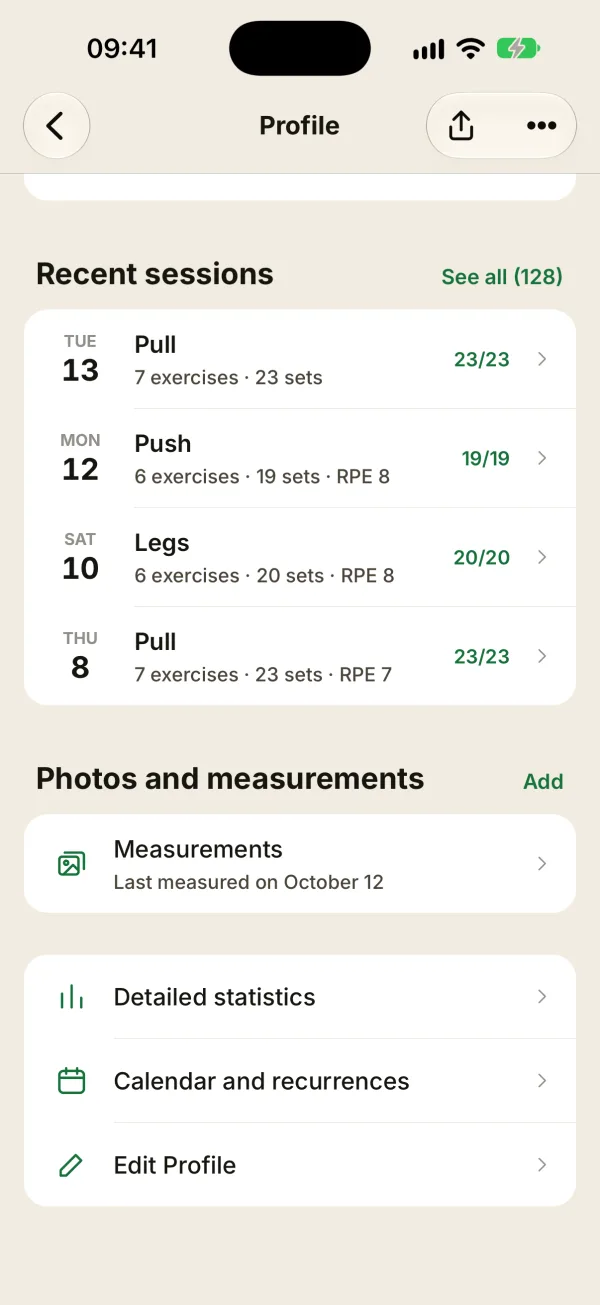
- Recent sessions: the 4 latest. See all opens the full history.
- Photos and measurements: the latest measurement and before/after photos. Add logs a measurement or photos.
At the bottom, the links: Detailed statistics, Create a report (see how to create a client PDF report, with Coachigo PRO), Calendar and recurrences and Edit profile.
FAQ
Why is a new client’s profile almost empty?
Numbers, records and history fill in with the first sessions. A brand-new profile offers New session and Assign a program to get started.
Is the record on the profile the same as in a session summary?
Not always. The profile shows the latest estimated 1RM record set in the last 30 days, even for an exercise done for the first time. A session summary only flags a record when the session beats earlier ones.
What’s the share button at the top for?
It opens Share Profile, to give your client a code that links them to their profile. The button only shows up if you own the profile.