 Coachigo
Workout templates
How to duplicate or delete a template in Coachigo
Make a variation of a template without starting over, or clear out the ones you no longer use, knowing exactly what it changes for your programs.
A beginner version of your Push session, a no-barbell variant for a client’s home gym: the quickest way is to duplicate the existing template and tweak it. And when a template has run its course, you can delete it.
Find the actions
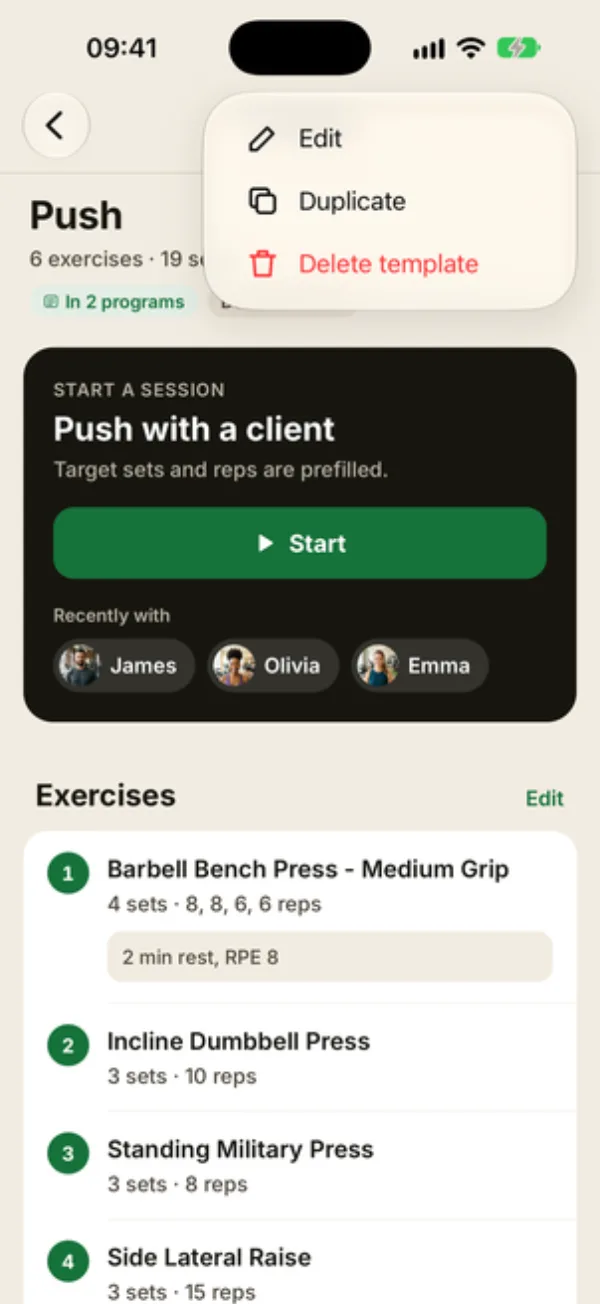
In the Sessions tab, open the template. The header shows its exercise and set counts, how many programs use it (“In 2 programs”) and how often it’s been run (“Done 65 times”).
Tap … at the top right for Edit, Duplicate and Delete template. The last two are also at the very bottom of the screen.
Duplicate a template
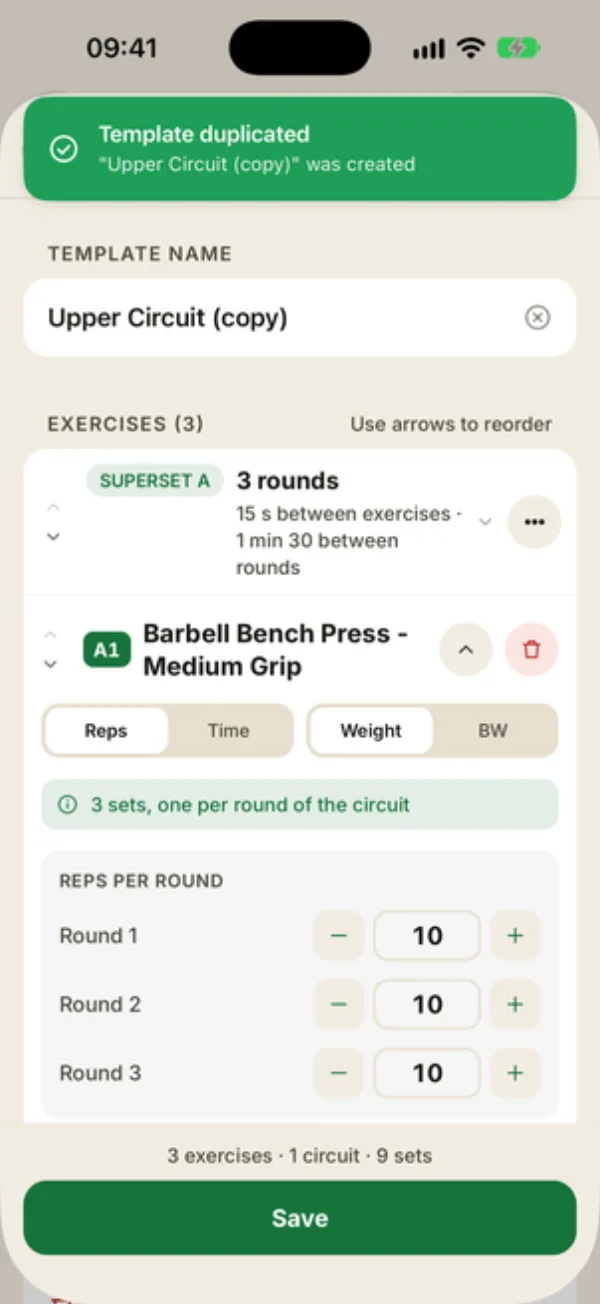
Tap Duplicate. Coachigo creates a copy called “Push (copy)” right away, with the same exercises, sets, rest, notes and circuits, and opens it for editing.
Rename it, adjust what you need, then tap Save. If you leave that screen without saving (with Cancel, for example), the copy still stays in your list, so delete it if you don’t want it.
Delete a template
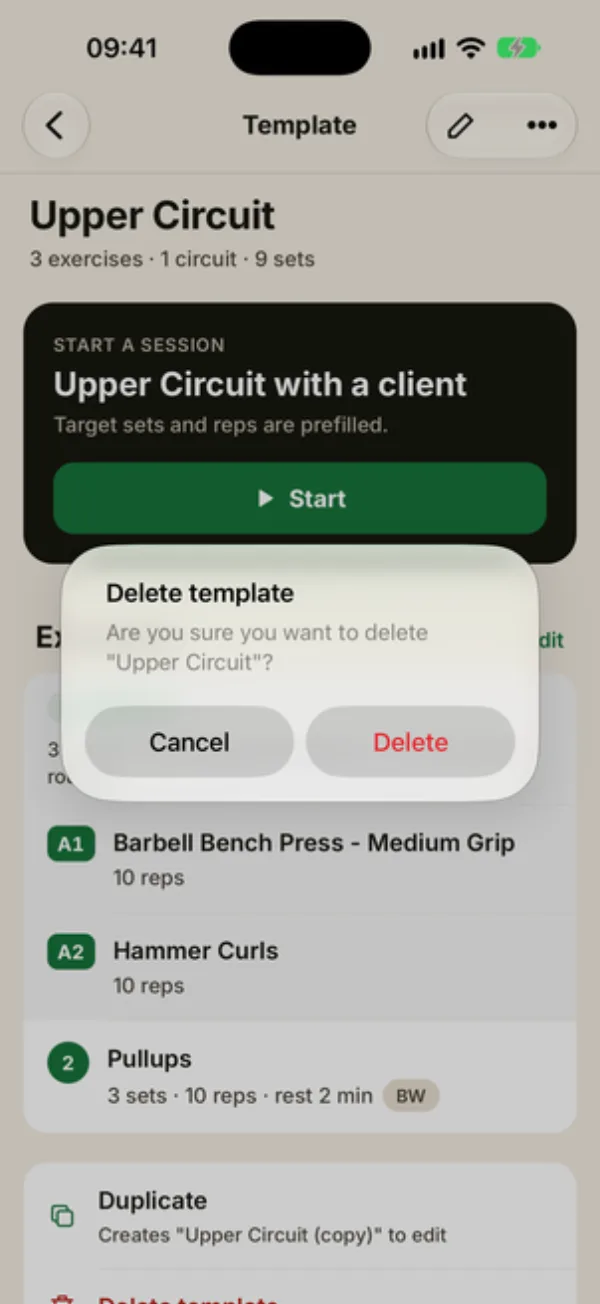
Tap Delete template, then confirm with Delete. It’s removed from the list.
If a program uses it, the message names those programs: the days that relied on it will no longer have a session. Confirm with Delete anyway, or cancel and swap it out in those programs first.
There's no undo
A deleted template can’t be recovered. Sessions already run with it stay in your clients’ history.
FAQ
Is the copy linked to the original?
No. The two templates are independent: editing one doesn’t change the other.
Does editing a template change past sessions?
No, history stays put. Programs using it, though, pick up the new version for upcoming sessions.
Can I share a template with another coach?
Not directly: templates stay in your account. In the Account tab, Export clients and sessions creates a file with the clients you pick, their sessions and the templates used by those sessions or by their programs. The other coach opens it with Import a file and gets those templates, but not the programs, which aren’t recreated on import. A template that isn’t part of their sessions or programs isn’t included. See How to export and import your Coachigo data.