 Coachigo
Programs
How to duplicate a program in Coachigo
Start from an existing program to build a variation without rebuilding it, or delete the ones you no longer use: what the copy keeps and what it leaves behind.
A beginner version of your strength program, an 8-week block cut from a 12-week one: duplicate the existing program, then tweak the copy. Clients already on the original aren’t affected.
Duplicate
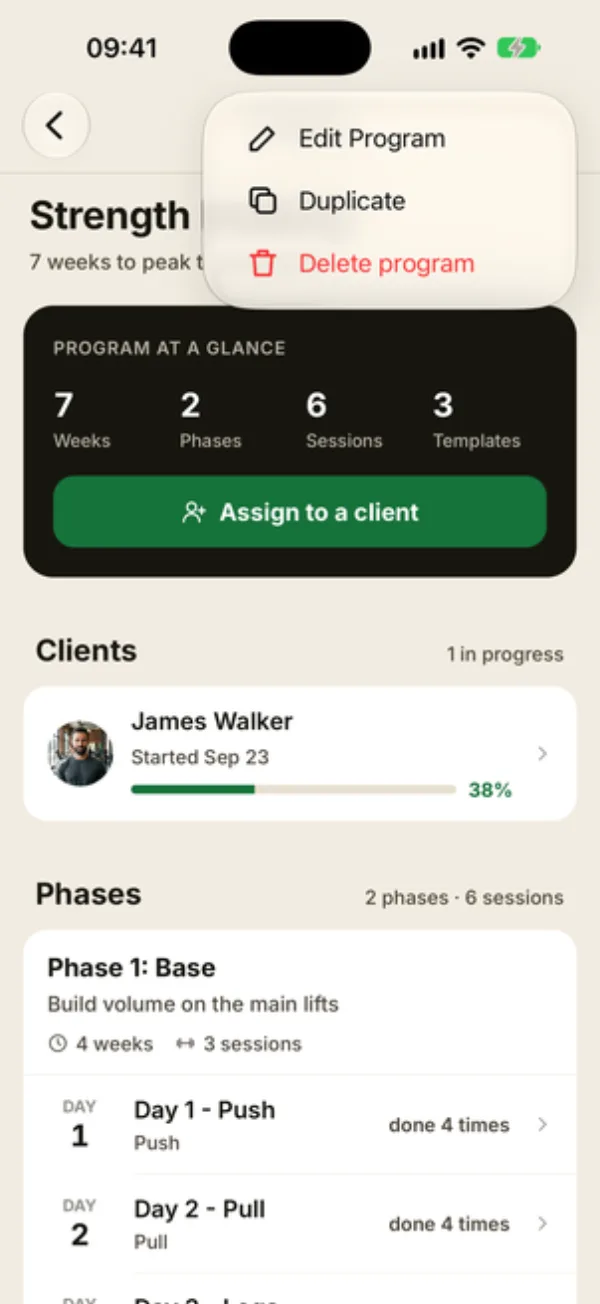
Open the program, tap … at the top right, then Duplicate.
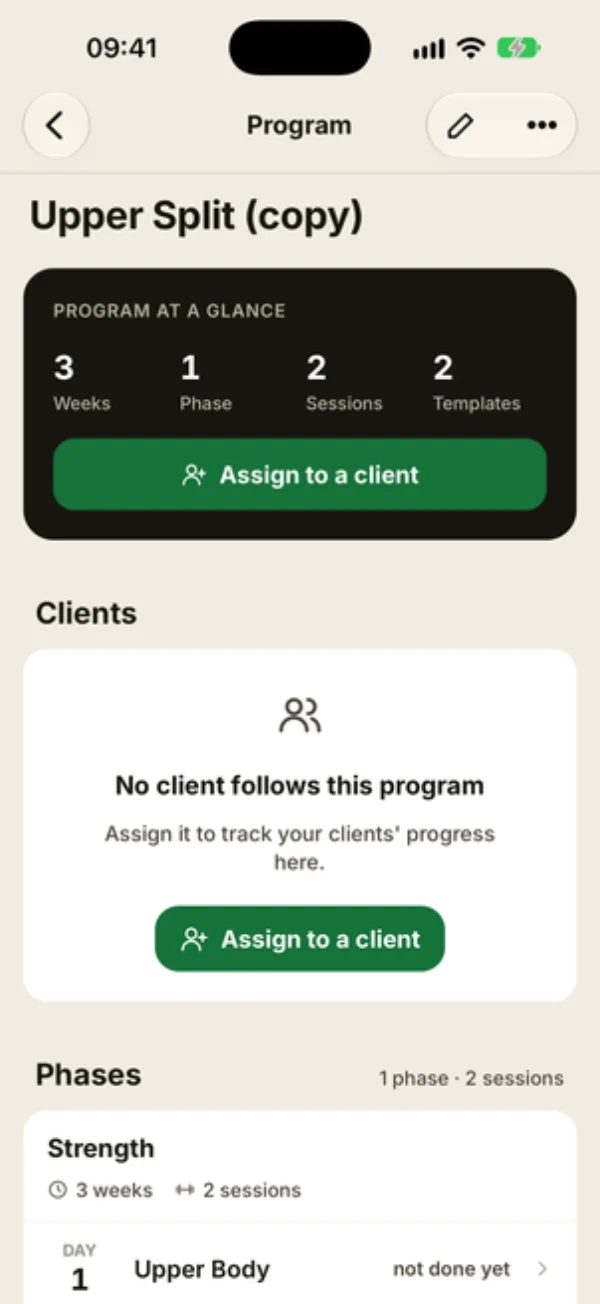
Coachigo creates a copy ending in “(copy)” right away, shows “Program duplicated” and opens it. It keeps the description, every phase, their durations and their sessions, including labels and minimum rest.
Tweak the copy
Nobody follows the copy yet: history and assignments stay on the original. Tap the pencil to rename and edit it, then assign it to the right clients.
Delete a program
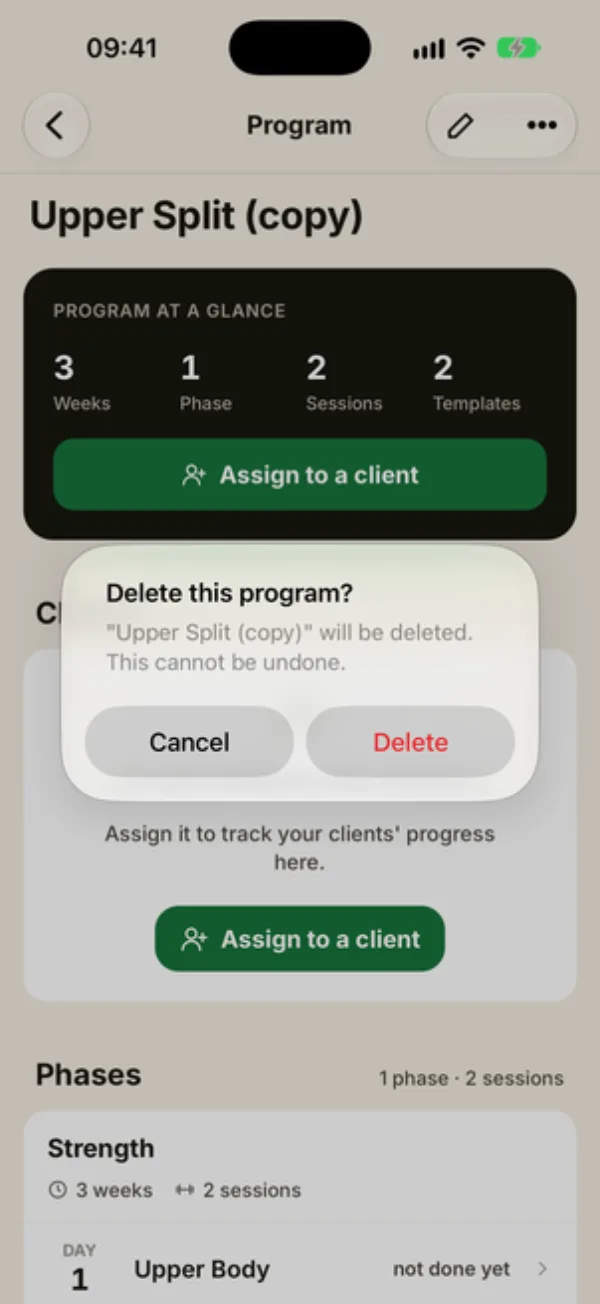
Tap … then Delete program, and confirm with Delete. If clients are following it right now, the message says how many.
The program disappears from the list and from your clients’ profiles, along with their progress, including under Previous programs. Sessions already done stay in their history.
A Coachigo PRO feature
Duplicating is part of Coachigo PRO. Without a subscription, the menu shows “Coachigo PRO” under Duplicate, which opens the PRO page. Creating, editing and assigning programs stay free.
FAQ
Does editing the copy change the original?
No, the two programs are independent.
Can I restart a client from scratch on the same program?
Assign it to them again and they start back at Day 1 of the first phase. If the old assignment is still active, abandon it from their progress screen first, or they’ll be following the program twice in parallel.
Is deleting permanent?
Yes. If you only want to stop one client, abandon the program from their progress screen instead: their progress is kept.