 Coachigo
iPhone and Apple Watch
How to connect Apple Health to Coachigo
Save your workouts to Apple Health and get heart rate and calories back in Coachigo: turning it on, choosing linked profiles and disconnecting.
On iPhone, Coachigo can save every session to Apple Health and pull in the heart rate and calories recorded by your Apple Watch or another device while you train. Those numbers then show up in the session details.
Turn on Apple Health
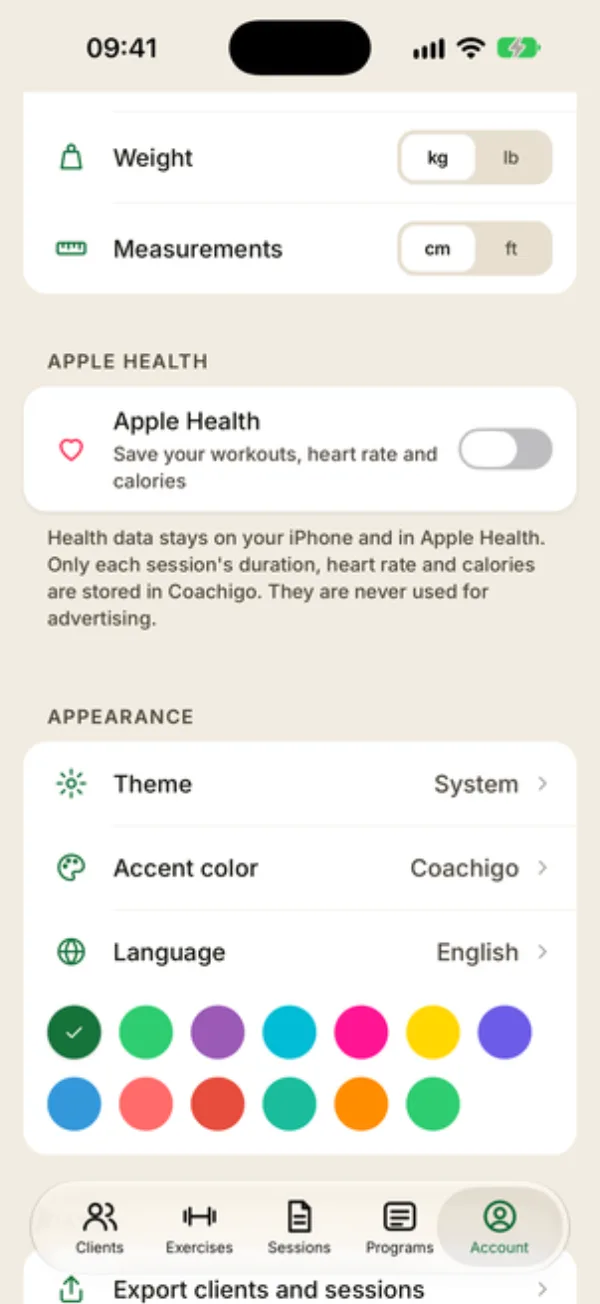
Open the Account tab, scroll down to the APPLE HEALTH section and turn on the Apple Health switch.
The Connect Apple Health prompt sums up what Coachigo will do. Tap Continue, then pick the data you allow in Apple’s sheet.
If you train on your own with a single profile, it’s linked right away and Coachigo shows “Apple Health connected”.
Choose linked profiles
Otherwise, if no profile is linked yet, the Health linked profiles screen opens, with one switch per profile. Measurements come from your iPhone and your Apple Watch, so only link profiles where you’re the one wearing the watch. If you coach clients, leave their profiles unlinked, or your own heart rate would end up in their sessions.
You can come back to this screen anytime from the Linked profiles row, which appears in the section once Health is on, along with Open the Health app.
What gets saved
Coachigo asks for read and write access to three data types: workouts, heart rate and active energy. Nothing else: no body weight, steps or sleep.
When you tap Finish session on a linked profile, the session is saved to Apple Health as a workout, then Coachigo reads the heart rate and active calories recorded during it. Sessions shorter than a minute or longer than 6 hours aren’t saved, and editing a finished session doesn’t send anything to Health.
Where to see the numbers
Open the finished session from the history. The APPLE HEALTH section shows the duration, Avg HR, Max HR, kcal, a Heart rate chart (each dot marks a completed set) and the source, Apple Watch or iPhone. See also how to read a session summary.
During the session, if your watch is sending your heart rate, you’ll also see it live on the iPhone.
iPhone only
The APPLE HEALTH section only exists on iPhone: there’s nothing on Android or the web. The setting is stored on each iPhone, so turn it back on when you switch phones.
Disconnect Apple Health
Turn off the Apple Health switch and Coachigo stops saving anything. Sessions already sent stay in Health, and their numbers stay in Coachigo.
The switch doesn’t remove the permission you gave iOS. To revoke it, go to the iPhone’s Health settings, under Data Access & Devices, then Coachigo.
FAQ
“Access denied” shows under Apple Health
You declined access in Apple’s sheet. Allow Coachigo in the Health app or in the iPhone’s Health settings.
Do I need an Apple Watch?
No. Without a watch, the iPhone saves the session and picks up heart rate from another device if one recorded it during the session. With a watch, the watch records the workout itself: see how to use Coachigo on Apple Watch.
Who can see these numbers?
They’re stored with the session. If the profile is shared, the people it’s shared with see them too, Android users included.