 Coachigo
Weight, measurements and photos
How to compare a before and after in Coachigo
Pick two dates and a pose, then drag the fullscreen slider: Coachigo puts your clients' progress photos side by side.
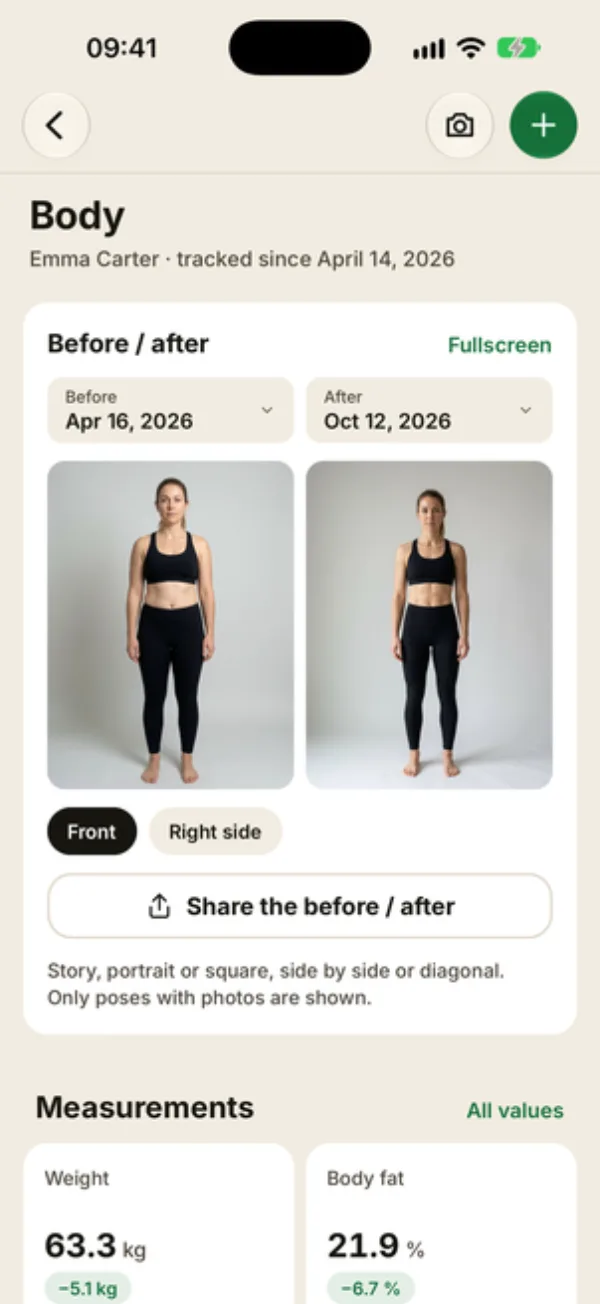
Day to day, clients rarely notice their own progress. Putting two photos of the same pose side by side, a few months apart, makes the change obvious. In Coachigo, the comparison sits at the top of the Body screen, with nothing to set up.
Pick the photos to compare
Open the client’s profile and tap the row in the Photos and measurements section: the Body screen opens with the Before / after card right at the top.
You need at least two photos of the same pose. By default, Coachigo compares the oldest and the most recent:
- tap Before or After to pick another date: the Before photo or After photo sheet lists that pose’s photos with their dates;
- tap a pose chip (Front, Right side…) to switch poses. Only poses with photos are shown.
The two photos appear side by side, and their dates stay visible in the Before and After buttons.
Compare in fullscreen
Tap Fullscreen, or just tap either photo. The two photos stack across the whole screen: before on top, after at the bottom, split by a slider. Drag it up or down to reveal one photo or the other, section by section. It’s the most convincing way to show a waist getting smaller or shoulders getting broader.
Tap the X at the top right to go back to the Body screen.
For a fair comparison
The slider doesn’t lie: a step back or different lighting shows up right away. Take photos in the same spot at the same distance, using the previous photo shown as an overlay. See how to take progress photos.
To send the comparison to your client or post it, see how to share a before and after.
FAQ
The card says “You need at least 2 photos with the same pose to compare”
The client doesn’t have two photos of the same pose yet. One front set and one side set aren’t enough: add a front photo on another date.
Can I see the weight change between the two dates?
The comparison only shows photos. Right below it, the Measurements tiles show how each value has changed since its first measurement, and Measurement history lists values date by date. See how to log weight and body measurements.
Can my client see this comparison?
Yes, if they follow their shared profile in the app: they get the same Body screen, with your photos and theirs.