 Coachigo
Your clients
How to add a client in Coachigo
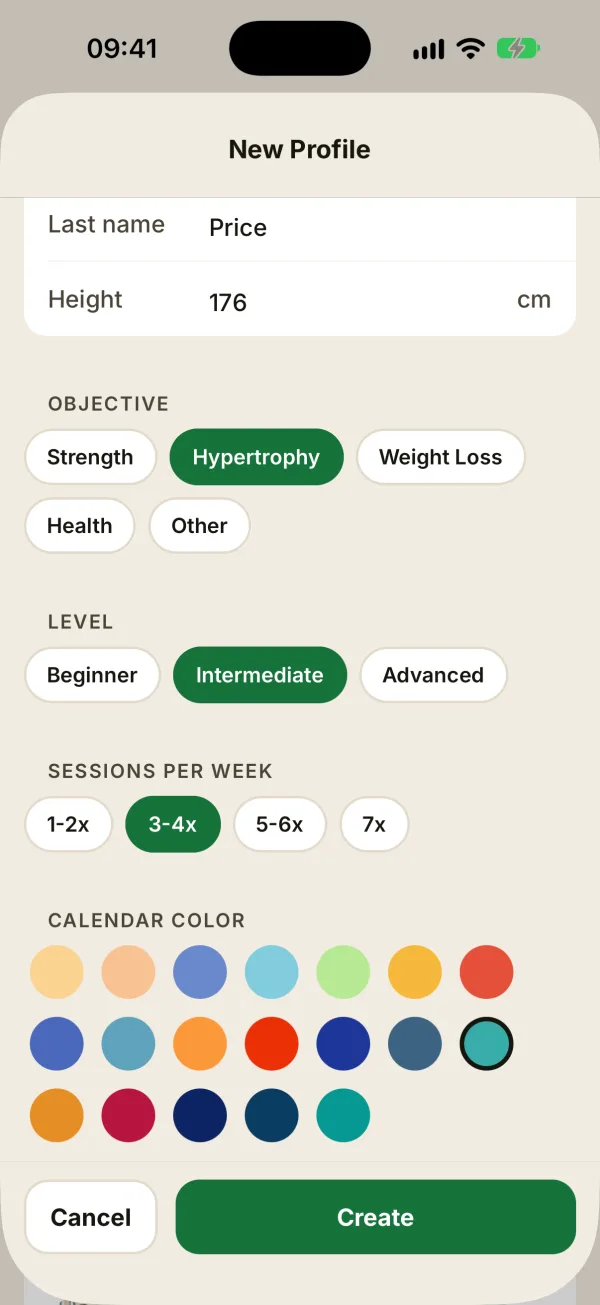
Set up a new client in seconds: first name, goal, level, weekly frequency and calendar color. Everything you need to get started on the right foot.
Every client gets their own profile in Coachigo: their sessions, records, program and measurements. Creating one takes a few seconds, and only the first name is required.
Create the profile
On the My clients screen, tap the + button at the top right, then New client. The New profile form opens.
- Photo: tap the circle at the top to pick a photo from your library (on iPhone, you can also take one). Without a photo, their initials show instead.
- First name: the only required field.
- Last name and Height: optional. Height shows in cm or inches depending on your unit settings.
- Objective: Strength, Hypertrophy, Weight Loss, Health or Other.
- Level: Beginner, Intermediate or Advanced.
- Sessions per week: from 1-2x to 7x.
- Calendar color: the color of their initials circle when they have no photo, in the list, on their profile and in the agenda. If you don’t pick one, the circle uses a light tint of your accent color.
Objective, level and frequency are optional: tap a selected option again to clear it. Tap Create to save.
Find your new client
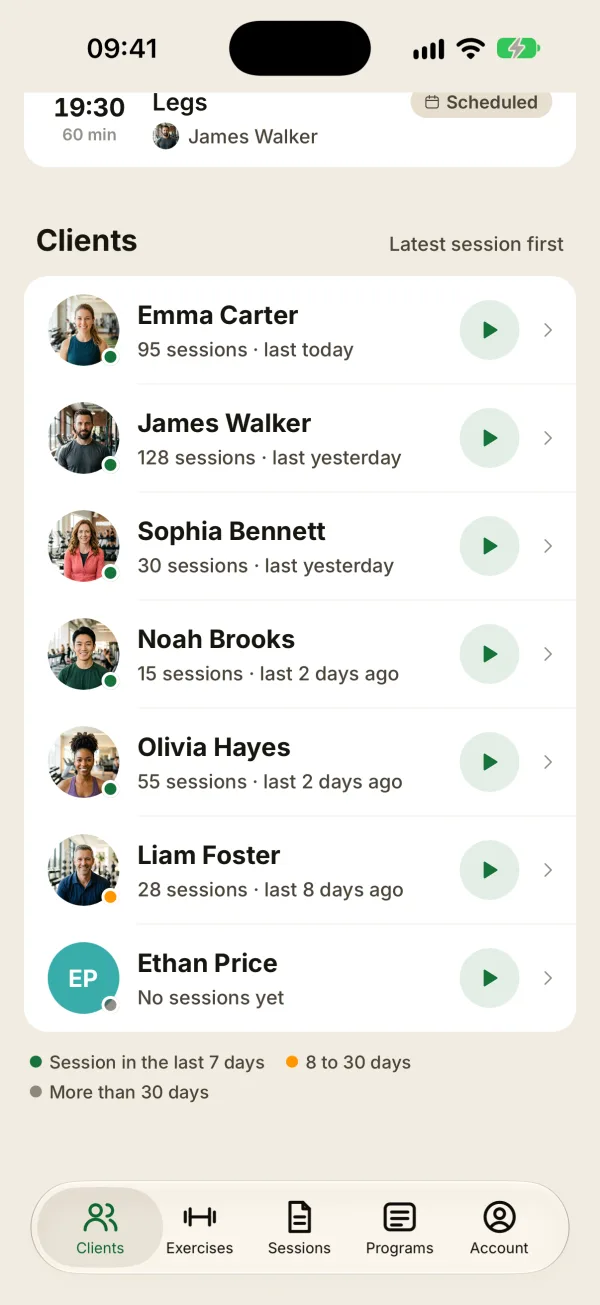
You’re taken back to My clients, and the count at the top goes up by one. Since the list is sorted by latest session, a client with no sessions shows up at the very bottom, marked No sessions yet.
Tap them to open their profile: from there you can start their first session or assign a program.
Free or PRO
On the free plan, you can create one profile. To coach several clients, upgrade to Coachigo PRO for unlimited clients. Once you hit the limit, New client opens the Coachigo PRO page. Profiles you joined with a code don’t count toward that limit.
FAQ
I don’t see the “My clients” screen
Your app is in personal mode: the first tab is called Home and shows your own profile. Open the Account tab and turn on Coach mode under Usage: the screen becomes My clients and you can add as many clients as your plan allows.
My client already uses Coachigo on their own
Then don’t create a duplicate: ask them for their profile code and join it from + then Join a profile.
Can I change these details later?
Yes, everything can be edited from their profile with Edit profile.